Canva Templates for Online Challenge Promos
Canva Templates for Online Challenge Promos can help creators, coaches, SaaS teams, educators, and event hosts create polished graphics without opening a blank design file every time. When your brand needs to promote, teach, onboard, or sell, a ready-made Canva template system gives you speed, consistency, and a more professional first impression. The goal is not only to make something pretty. The real goal is to create a repeatable visual workflow that supports registration, reminder, live-session engagement, and replay promotion.
This guide is written for SenseCentral readers who compare tools, templates, and digital product resources before choosing what to use. You will learn what a practical online challenge promos template pack should include, which Canva sizes are useful, how to structure a mini bundle, how to customize designs for a brand, and where to place affiliate-friendly calls to action without making the post feel spammy. The ideas below work for bloggers, creators, educators, small businesses, agencies, and service providers who want attractive graphics that also support measurable business goals such as registrations, show-up rate, replay clicks, early-bird conversions, and waitlist sign-ups.
Why Online Challenge Promos Templates Matter
A strong template pack saves more than design time. It also protects the message. Many small businesses lose conversions because every graphic looks like it came from a different brand: one post uses a random font, another uses a different color palette, and the sales page hero looks unrelated to the email banner. Canva templates solve this by giving you a consistent layout system. You can duplicate the same core design, swap the headline, change the photo, update the CTA, and publish a new asset in minutes.
For online challenge promos, the visual job is to make the next step obvious. The reader should instantly understand who the offer is for, what they will get, when they should act, and why it matters now. A good template supports the brand voice with the right typography, enough white space, helpful icons, and a CTA such as Reserve your seat. It should also be flexible enough to work across Instagram, LinkedIn, email headers, landing pages, webinar slides, Pinterest pins, and retargeting graphics without redesigning from scratch.
The best templates combine beauty with utility. A beautiful design may earn attention, but a useful design earns action. For example, a template for online challenge promos might include a headline area, a short benefit statement, a date or deadline block, a small proof element, and a button-style CTA. When these parts are already built into the layout, the creator can focus on strategy instead of pixel-level formatting. This is especially useful for people who publish often, run campaigns, teach online, or manage multiple clients.
What to Include in a High-Value Canva Template Pack
A high-value template pack should feel like a complete campaign kit, not a single isolated graphic. Buyers usually prefer a bundle because it helps them finish an entire workflow. When planning online challenge promos, think in sequences: first announcement, education post, trust-building post, reminder post, conversion post, and follow-up post. This sequence gives the user a ready-made path from awareness to action.
Recommended template elements
- Brand cover: a polished cover page or hero image that visually explains the purpose of the pack.
- Core promotion graphic: the main social or website graphic that introduces the offer, event, service, or learning resource.
- Carousel or multi-page design: a storytelling format for explaining benefits, steps, objections, results, or FAQs.
- Email and newsletter header: a reusable banner for launch emails, onboarding emails, reminders, or educational sequences.
- Worksheet, checklist, or handout: a printable or PDF asset that adds practical value and encourages downloads.
- CTA graphic: a simple design that pushes one clear action, such as registration, booking, purchase, waitlist signup, or community participation.
For this specific topic, consider adding the following specialized pieces:
- Brand-Consistent Social Posts: use this element to make the template pack more specific, practical, and less generic.
- Lead Magnet Pages: use this element to make the template pack more specific, practical, and less generic.
- Carousel Lessons: use this element to make the template pack more specific, practical, and less generic.
- Cta Graphics: use this element to make the template pack more specific, practical, and less generic.
The difference between a basic template and a premium template is context. A basic template says, “Edit this design.” A premium template says, “Here is the design system you need for a real business workflow.” When you describe or review templates on SenseCentral, highlight not only the visual style but also the use case, skill level, export options, and whether the pack includes copy prompts or instructions.
Best Canva Formats and Sizes
Different platforms reward different formats. A square post is useful for feeds, a vertical design is better for mobile stories, and a PDF layout is better for worksheets or guides. The table below gives practical options you can include in a Canva template bundle for online challenge promos.
| Template Format | Suggested Size | Best Use |
|---|---|---|
| Square social post | 1080 x 1080 px | General feed promotion |
| Vertical story/reel cover | 1080 x 1920 px | Stories, reels, shorts, and quick reminders |
| Pinterest pin | 1000 x 1500 px | Long-life visual discovery traffic |
| Email header | 1200 x 600 px | Newsletter, launch, reminder, or onboarding email |
| Lead magnet cover | A4 / US Letter / 1600 x 2000 px | Workbook, checklist, guide, or downloadable resource |
When building or buying templates, look for editable text boxes, grouped sections, clearly labeled pages, and room for longer headlines. A template with tiny text might look beautiful in a preview but fail on mobile. Use readable font sizes, strong contrast, and simple copy. Canva makes it easy to duplicate pages, resize designs, add brand colors, and export graphics for different channels, so a strong source file can become an entire content system.
Example Canva Template Bundle Structure
The following table shows how a complete bundle for online challenge promos can be organized. This structure is useful for product creators who sell Canva templates, bloggers reviewing template packs, and business owners who want to brief a designer.
| Bundle Section | What to Include |
|---|---|
| Announcement set | Main promo, speaker teaser, topic teaser, and registration reminder |
| Urgency set | Countdown, early-bird deadline, last-call, and replay-expiring graphics |
| Live event set | Agenda, session intro, Q&A slide, worksheet cover, and certificate |
| Follow-up set | Replay announcement, testimonial quote, bonus reminder, and next-offer CTA |
A practical bundle should also include a quick-start PDF. Many buyers are not designers. They need simple instructions: how to open the Canva template link, duplicate the design, change colors, replace photos, edit text, export as PNG or PDF, and save a brand version. A small instruction file can reduce refund requests and make the product feel more professional.
Design Style Tips for Better Conversions
The style of online challenge promos should match the promise. If the topic is financial, legal, HR, or professional services, use trust-building colors, clean typography, and minimal decorations. If the topic is a challenge, community, membership, or online summit, use more energetic layouts, countdown shapes, badges, and friendly faces. If the topic is course or coaching related, use clear hierarchy, progress indicators, lesson numbers, and calm educational spacing.
Use one main font for headings, one readable font for body text, and a limited palette of three to five brand colors. Keep CTA buttons consistent across graphics. Use the same button shape, color, and wording so users recognize the action. For example, use “Join Now,” “Register Free,” “Download the Guide,” or “Book a Call” consistently instead of changing CTA wording on every page. Consistency builds trust because the reader does not have to relearn the design each time.
How to Customize These Canva Templates
- Start with the campaign goal. Decide whether the graphic should drive a registration, download, booking, sale, reply, or community comment.
- Replace placeholder copy with outcome-focused copy. Instead of saying “New webinar,” say what the audience will learn or achieve.
- Add brand colors and fonts. Save a version that matches your website, email footer, and social media profile.
- Use real proof where possible. Add testimonials, student results, client quotes, or short data points when they are accurate and allowed.
- Export for each platform. Save PNG for social posts, PDF for printable guides, and compressed images for website use.
- Create a naming system. Name files by campaign, platform, date, and version so the team can find the correct graphic later.
For the best results, prepare a small brand kit before editing. Add logo files, preferred colors, approved fonts, brand voice notes, and a folder of product screenshots or lifestyle images. This prevents the common mistake of making every template look good individually but inconsistent as a full campaign. A brand kit is especially important for online challenge promos because the same design may appear in several places before a buyer or student finally takes action.
Comparison: Single Templates vs Full Canva Systems
| Option | Pros | Cons | Best For |
|---|---|---|---|
| Single Canva template | Fast, affordable, easy to edit | Limited campaign depth and fewer matching assets | One-time announcements or quick experiments |
| Mini template pack | Better consistency across 5–10 assets | May still miss worksheets, emails, or slide formats | Small launches and weekly content planning |
| Full Canva system | Complete brand workflow with promotion, delivery, and follow-up assets | Takes more setup time and may cost more | Serious creators, agencies, schools, consultants, and membership owners |
If you are reviewing templates on SenseCentral, this comparison helps readers choose based on their need. Beginners may only need a mini pack. A course creator with a live launch, email list, social campaign, and student onboarding workflow may benefit from a complete template system. The more moving parts a campaign has, the more value a coordinated Canva system provides.
Useful Resources for Creators and Online Businesses
Build and Sell with Teachable
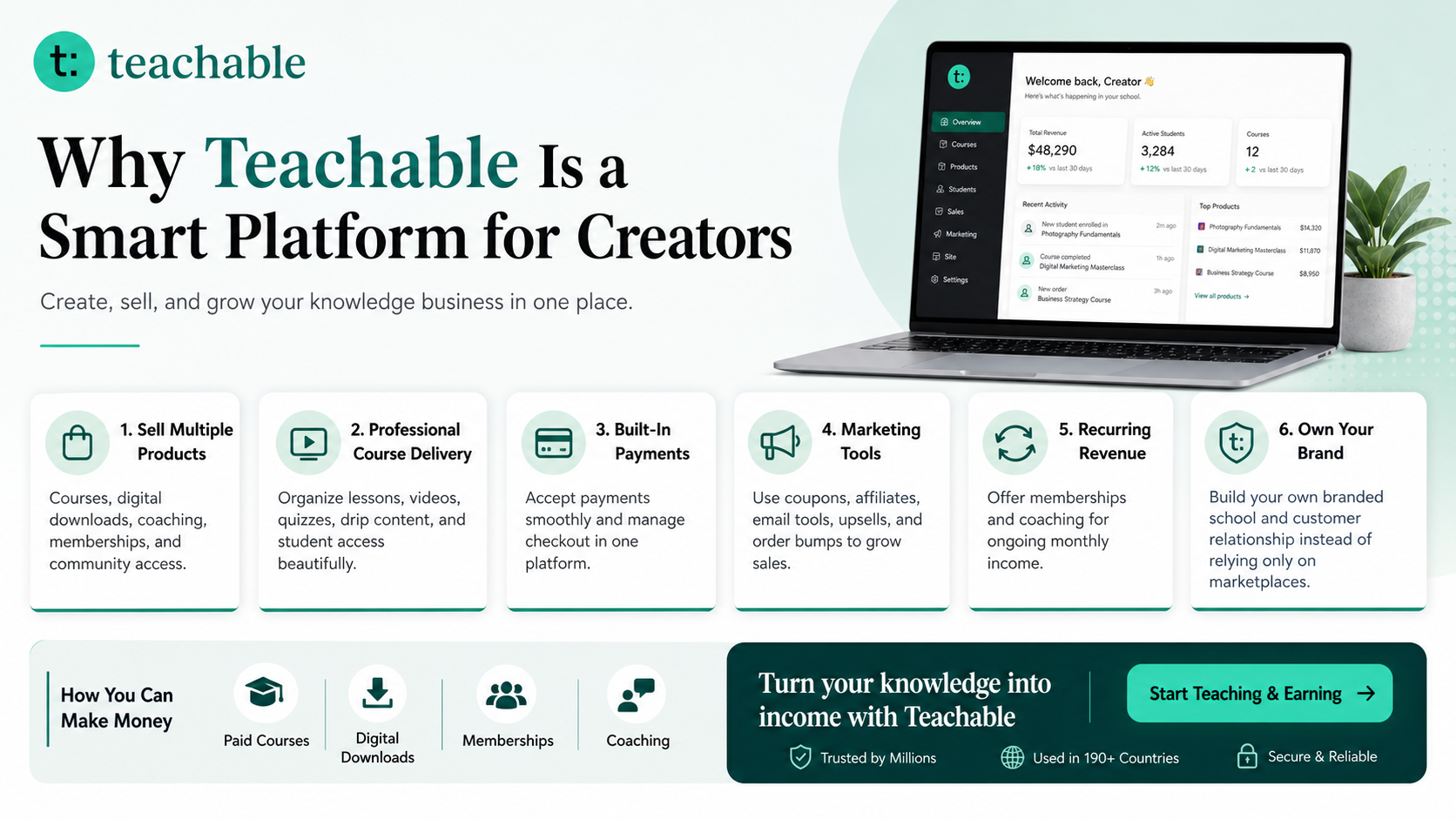
Teachable is an online platform that lets creators build, market, and sell courses, digital downloads, coaching, and memberships. It helps educators and entrepreneurs turn their knowledge into a branded digital business without needing complex coding.
How to Make Money with Teachable: A Complete Creator’s Guide
Explore Our Powerful Digital Products Bundle
Browse these high-value bundles for website creators, developers, designers, startups, content creators, and digital product sellers. These bundles can support mockups, templates, content creation, product listing visuals, and creative workflows.
Zee Sharp Productivity Tools Hub
Zee Sharp is a growing suite of free online tools for productivity, development, and creativity. No sign-up. No watermarks. Just tools. It is useful when you need quick utilities while planning, writing, resizing, formatting, or organizing campaign content.
Common Mistakes to Avoid
- Using too many fonts: More than two or three fonts can make the graphic look messy and less trustworthy.
- Designing only for desktop: Most people view posts and landing pages on mobile, so test readability on a phone-sized screen.
- Skipping the CTA: Every design should make the next action clear, even if the action is simply “save this post.”
- Overloading the graphic with text: Use the design for the main promise and put details in the caption, email, or landing page.
- Forgetting accessibility: Use strong contrast, readable font sizes, descriptive alt text, and avoid placing important text over busy images.
- Not creating a reusable system: A one-off graphic may help today, but a coordinated template set saves time every week.
Quick Buyer Checklist
Before buying or downloading online challenge promos templates, check whether the files include editable Canva links, clear license terms, export instructions, matching sizes, organized pages, font guidance, brand color notes, and examples of finished designs. If you plan to use them commercially, read the license carefully. If you sell templates yourself, include a simple customer guide and avoid using copyrighted assets in ways that violate Canva or marketplace rules.
FAQs About Canva Templates for Online Challenge Promos
Are Canva templates good enough for professional campaigns?
Yes, Canva templates can work well for professional campaigns when they are edited carefully. The key is to use consistent branding, strong copy, readable layouts, and correct export sizes. For serious campaigns, treat the template as a starting framework rather than a finished message.
What should I edit first in a template?
Edit the headline, CTA, brand colors, and image placeholders first. These four areas usually have the biggest impact on whether the design feels relevant to your business. After that, adjust spacing, icons, proof elements, and footer details.
Can I use these templates for affiliate marketing?
Yes, but your affiliate content should be honest and useful. Include clear disclosures, explain who the product is for, and avoid exaggerated claims. A template can make an affiliate section look polished, but the recommendation should still help the reader make a better decision.
What file formats should I export from Canva?
Use PNG or JPG for social media and website graphics, PDF for worksheets and printables, and MP4 or GIF for animated assets when the platform supports them. Always compress large website images so pages load quickly.
How many templates should a good pack include?
A small pack may include 5 to 10 templates. A stronger commercial pack may include 25 to 100+ pages across social posts, stories, carousels, headers, worksheets, and presentation slides. The right number depends on the campaign complexity and buyer skill level.
How can I make my Canva templates look less generic?
Use brand-specific colors, custom copy, real images, proof points, and layouts that match the audience. Also remove unnecessary decorative elements. A clean, specific template usually looks more premium than a crowded design with random shapes.
Key Takeaways
- Canva Templates for Online Challenge Promos should support a complete workflow, not just a single attractive graphic.
- Use a consistent brand kit, clear CTA, readable mobile-first layout, and export sizes for each channel.
- Bundle social posts, carousels, email headers, PDFs, worksheets, and landing-page visuals for higher value.
- Include affiliate and resource blocks naturally where they help creators choose tools or monetize content.
- For SenseCentral reviews, compare ease of editing, license terms, included formats, buyer skill level, and campaign usefulness.
Internal Links and Further Reading on SenseCentral
- Canva Templates for Webinar Promotion Graphics
- Canva Templates for Online Summit Speakers
- Canva Templates for Digital Conference Schedules
- How to Make Money with Teachable: A Complete Creator’s Guide
- SenseCentral Blog Index