History:
· The first version of HTML was created using the Standard Generalized Mark up Language (SGML).
· In the early years of HTML, Web developers were free to define and modify HTML in whatever ways they thought best.
· Competing browsers introduced some differences in the language. The changes were called extensions.
· A group of Web developers, programmers, and authors called the World Wide Web Consortium, or the WC3, created a set of standards or specifications that all browser manufacturers were to follow.
· The WC3has no enforcement power.
· The recommendations of the WC3are usually followed since a uniform approach to Web page creation is beneficial to everyone.
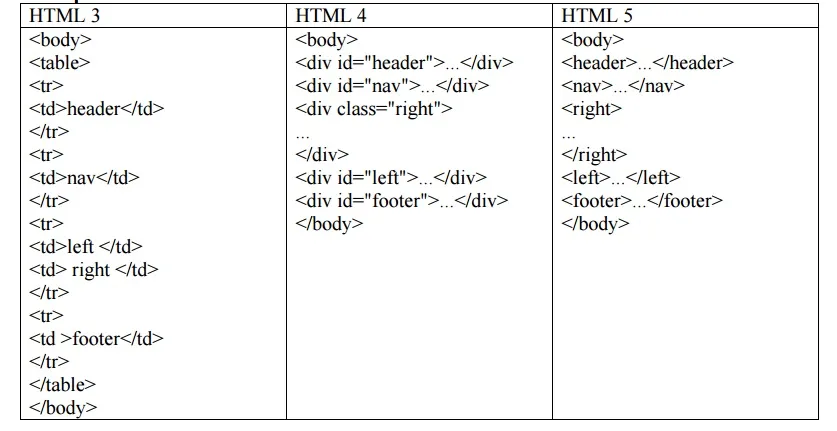
Comparison of HTML versions:
HTML Basics:
HTML is primarily composed of two types of markup:
• Elements or tags
o <html></html>
• Attributes that modify an element
HTML Elements
• Elements are the fundamental building blocks of HTML.
• They are the tags that tell the browser what the enclosed text is.
HTML Tags:
• Container Tags
o <Begin formatting>some text</End formatting> o For example: <B>some bold text</B>
<H1>some heading </H1>
• Empty Element Tags
o For example <HR> <BR>
• Comment Tag
o <!– Hi, I’m a comment. –>
o Use them document complicated layouts!
• Case insensitive
• Unrecognised tags are simply ignored by browser!!
• Container tags must be nested!!
• As a text document, your HTML in Notepad will contain elements, such as headers, titles, paragraphs, etc.
• These elements must be denoted in your script, which is done using tags
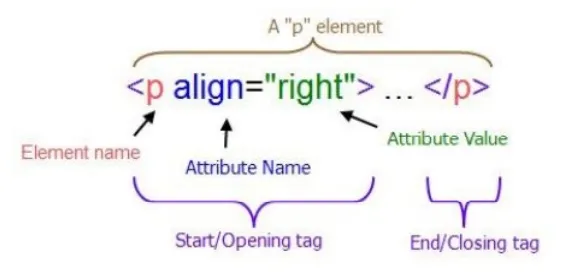
• HTML tags consist of a left angle bracket (<), a name, and a right angle bracket(>)
• For example: <title>
• Tags must also close. To do so, you incorporate a slash (/). A starting and ending tag would be: <title> </title>.
Attributes:
• You can add attributes to tags to enhance your page.
• Added attributes go inside the brackets of the opening tag(example: <p align=center> would center the paragraph)
About HTML file Structure:
· HTML files .htm or .html extensions
· Name your files to describe their functionality file name of your home page should be index.html
Common Tags (Elements):
· Always include the <HTML>…</HTML> tags
· Comments placed inside <!–…–> tags
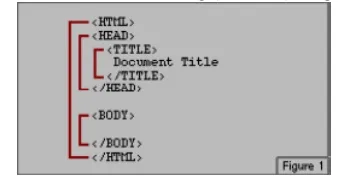
· HTML documents
o HEAD section.
o Info about the document.
o Info in header not generally rendered in display window. o TITLE element names your Web page.
o BODY section
Page content
Includes text, images, links, forms, etc.
Elements include backgrounds, link colors and font faces P element forms a paragraph, blank line before and after
Structure of HTML Tag (Element) Alignment
Text Styling
• Underline style<U>…</U>
• Align elements with ALIGN attributeright, left or center
• Close nested tags in the reverse order from which they were opened
• Emphasis (italics) style<EM>…</EM>
• Strong (bold) style<STRONG>…</STRONG>
• <B> and <I> tags deprecated Overstep boundary between content and presentation
• Logical Styles:
o <EM>, <STRONG> a add emphasis to text
o <BIG>, <SMALL> a increase or decrease text size o <SUB>, <SUP> a subscript or superscript
• Physical styles:
o <B>, <I>, <U> a Bold, Italics, and Underline text
o <FONT SIZE=# FACE= “name” COLOR=“colorName or #rgb” > o E.g., <FONT SIZE=+2 FACE = “arial” COLOR = “darkblue”>
eXtensible Mark up Language (XHTML) :
• To describe the general form and layout of documents
• An XHTML document is a mix of content and controls
• In XHTML tag names, attributes, and values are case sensitive and values must be enclosed by double quotes.
• In XHTML all elements must have both beginning and ending tags.
• Controls are tags and their attributes
o Tags often delimit content and specify something about how the content o should be arranged in the document.
o Attributes provide additional information about the content of a tag.
• Tools for creating XHTML documents
o XHTML editors – make document creation easier o Shortcuts to typing tag names, spell-checker,
o WYSIWYG XHTML editors
• Plug ins
o Integrated into tools like word processors,
o effectively converting them to WYSIWYG o XHTML editors
• Filters
o Convert documents in other formats to XHTML
Advantages of both filters and plug-ins:
• Existing documents produced with other tools
• can be converted to XHTML documents
• Use a tool you already know to produce XHTML
Disadvantages of both filters and plug-ins:
• XHTML output of both is not perfect – must be fine tuned
• XHTML may be non-standard
• You have two versions of the document, which are difficult to synchronize
Relative URL
HTML Link:
To create a link to a resource identifiable by a URL o href: specify a URL of the target resource
o target: specify where to display the target document
e.g.: <a href=”index.htm” target=”_blank”>Home</a> Open the document “index.htm” in a new browser window
Can also be used to create an anchor within a document o name: specify the anchor name
e.g.: <a name=”chap1″></a><h2>Chapter 1</h2> The above anchor can be referred to in a URL as
<a href=”http://host/file.html#chap1″>Chapter 1</a>
URL (Uniform Resource Locator) in HTML:
URL is used to create a link in a web document.
Two Types of URL:
1. Absolute URL
• Absolute URL contains all the information necessary to identify files on the internet (Example: in postal service, for sending letter to the destination it necessary to have full information like, name, address, city etc.,)
• Likewise, an absolute URL contains the protocol, hostname, filename, which are all essential to link the web document.