Word makes list creation and conversion simple. You can convert lines of text into numbered lists or procedural steps. Word automatically assigns the proper numeric sequence to a series of selected passages. Similarly, Word lets you select one or more paragraphs (or lines) of text and then convert the selected passage into a bulleted list. The Format / Bullets and Numbering menu selection lets you modify the bullet style or the numbering sequence.
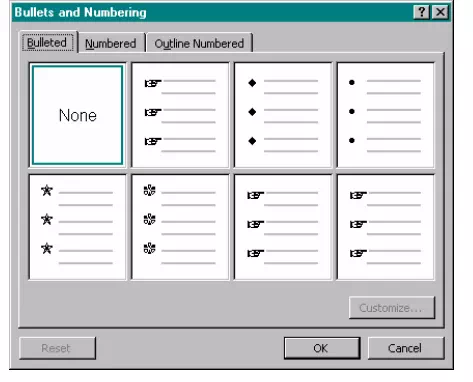
The fastest way to create a numbered or bulleted list is to use the Numbering or Bullets buttons on the Format toolbar. Once text is selected, simply click the appropriate button to automatically convert your list to the desired form.
Hands-on Activity
The following activity guides you through the creation of numbered and bulleted lists. It also shows you how to change the number sequence and bullet style, and how to exchange numbers for bullets and bullets for numbers.
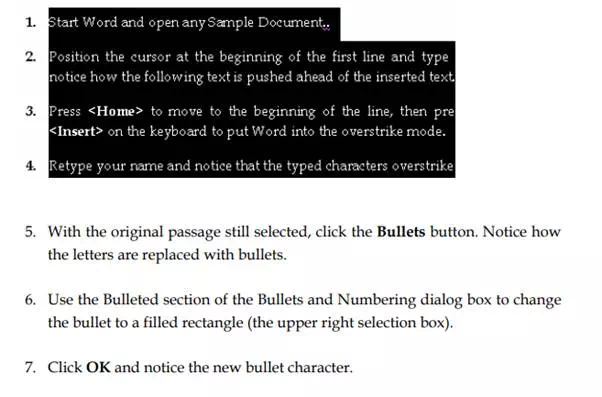
1. Start Word and open any Sample document.
2. Select the text in a Paragraph.
3. Click the Numbering button; notice how numbers 1 through 4 are automatically inserted to the left of the text.
4. Select the Format / Bullets and Numbering menu selection’s Numbered tab and select the a., b., c., format. Click OK and see how the numbers are changed to letters.
Tip: The Customize button of the Numbered tab is used to select additional numbering formats as well as the spacing.