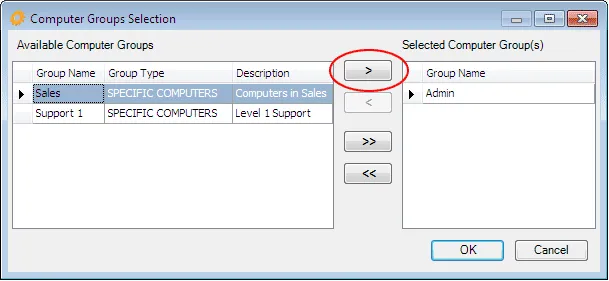
Normally, “All Computers” are included in Global and in General criteria selections. You can focus the data by including or excluding activity recorded at certain workstations. For example, you might include only computers in a lab or library used by various people. The activity retrieved “by computer” can reveal how resources are being used and where holes in security may exist.
 | A Master Login can edit a computer description and group computers (by location, function, or device type) to simplify criteria selection. Note that your view of devices may be limited by your login privileges. |
In the left navigation pane under Global Criteria, open the Computers list and make a selection. This selection applies whenever GLOBAL CRITERIA is requested. See the options below.

Set General computer limits
In the General Criteria panel, open the Computers drop-down list and make a selection. The date selection applies to events currently being requested.
For either Global Criteria or General Criteria restrictions, choose from the drop-down list next to Computers:
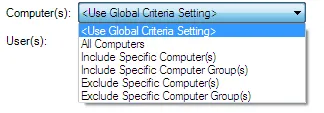
- <Use Global Criteria Setting> – Applies the Global Criteria Computers setting (spelled out in the bottom of the General Criteria box).
- All Computers – Request to view data from all devices on the network.
- Include Specific Computers – Query data ONLY for the selected devices. Opens the Computers Selection box.
- Include Specific Computer Groups – Query data for one or more computer groups. Opens the Group Selection box.
- Exclude Specific Computers – Exclude the selected devices from the data display. Opens the Computers Selection box.
- Exclude Specific Computer Groups – Exclude the selected groups from the data display. Opens the Group Selection box.
Select computers or computer groups
In the Computers Selection box, select a device in the Available Computers list. Use the Ctrl and Shift keys to multiple-select.
- Click > to move highlighted items in the Available list to the Selected list on the right.
- Click < to remove one or more highlighted items from the Selected list.
- Click >> to add all items from the Available list to the Selected list.
- Click << to remove all times from the Selected list.
Click OK at the bottom of the selection box. Your selections appear at the bottom of the General Criteria panel.
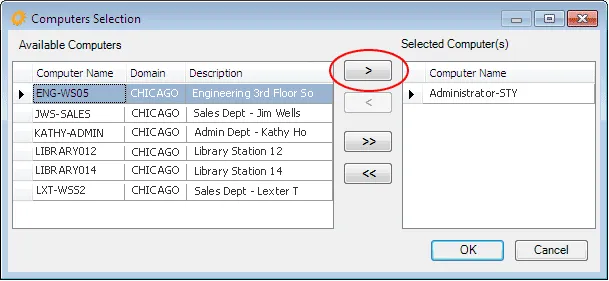
NOTE:Click on any column heading to sort the list by that column (A-Z or by value). Hold down the Shift key and click on additional column headings to sort by multiple fields
If groups are defined (in Management – Computers), you can select or exclude a group instead of single devices. Each group may include multiple devices. Use the Ctrl and Shift keys to multiple-select. A message appears if no groups are defined.