Print preview is a feature that displays on the screen what a hard copy would look like when printed. Using print preview, you can find any errors that may exist or fix the layout before printing, which can save ink or toner and paper by not having to print more than once.
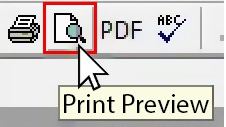
To open the print preview feature, click the print preview icon on the toolbar, like that shown in the picture, or click File and choose the Print Preview option.
Print preview shortcut keys
Below are keyboard shortcuts that open the print preview.
Microsoft Word
Press Ctrl+F2 to open the print preview for the document you’re currently viewing.
All other programs
Many programs do not have a shortcut key for the print preview feature. However, you can press Alt+F to open the file menu and press V, R, or the other underlined character (Mnemonic) for the Print Preview option.
How to change the print preview orientation
In programs like Microsoft Word, while in the print preview, you can change the page orientation from Portrait Orientation to Landscape Orientation to view the page in landscape. Unfortunately, not all programs support this ability. If the program you’re using has no settings or options in print preview, you cannot view how your page would print in landscape mode.