Get started on how to create formulas and use built-in functions to perform calculations and solve problems.
Create a formula that refers to values in other cells
1. Select a cell.
2. Type the equal sign =.
Note: Formulas in Excel always begin with the equal sign.
3. Select a cell or type its address in the selected cell.
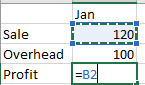
4. Enter an operator. For example, – for subtraction.
5. Select the next cell, or type its address in the selected cell.

6. Press Enter. The result of the calculation appears in the cell with the formula.
See a formula
1. When a formula is entered into a cell, it also appears in the Formula bar.

2. To see a formula, select a cell, and it will appear in the formula bar.

Enter a formula that contains a built-in function
· Select an empty cell.
· Type an equal sign = and then type a function. For example, =SUM for getting the total sales.
· Type an opening parenthesis (.
· Select the range of cells, and then type a closing parenthesis).

1. Press Enter to get the result.