· Create presentations from scratch or a template.
· Add text, images, art, and videos.
· Select a professional design with PowerPoint Designer.
· Add transitions, animations, and motion.
· Save to OneDrive, to get to your presentations from your computer, tablet, or phone.
· Share and work with others, wherever they are.
Create a presentation
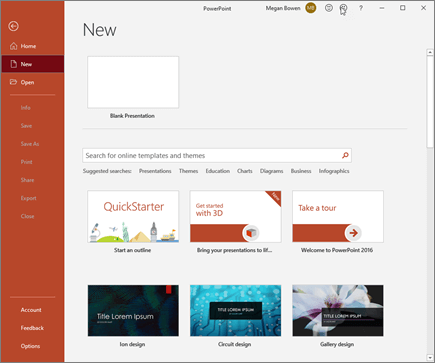
1. Open PowerPoint.
2. Select an option:
· Select Blank Presentation to create a presentation from scratch.
· Select one of the templates.
· Select Take a Tour, and then select Create, to see tips for using PowerPoint.
Add a slide
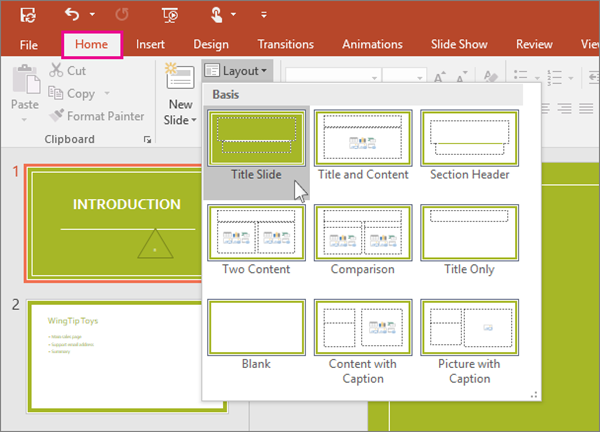
1. Select the slide you want your new slide to follow.
2. Select Home > New Slide.
3. Select Layout and the you type want from the drop-down.
Add and format text
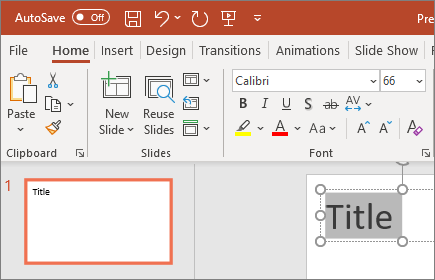
1. Place the cursor where you want, and type.
2. Select the text, and then select an option on the Home tab: Font, Font size, Bold, Italic, Underline, …
3. To create bulleted or numbered lists, select the text, and then select Bullets or Numbering.
Add a picture, shape, or chart
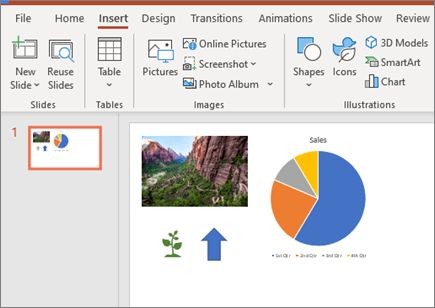
1. Select Insert.
2. To add a picture:
· Select Picture.
· Browse for the picture you want and select Insert.
1. 3. To add a shape, art, or chart:
· Select Shapes, Icons, SmartArt, or Chart.
· Select the one you want.