The process for adding and managing user accounts is quite different for each version of Windows. To learn more about adding and managing user accounts, review the appropriate lesson from these Windows tutorials:
Switching between user accounts
If you have multiple user accounts on your computer, it’s easy to switch between users without signing out or closing your current apps. Switching users will lock the current user, so you won’t need to worry about someone else accessing your account.
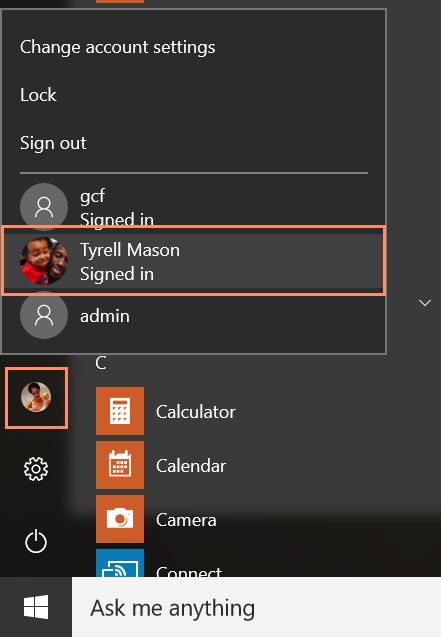
To switch between user accounts (Windows 10):
Click the current user icon on the left side of the Start menu, then select the desired user from the drop-down menu. The user will then need to enter a password to sign in.
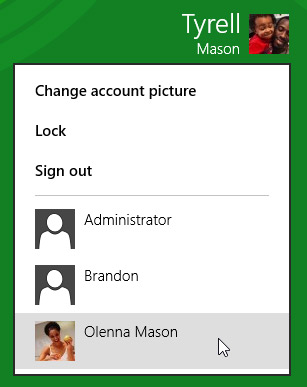
To switch between user accounts (Windows 8):
Click the current user in the upper-right of the Start screen, then select the desired user from the drop-down menu. The user will then need to enter a password to sign in.
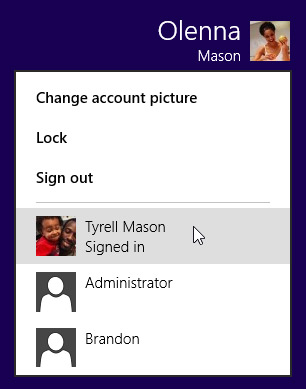
You can switch back by selecting the desired user from the drop-down menu. You’ll need to re-enter your password to unlock the account.
To switch between user accounts (Windows 7):
Click the Start button, click the arrow next to Shut Down, and select Switch user.
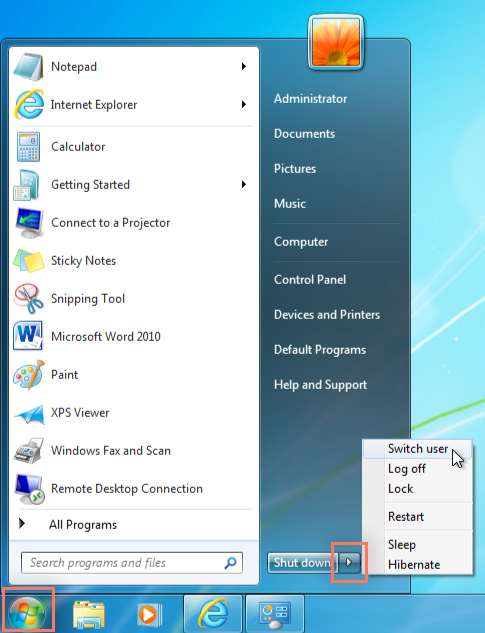
If you’re finished using the computer, you can also choose to log off. This will allow other users to sign in to the computer with different accounts.