- Key Takeaways
- Table of Contents
- Why widgets improve Shopify conversions
- How Elfsight works on Shopify (2 setup options)
- Option A: Install Elfsight apps from the Shopify App Store
- Option B: Embed an Elfsight widget using installation code (Custom Liquid / theme file)
- Quick setup (Shopify Online Store 2.0)
- Best Elfsight widgets for Shopify (conversion-focused picks)
- 1) Google Reviews (and review widgets) — fastest trust booster
- 2) Instagram Gallery — visual proof + social credibility
- 3) Popup (exit-intent + segmented offers) — list growth without ruining UX
- 4) Announcement Bar — promote offers without interrupting shopping
- 5) Countdown Timer — urgency for real deadlines (sales, drops, restocks)
- 6) Product Pricing Table — perfect for bundles, tiers, and subscriptions
- 7) WhatsApp Chat Button — turn questions into orders
- 8) Contact Form Builder — reduce support friction + capture leads
- 9) FAQ Page (accordion) — kill objections before they become bounces
- 10) Social Share Buttons — amplify UGC + product pages
- Bonus picks (use when relevant)
- Quick comparison table
- Recommended widget stacks (by store goal)
- Stack A: New store (trust first)
- Stack B: Sale / seasonal campaign (urgency + clarity)
- Stack C: High-ticket products (support + proof)
- Stack D: Bundles / tiers (decision speed)
- How to track results (quick, practical methods)
- Common mistakes to avoid
- FAQs
- Are Elfsight widgets compatible with Shopify Online Store 2.0?
- Can I install Elfsight widgets on specific pages only?
- Is there a free plan?
- Will widgets slow down my store?
- Which 3 widgets should I start with?
- Ready to add conversion-focused widgets to Shopify?
- References & helpful links
Running a Shopify store is a constant battle for attention: customers bounce, carts get abandoned, and “maybe later” becomes “never.”
The good news? You don’t need a full redesign to improve conversions. Small, strategic elements—social proof, urgency, better support,
and clearer offers—can lift sales dramatically.
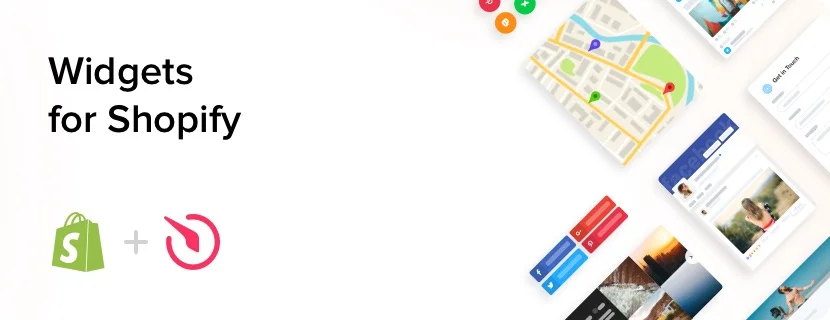
That’s exactly where Elfsight shines. It’s a no-code widget platform
that helps you add conversion-focused blocks (reviews, popups, announcement bars, social feeds, forms, chat buttons, and more) to your store.
Many of these are also available as Shopify App Store apps, which can be installed in minutes.
Key Takeaways
- Start with social proof: reviews + testimonials reduce hesitation and boost add-to-cart confidence.
- Add urgency without spam: countdown timers + announcement bars work best when tied to real offers.
- Use popups smarter: exit-intent + segmented offers can grow email/SMS lists without harming UX.
- Show products visually: Instagram galleries and banners improve time-on-site and trust.
- Make support instant: WhatsApp chat + forms turn “questions” into “orders.”
Why widgets improve Shopify conversions
Conversions usually don’t fail because your product is “bad.” They fail because visitors don’t feel safe, don’t feel ready,
or don’t understand why now. Conversion-focused widgets solve those gaps:
- Trust: Reviews, testimonials, badges, logos, UGC galleries.
- Clarity: Pricing tables, FAQs, product highlights, announcement bars.
- Urgency: Countdown timers, limited-time banners, sale reminders.
- Support: WhatsApp chat, contact forms, quick answers.
- Engagement: Social feeds, video galleries, interactive blocks.
At Sensecentral (www.sensecentral.com), we test tools and compare options
so you can pick what actually moves the needle. If you publish product reviews and comparisons too, don’t miss our internal search pages:
Shopify-related posts and
conversion tips.
How Elfsight works on Shopify (2 setup options)
Option A: Install Elfsight apps from the Shopify App Store
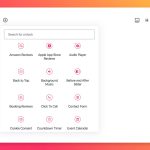
Elfsight publishes many Shopify apps (for example: Google Reviews, Instagram Gallery, Countdown Timer, WhatsApp Chat, Contact Form Builder, FAQ Page,
Pricing Table, and more). This is the easiest route if the widget you want is available as a Shopify app.
Option B: Embed an Elfsight widget using installation code (Custom Liquid / theme file)
If you’re using Shopify Online Store 2.0, you can typically add widgets via Custom Liquid sections inside the theme editor.
For older (“Vintage”) themes, you can add widgets using custom HTML blocks or directly inside theme.liquid.
Quick setup (Shopify Online Store 2.0)
- Go to Shopify Admin → Online Store → Customize.
- Open the page you want (Home, Product page, etc.).
- Click Add section → choose Custom Liquid.
- Paste your Elfsight installation code and Save.
Tip: For site-wide widgets, some setups allow adding the code before </body> in theme.liquid.
Now let’s get to the good part: the widgets that typically impact Shopify conversions the most.
Best Elfsight widgets for Shopify (conversion-focused picks)
1) Google Reviews (and review widgets) — fastest trust booster
If visitors don’t trust you yet, they won’t buy—especially for higher-priced products. Showing real reviews near product pages,
collections, and the homepage reduces uncertainty. Elfsight’s Google Reviews app/widget is popular because buyers already recognize Google as a trusted platform.
Best placements: homepage (below hero), product pages (near “Add to cart”), checkout/FAQ page.
Pro tips:
- Filter to highlight the most relevant reviews (shipping speed, quality, sizing, support).
- Add a short heading like: “Trusted by shoppers — real Google reviews”.
- Pair it with an FAQ accordion to handle objections right away.
2) Instagram Gallery — visual proof + social credibility
For fashion, beauty, home decor, accessories, and lifestyle products, Instagram content works like “living proof.”
A curated gallery can improve engagement and keep visitors browsing longer—especially when it shows products in real life.
Best placements: homepage, collection pages, “About” page, and below product descriptions.
Pro tips:
- Use a clean grid layout (avoid clutter on mobile).
- Feature UGC-style posts to feel authentic, not overly polished.
- Link gallery content to relevant collection pages where possible.
3) Popup (exit-intent + segmented offers) — list growth without ruining UX
Popups get a bad reputation because many stores use them aggressively. But when configured thoughtfully, they’re one of the highest-performing
ways to grow email/SMS lists and recover abandoning visitors.
Best placements: site-wide (exit intent), specific landing pages, blog posts, cart page.
High-converting popup ideas:
- Exit intent: “Wait—grab 10% off your first order” (only for new visitors).
- Cart rescue: “Free shipping unlocks at ₹____ / $____ — add one more item?”
- Lead magnet: “Get our buying guide / size guide instantly.”
If you publish comparisons on Sensecentral, you can also funnel popup leads into your best content:
browse our “best of” posts.
4) Announcement Bar — promote offers without interrupting shopping
An announcement bar is a subtle, always-visible way to highlight free shipping thresholds, deals, seasonal campaigns, or delivery updates.
Because it doesn’t block the screen, it’s a safer “first move” than a popup.
Best placements: top of site (global), product pages during launches, cart page.
Copy examples:
- “Free shipping on orders over $49 — today only.”
- “New drop live 🎉 Limited stock on bestsellers.”
- “Fast dispatch: ships in 24 hours.”
5) Countdown Timer — urgency for real deadlines (sales, drops, restocks)
Countdown timers work when the deadline is real. Use them for a sale ending tonight, a flash deal, pre-order windows, or limited restocks.
Done right, it reduces “I’ll come back later” behavior.
Best placements: homepage hero, sale landing page, collection pages during promotions.
Pro tips:
- Keep it specific: “Sale ends in…” is stronger than “Limited time.”
- Match the timer to your campaign rules (don’t fake urgency).
- Pair with an announcement bar so the offer is always visible.
6) Product Pricing Table — perfect for bundles, tiers, and subscriptions
If your store sells bundles (Starter/Pro), kits, services, or multiple plans, a pricing table makes decision-making faster.
It’s especially useful when customers compare options and need clarity on what’s included.
Best placements: bundle pages, landing pages, high-ticket product pages, B2B wholesale pages.
Pro tips:
- Highlight the “Most Popular” option (with a badge and subtle emphasis).
- Use short bullets (3–6 features). Don’t write paragraphs.
- Clarify shipping/warranty differences if they vary by tier.
7) WhatsApp Chat Button — turn questions into orders
Many shoppers don’t buy because of one unanswered question: sizing, delivery date, compatibility, warranty, customization, etc.
A WhatsApp chat button makes help instant—especially for mobile shoppers (where most Shopify traffic happens).
Best placements: product pages, checkout page, contact page.
Pro tips:
- Add quick-start messages like “Hi! I have a question about…” to reduce friction.
- Set office hours so customers don’t expect replies at 3 AM.
- Use chat mainly for high-intent pages (product + cart), not everywhere.
8) Contact Form Builder — reduce support friction + capture leads
Not everyone wants to chat. Forms still convert well when they’re simple and targeted:
returns, bulk orders, custom quotes, partnership inquiries, and customer support.
Best placements: contact page, wholesale page, cart page (help link), footer.
High-converting form fields: name, email/phone, order number (optional), reason dropdown, message.
9) FAQ Page (accordion) — kill objections before they become bounces
An FAQ widget reduces support load and improves conversion by removing uncertainty:
shipping time, return policy, authenticity, materials, warranties, and “how it works.”
Best placements: product pages (below description), footer link, dedicated FAQ page.
Pro tips:
- Write FAQs based on real questions (support emails, comments, DMs).
- Include pricing objections: “Why are you priced higher?” (answer with quality/warranty/returns).
- Link to deeper guides (blog posts, comparison pages, sizing charts).
10) Social Share Buttons — amplify UGC + product pages
Sharing is not always a direct conversion driver, but it expands reach and supports brand recall.
It works best for giftable products, seasonal items, and viral-friendly categories.
Best placements: product pages, blog posts, gift guides.
Bonus picks (use when relevant)
- Logo Showcase: if you have media mentions, brand partners, or certifications.
- Store Locator / Google Maps: if you have offline stores or dealers.
- YouTube Video Gallery: if demos drive purchase decisions (electronics, tools, fitness gear).
Quick comparison table
| Widget | Primary conversion impact | Best pages | When to use |
|---|---|---|---|
| Google Reviews / Reviews | Trust + reduced hesitation | Home, Product, Checkout/FAQ | Any store that needs credibility fast |
| Instagram Gallery | Visual proof + engagement | Home, Collections, Product | Lifestyle, fashion, decor, beauty, accessories |
| Popup | Email/SMS leads + cart rescue | Site-wide, Blog, Cart | When you want list growth + remarketing |
| Announcement Bar | Offer clarity (non-intrusive) | Global, Home, Product | Shipping thresholds, promos, updates |
| Countdown Timer | Urgency + faster decisions | Sale pages, Home, Collections | Flash sales, drops, deadlines |
| Pricing Table | Decision clarity for tiers/bundles | Landing, Bundle, Wholesale | When products have multiple packages |
| WhatsApp Chat | Instant support → more orders | Product, Cart, Checkout | High-consideration purchases |
| FAQ | Objection removal | Product, Footer, FAQ page | If customers ask the same questions repeatedly |
Recommended widget stacks (by store goal)
Stack A: New store (trust first)
- Google Reviews / Reviews widget
- FAQ accordion (shipping + returns + warranty)
- Announcement bar (shipping threshold + delivery promise)
Stack B: Sale / seasonal campaign (urgency + clarity)
- Announcement bar (promo details)
- Countdown timer (deadline)
- Popup (exit intent with a smaller incentive)
Stack C: High-ticket products (support + proof)
- Reviews widget near “Add to cart”
- WhatsApp chat button for questions
- Video gallery (demos) or Instagram gallery (real-life use)
Stack D: Bundles / tiers (decision speed)
- Pricing table with “Most Popular” highlighted
- FAQ to address differences between tiers
- Announcement bar to reinforce guarantee / shipping
How to track results (quick, practical methods)
You don’t need complicated analytics to know whether a widget is working. Start simple:
- Shopify Analytics: watch conversion rate, add-to-cart, checkout initiated, and returning visitor rate.
- UTM links: if your popup links to a “sale” page, add UTM parameters and track in GA4.
- Before/after testing: run one widget change at a time for 7–14 days.
- Heatmaps (optional): tools like Hotjar can reveal whether people notice your social proof blocks.
If you’re also building review and comparison content on Sensecentral, you can use popups to capture emails and then send visitors to:
product comparison posts or
best product lists.
Common mistakes to avoid
- Too many widgets at once: start with 2–3. Measure. Then add more.
- Fake urgency: countdown timers should match real sale deadlines.
- Popup overload: use frequency controls so repeat visitors aren’t annoyed.
- Mobile clutter: always check mobile layouts—most Shopify traffic is mobile.
- Weak placement: put reviews near buying moments (product + cart), not hidden on a random page.
FAQs
Are Elfsight widgets compatible with Shopify Online Store 2.0?
Yes—many can be added using the section-based editor (Custom Liquid), and Elfsight also provides Shopify App Store apps for many use cases.
Can I install Elfsight widgets on specific pages only?
Yes. You can place widgets on a single page (home, contact, a landing page) or on product pages depending on your setup.
Is there a free plan?
Elfsight offers a free option for testing and small sites. If your store grows, you’ll likely upgrade based on widgets needed and monthly widget views.
Will widgets slow down my store?
Any extra element can add load, but the bigger issue is adding too many scripts at once. Use only what you need, test performance, and avoid stacking multiple popups.
Which 3 widgets should I start with?
For most Shopify stores: Reviews (trust), Announcement Bar (clarity), and Countdown Timer or Popup (urgency or list growth).
Ready to add conversion-focused widgets to Shopify?
If you want a fast way to add social proof, urgency, and lead capture without coding headaches, Elfsight is worth testing.
References & helpful links
- Elfsight apps for Shopify (official)
- How to add an Elfsight widget to Shopify (official help)
- Elfsight apps on Shopify App Store
- Elfsight pricing (official)
- Sensecentral — product reviews & comparisons
Note: Prices, limits, and app availability can change. Always confirm the latest details on Elfsight’s official pages.