- Table of Contents
- Key Takeaways
- Why widgets matter for Wix & Squarespace
- Quick install: Wix vs Squarespace (fastest paths)
- Best Elfsight widgets for Wix & Squarespace users
- Quick Comparison Table (best picks by goal)
- 1) All-in-One Reviews (fastest trust builder)
- 2) Google Reviews (perfect for local trust + fresh updates)
- 3) Social Feed (turn social into a website asset)
- 4) Instagram Feed (best “visual proof” widget)
- 5) Popup (the “one widget” that can change your email growth)
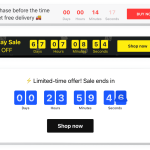
- 6) Announcement Bar (best “always-visible” promo tool)
- 7) Form Builder / Contact Form (best “lead engine”)
- 8) WhatsApp Chat (instant answers = more conversions)
- 9) FAQ (handle objections before they bounce)
- 10) Pricing Table (make choosing feel easy)
- 11) Cookie Consent (clean compliance layer)
- 12) Event Calendar (best for workshops, webinars, schedules)
- Quick stacks (pick your website type)
- Setup tips: placements, speed, and UX
- 1) Start with one KPI per widget
- 2) Don’t overload the page
- 3) Use “progressive disclosure”
- 4) Make widgets match your theme
- 5) Track conversions properly (simple method)
- 6) Internal links (Sensecentral)
- FAQs
- Do Elfsight widgets work on both Wix and Squarespace?
- Will widgets slow down my site?
- What’s the easiest widget to install for instant results?
- Do I need a paid Squarespace plan to embed widgets?
- What if I already use Wix/Squarespace built-in features?
- How do I choose the right widget first?
- References

Disclosure: This post may contain affiliate links. If you purchase through them, Sensecentral may earn a commission at no extra cost to you. Always verify current pricing and plan limits on the official websites.
If you’re building on Wix or Squarespace, you already get gorgeous templates and solid basics. But the moment you want “growth features” (social proof, lead capture, chat, popups, FAQs, pricing tables, calendars), you usually hit one of two walls:
- It’s buried behind custom code (which slows you down), or
- It’s spread across too many plugins (which turns into a maintenance headache).
That’s where Elfsight fits perfectly: it’s a no-code widget platform with a large catalog of widgets you can customize visually, then install on your site in minutes using a simple embed snippet or a dedicated app listing (for Wix). If you’re a Wix/Squarespace user who wants fast wins without developer cycles, the widgets below are the “quick install” stack I recommend most often.
Table of Contents
Key Takeaways
- Fastest “trust boost”: Add a Reviews widget (All-in-One Reviews or Google Reviews) above the fold and near your primary CTA.
- Fastest “lead lift”: Add a Popup + a Form Builder/Contact Form, then connect it to your email tool/CRM.
- Fastest “support reduction”: Add an FAQ widget + WhatsApp Chat (or another chat widget) to answer repetitive questions instantly.
- Best “sales clarity”: Add a Pricing Table (and optionally a Table widget) so visitors can choose faster.
- For events/services: Add an Event Calendar and keep it updated—this alone can reduce back-and-forth messages.
Why widgets matter for Wix & Squarespace
Wix and Squarespace are fantastic for getting a site live quickly, but growth comes from a few repeatable conversion levers:
- Trust (reviews, testimonials, social proof)
- Clarity (FAQs, pricing tables, comparison tables)
- Friction removal (chat, quick contact, booking, “back to top”)
- Lead capture (forms, popups, announcement bars)
- Freshness (social feeds, calendars, updated review walls)
Widgets let you add these elements without redesigning your template. You’re basically layering conversion-focused blocks onto your existing design—quickly, safely, and without breaking layouts.
Quick install: Wix vs Squarespace (fastest paths)
Wix (two easy options)
- Install via Wix App Market (fastest): Many Elfsight widgets have dedicated Wix app listings. You add the app, then configure it in a friendly UI and place it on the page.
- Embed with custom code: If you prefer, you can embed a widget using Wix’s Embed Code / HTML iFrame tools (useful for placing widgets exactly where you want).
Squarespace (embed code where you need it)
- Use a Code Block (page-level embedding): Add a Code block to a page/post and paste the widget embed code.
- Use Code Injection (site-wide or page-wide): If you want the widget across many pages (e.g., chat, announcement bar), Code Injection can be the cleanest approach—depending on your Squarespace plan.
- One page only? Use a Code Block (Squarespace) or Embed HTML (Wix).
- Across your site? Consider Code Injection (Squarespace) or global custom code placement (Wix) for things like chat/announcement bars.
Best Elfsight widgets for Wix & Squarespace users
Below are the widgets that give Wix/Squarespace sites the fastest lift with the least setup effort. I’m focusing on “quick install” wins: copy/paste embeds, minimal layout risk, and big impact on conversions.
Quick Comparison Table (best picks by goal)
1) All-in-One Reviews (fastest trust builder)
If you want the quickest conversion improvement on a Wix/Squarespace site, start here. Reviews remove doubt, and doubt is usually what stops people from clicking your CTA (book, buy, subscribe, contact).
Best uses:
- Service businesses: show Google/Facebook reviews near “Contact / Book”
- Creators/affiliates: show testimonials and credibility badges
- Online stores: place reviews on homepage and product/category pages
Placement ideas:
- Above the fold: a compact rating summary (“4.8/5 from 200+ reviews”)
- Mid-page: a scrolling review wall after your key benefits
- Near CTA: short “best quotes” to push action
Learn more: All-in-One Reviews widget
2) Google Reviews (perfect for local trust + fresh updates)
If your brand relies on local trust—coaching, clinics, studios, agencies, restaurants—Google Reviews are often the most persuasive proof you can show. A dedicated Google Reviews widget keeps the “freshness” factor: visitors see recent reviews instead of screenshots from months ago.
Best uses:
- Local businesses and service providers
- Landing pages for location-based ads
- “Why choose us” sections
Learn more: Google Reviews widget
3) Social Feed (turn social into a website asset)
Wix and Squarespace users love clean design—but a “static” site can feel inactive. A Social Feed widget helps your pages feel alive by pulling in your latest posts and UGC. Great for credibility, brand personality, and keeping visitors engaged longer.
Best uses:
- Homepages and “About” pages (brand credibility)
- Product pages (UGC + real-life usage)
- Portfolio sites (fresh proof of ongoing work)
Learn more: Social Feed widget
4) Instagram Feed (best “visual proof” widget)
If your brand has strong visuals (products, travel, lifestyle, design, food), an Instagram Feed widget is a quick-win. It boosts time-on-site and adds credibility (“this is real, active, and loved”).
Best uses:
- Visual brands and creators
- Storefronts (show product photos from real life)
- Landing pages (reduce bounce)
Learn more: Instagram Feed widget
5) Popup (the “one widget” that can change your email growth)
Popups have a bad reputation only when they’re annoying. A well-timed popup—like an exit-intent offer, a scroll-triggered bonus, or a polite newsletter signup—can massively lift email signups and affiliate conversions.
Best uses:
- Offer a lead magnet (checklist, coupon, guide)
- Promote a limited-time deal (affiliate promos, seasonal sales)
- Capture abandoning visitors with “Before you go…”
Learn more: Popup widget
6) Announcement Bar (best “always-visible” promo tool)
If you run promos, publish updates, or want to push visitors to a key page, an announcement bar is simple and effective. It’s also low-risk: it doesn’t interrupt the user; it just nudges them.
Best uses:
- Limited-time discount or bonus
- New product/collection announcement
- “Free shipping” or “Book a call” message
Learn more: Announcement Bar widget
7) Form Builder / Contact Form (best “lead engine”)
Forms are the core of lead generation: contact, quote requests, applications, surveys, onboarding. If your site’s current form experience feels basic, a dedicated form widget can improve completion rates with better layouts and fields.
Best uses:
- Request-a-quote forms
- Newsletter + segmentation (“What are you interested in?”)
- Applications (events, partnerships, waitlists)
Learn more: Contact Form widget and Form Builder widget
8) WhatsApp Chat (instant answers = more conversions)
For many audiences, WhatsApp is the fastest way to ask a question. A WhatsApp chat button removes hesitation and shortens the path to action—especially for services, high-consideration purchases, and affiliate funnels where visitors want reassurance.
Best uses:
- Service businesses (bookings, quotes, consultations)
- Affiliate pages (help visitors pick the right product)
- Support for digital products (pre-sale questions)
Learn more: WhatsApp Chat widget
9) FAQ (handle objections before they bounce)
Most “no” decisions happen because visitors can’t find a quick answer. An FAQ widget solves that by making answers scannable and collapsible, without cluttering your page.
Best uses:
- Pricing pages (“What’s included?”)
- Service pages (“How long does it take?”)
- Affiliate comparison pages (“Which model should I choose?”)
Learn more: FAQ widget
10) Pricing Table (make choosing feel easy)
If you sell services, packages, memberships, or tiers, a Pricing Table removes confusion. Visitors shouldn’t have to “decode” your offers. They should compare quickly and pick confidently.
Best uses:
- Service tiers (Basic / Pro / Premium)
- Membership plans
- Bundles (what’s included)
Learn more: Pricing Table widget
11) Cookie Consent (clean compliance layer)
If you run analytics, ads, or tracking scripts, you should think about consent. A Cookie Consent widget can help you present a clear consent notice. (Always confirm what your jurisdiction requires and how your scripts behave.)
Learn more: Cookie Consent widget
12) Event Calendar (best for workshops, webinars, schedules)
If you run events—online or offline—an Event Calendar widget is a practical conversion tool. It answers “what’s next?” instantly, reduces admin back-and-forth, and improves attendance because people can see your schedule clearly.
Best uses:
- Workshops and webinars
- Community meetups
- Classes, sessions, or schedules
Learn more: Event Calendar widget
Quick stacks (pick your website type)
If you don’t want to overthink it, choose one stack and implement it in under an hour.
Setup tips: placements, speed, and UX
1) Start with one KPI per widget
Every widget should have a job. Examples:
- Reviews widget → increase CTA clicks
- Popup → increase email signups
- WhatsApp Chat → reduce unanswered questions
- FAQ → reduce bounce / increase scroll depth
If a widget doesn’t move a KPI after a couple of weeks, tweak the offer, placement, or remove it.
2) Don’t overload the page
Widgets are powerful, but too many can overwhelm visitors. For most Wix/Squarespace pages, 2–4 widgets is the sweet spot. A good starter combo:
- Trust: Reviews
- Action: Contact Form or WhatsApp Chat
- Boost: Announcement Bar or Popup (choose one)
- Clarity: FAQ (if the page is sales-heavy)
3) Use “progressive disclosure”
Put lightweight widgets first (rating summary, short FAQ), then deeper widgets later (review wall, pricing table). This keeps pages clean while still providing proof for people who scroll.
4) Make widgets match your theme
The fastest way to make a widget feel “native” is to align:
- Font size (match your body text and headings)
- Corner radius (Wix/Squarespace templates often use rounded corners)
- Spacing (give widgets breathing room—avoid tight stacking)
5) Track conversions properly (simple method)
If you’re using widgets to promote affiliate deals, add UTM parameters to your key outbound links and track clicks in your analytics. For email capture, set a thank-you event and compare conversion rates before/after adding the popup.
6) Internal links (Sensecentral)
If you publish product reviews and comparisons, make sure visitors can easily explore more guides:
FAQs
Do Elfsight widgets work on both Wix and Squarespace?
Yes—Elfsight provides embed code you can place into Wix (via Embed/HTML iFrame or custom code) and into Squarespace (via Code Block or Code Injection, depending on your plan and use case).
Will widgets slow down my site?
Any added scripts can affect performance, but most sites are fine if you avoid adding too many widgets to one page and you place “heavy” widgets (like large social feeds) lower on the page. Start with 1–2 widgets, test, then scale.
What’s the easiest widget to install for instant results?
For most sites, it’s Reviews (trust) or an Announcement Bar (CTR). Both are quick to set up and have immediate impact.
Do I need a paid Squarespace plan to embed widgets?
You can embed code in Squarespace using blocks, and Code Injection availability depends on plan. If you’re not sure, check your current plan’s custom code options and start with a Code Block on a single page.
What if I already use Wix/Squarespace built-in features?
That’s great—use built-ins where they’re enough. Widgets are best when you want more control, better layouts, or faster experimentation (especially for social proof, lead capture, and promotions).
How do I choose the right widget first?
Ask: “What’s the #1 reason visitors don’t convert?” Then pick a widget that removes that friction:
- They don’t trust you → Reviews
- They’re confused → FAQ + Pricing Table
- They leave without acting → Popup
- They need to ask something → WhatsApp Chat
Start with one goal, pick one widget, and go live today.