Create program using virtual flex pendant part 1

Prabhu TL
1 Min Read
Disclosure: This website may contain affiliate links, which means I may earn a commission if you click on the link and make a purchase. I only recommend products or services that I personally use and believe will add value to my readers. Your support is appreciated!

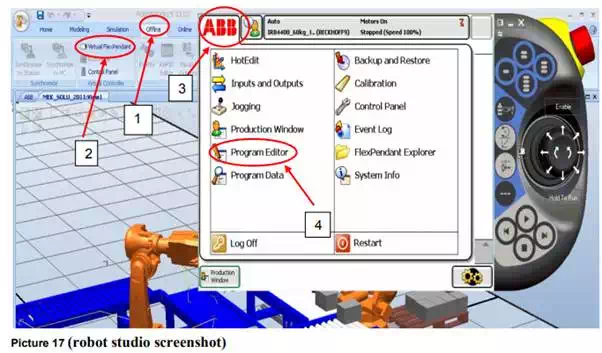
First click on offline button then click virtual flexes pendant then ABB on the corner of the new window
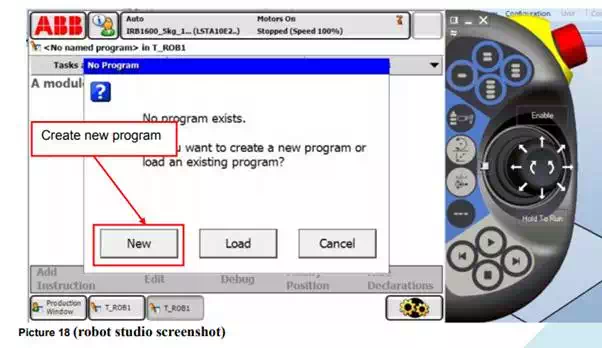
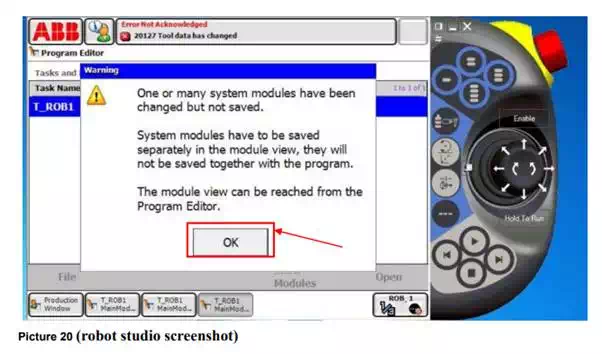
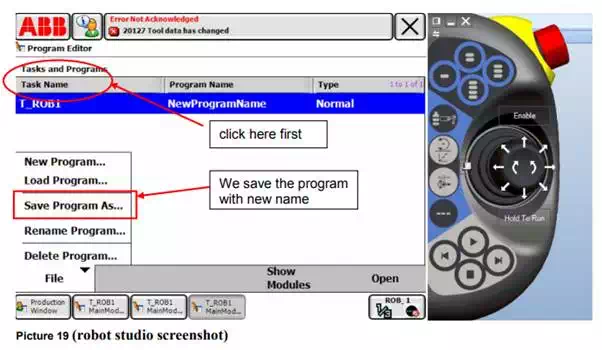
We click on save program as and we save new program and we name as well
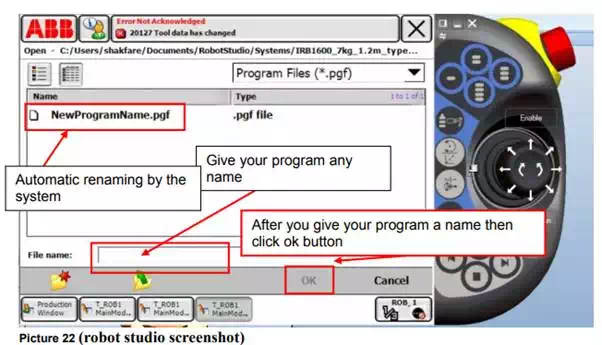
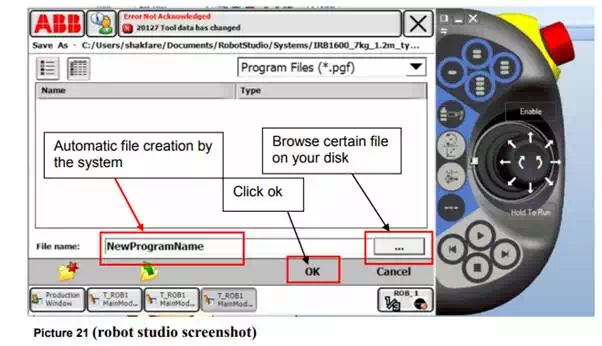
Give the file name or select certain file in your hard disk then press ok
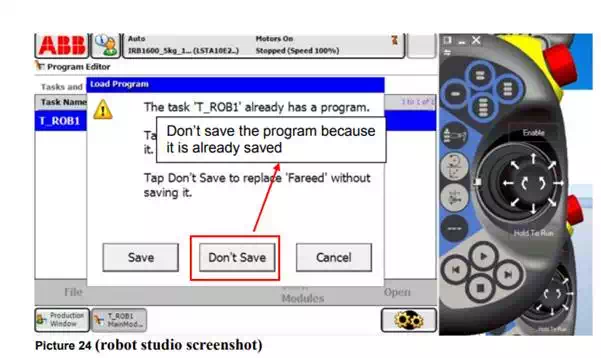
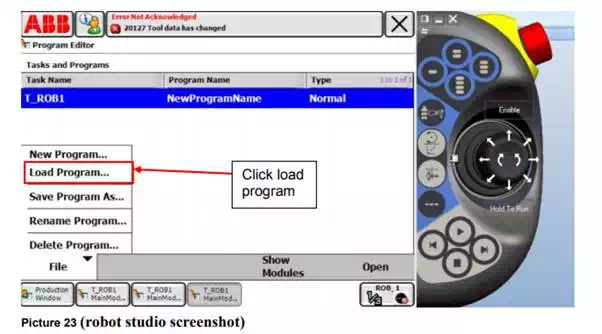
Click on load program.
We click on File and choose New routine..
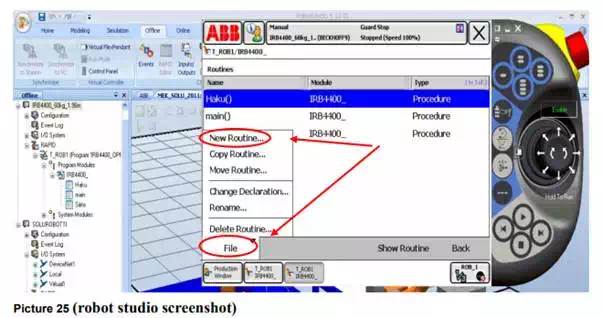
Notice: If New Routine is not possible to select and the colour is gray then check if the motor is on or off and click also on enable button to activate and should be in green.
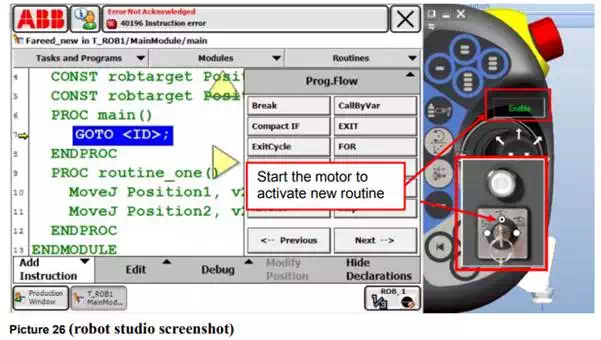
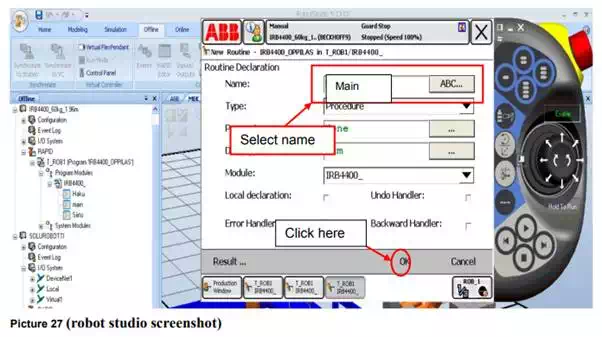
Then we need to save the new routine to a new name.
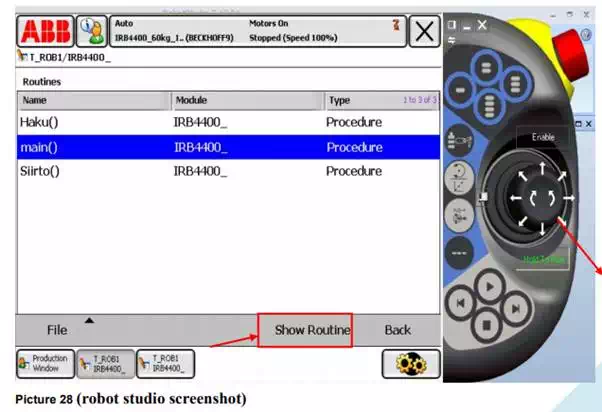
Then it will look like this, select any routine and click Show Routine.
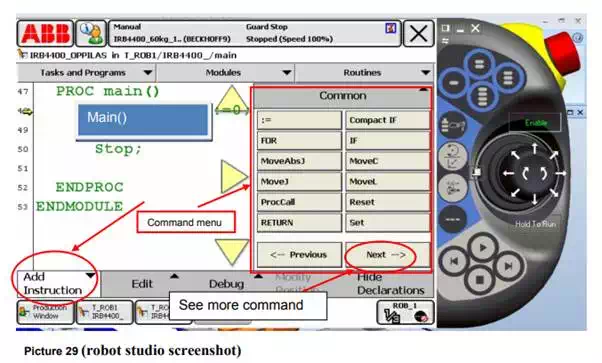
From add instruction icon we will get the entire command menu on the right side but if we need more command we need to click next.
Share This Article
Prabhu TL is a SenseCentral contributor covering digital products, entrepreneurship, and scalable online business systems. He focuses on turning ideas into repeatable processes—validation, positioning, marketing, and execution. His writing is known for simple frameworks, clear checklists, and real-world examples. When he’s not writing, he’s usually building new digital assets and experimenting with growth channels.
Leave a review