Snap Shot
· This section introduces you to basic editing features, including the commands used to insert, delete, move, and copy text. Firstly the insert and delete features are described. Then move and copy (or cut and paste) features are described.
· This section also introduces you to a powerful and frequently used word processing feature i.e. searching for a specified word, text passage, number, symbol, paragraph style, etc. The search (or find) text is often referred to as the find string. You can also specify a replacement string. In addition to finding conventional characters and numbers, you can also find special characters and symbols, such as tabs and paragraph symbols. You can even use wildcards, or substitution characters (such as ? and *), in your search strings.
· This section guides you through the use and creation of document styles and the selection of type fonts and font sizes. First, styles, fonts, and font sizes are introduced. Then a hands-on activity is provided to give you experience with the management of styles and to see how fonts and font sizes are controlled.
· In this section you will learn to format individual paragraphs, how to indent, and how to position text beyond the left margin. This section guides you through another text formatting feature i.e. the creation of lists. It also describes the Format / Bullets and Numbering / Outline Numbered selection, which is used to automatically apply numbers to paragraph headings and outlines.
· This section guides you through the Use of Headers and Footers.
· This section guides you through some uses of the Insert menu. In particular, you learn how to insert page breaks, page numbers, special symbols, and dates and times into your documents.
· This section also handles the Inserting Page numbers in your word document
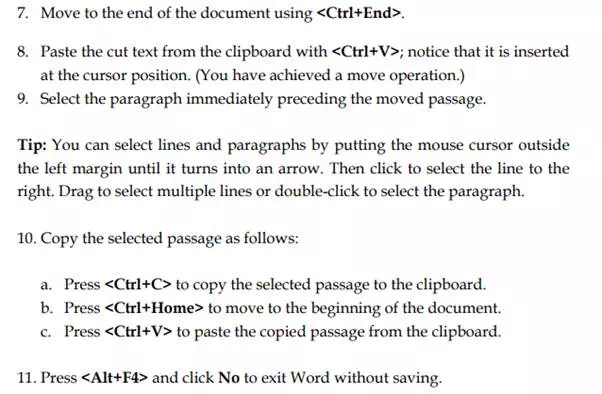
Editing Text using Cut, Copy & Paste