- 1) What is Elementor (and why beginners love it)?
- 2) Choose your path: Free vs Pro vs Cloud Hosting
- 3) The 60-minute setup (step-by-step)
- Step 1: Get WordPress ready
- Step 2: Install Elementor (Free)
- Step 3: Use a lightweight theme (recommended for beginners)
- Step 4: Build your first section (the “hero” area)
- Step 5: Use templates to move 10x faster
- Step 6: Make it mobile-friendly (non-negotiable)
- 4) Build your core pages without coding
- 5) When to upgrade to Elementor Pro
- 6) Elementor Cloud Hosting explained
- 7) Performance, SEO, and accessibility checklist
- 8) Common beginner mistakes (and fixes)
- Key Takeaways
- FAQs
- Is Elementor good for complete beginners?
- Do I need Elementor Pro to build a site?
- Will Elementor slow down my site?
- What’s the difference between Elementor Pro and Elementor Cloud Hosting?
- Can I switch later?
- References
Affiliate disclosure: This post contains affiliate links. If you purchase through these links, SenseCentral may earn a commission at no additional cost to you. We only recommend tools we believe provide genuine value.
Quick Start: If you want the simplest path to a professional WordPress site without writing code, start with Elementor. Use the buttons below to pick the option that fits your situation.
Tip: If you already have hosting and WordPress, choose the “Website Builder” button. If you want hosting + builder bundled and managed, choose “Cloud Hosting.”
If you’re new to WordPress, the “website building” part can feel like a maze: themes, page builders, hosting, plugins, updates, and a hundred tutorials that all assume you already know the basics. Elementor simplifies the entire experience by letting you design pages visually—drag, drop, edit, and publish—without touching code.
This guide is written for true beginners: creators, small businesses, freelancers, bloggers, and founders who want a clean, modern site quickly. You’ll learn what Elementor is, how to choose the right setup (Free vs Pro vs a hosted bundle), and the fastest step-by-step workflow to launch a site that looks professional and loads reliably.
1) What is Elementor (and why beginners love it)?
Elementor is a visual website builder for WordPress. Instead of editing a theme and hoping it looks right, you see a live preview while you build. You can:
- Drag-and-drop sections, columns, and widgets (headings, images, buttons, icons, forms, etc.).
- Edit inline (change text like you would in a document) and adjust design with simple controls.
- Build responsive layouts for desktop, tablet, and mobile without custom CSS.
- Start from templates instead of a blank page—then customize to match your brand.
For beginners, the biggest win is speed: you can go from “I need a website” to “my website is live” in a single afternoon—while still achieving a professional result.
SenseCentral tip: If your goal is “launch fast and iterate later,” Elementor is one of the most practical WordPress tools because it reduces the learning curve and helps you avoid expensive developer dependence for common updates.
Want to explore related beginner guides on SenseCentral? Here are a few internal searches you can use right now:
- SenseCentral: WordPress tutorials
- SenseCentral: Web hosting comparisons
- SenseCentral: Website builder reviews
2) Choose your path: Free vs Pro vs Cloud Hosting
Before you install anything, make one decision: are you building a simple site, a growing business site, or a “done-for-you platform” approach where hosting is bundled?
If you want a direct starting point:
- Start with Free if you’re testing an idea or building a small personal site.
- Go Pro if your website is a marketing engine: lead forms, popups, ecommerce layouts, and consistent branding across your entire theme.
- Pick Cloud Hosting if you prefer an all-in-one workflow (hosting + builder) and want a more guided experience.
Recommended beginner move: Install Elementor (Free) first and build 1–2 pages. Once you understand the editor, upgrading becomes a confident decision instead of a guess.
Use this highlighted link to start with the builder:
Get Elementor Website Builder
3) The 60-minute setup (step-by-step)
This is the fastest “beginner-safe” workflow that avoids common setup mistakes.
Step 1: Get WordPress ready
- Make sure WordPress is installed and you can log into yourdomain.com/wp-admin.
- Update WordPress to the latest stable version.
- Install a security plugin if you don’t have one yet (optional, but recommended for new sites).
Step 2: Install Elementor (Free)
- Go to WordPress Dashboard → Plugins → Add New.
- Search for “Elementor Website Builder”.
- Click Install → Activate.
Now create a page: Pages → Add New → click Edit with Elementor.
Step 3: Use a lightweight theme (recommended for beginners)
Elementor works with many themes, but beginners often get cleaner results using a lightweight theme designed to “stay out of the way” and let Elementor control the design. A popular option is the Hello Elementor theme.
- Go to Appearance → Themes → Add New
- Search: Hello Elementor
- Install → Activate
Step 4: Build your first section (the “hero” area)
In Elementor editor:
- Add a section → choose a column layout (1 column is simplest to start).
- Drag in a Heading widget: your main promise (example: “We help you launch fast”).
- Add a Text Editor widget: 2–3 lines explaining who you help and how.
- Add a Button widget: your primary action (Contact / Book a Call / Buy Now).
Step 5: Use templates to move 10x faster
Instead of designing everything from scratch, use professionally designed templates or “kits,” then customize:
- Insert a template section (hero, testimonials, FAQs, pricing, footer blocks).
- Replace text, adjust colors, swap images, and you’re done.
Step 6: Make it mobile-friendly (non-negotiable)
In Elementor, switch to tablet and mobile views and adjust:
- Font sizes for headings
- Spacing/padding (avoid giant gaps)
- Button width (mobile buttons should be easy to tap)
- Image sizes and alignment
Beginner rule: Build your layout on desktop first, then fine-tune for mobile. Don’t try to design “mobile-first” on day one unless you already have design experience.
Ready to speed up your build? If you want more templates, marketing widgets, and deeper control, consider upgrading once you’ve built your first page.
4) Build your core pages without coding
Most beginner sites don’t fail because of design—they fail because the structure is unclear. Keep your first launch simple and focused. Here’s a proven “starter site” structure:
Home
- Hero: clear promise + one call-to-action
- What you offer: 3–6 service/product cards
- Why trust you: proof (stats, reviews, logos)
- How it works: 3 steps
- FAQ: remove objections
- Final CTA: repeat the action
About
- Who you are
- What you stand for
- Why you’re qualified
- Social proof (mentions, milestones, testimonials)
Services / Products
- One page per main offering (avoid stuffing everything on one page)
- Benefits, deliverables, timeline, pricing range, and FAQs
Contact
- A short form (name, email, message) + what happens next
- Optional: map/location (if relevant) and social links
With Elementor, each of these pages is essentially a set of reusable blocks. Once you build a good section (like testimonials), you can save it and reuse it across the site to keep branding consistent.
5) When to upgrade to Elementor Pro
Elementor Free can get you a clean site. But once your website needs to behave like a business tool—capturing leads, building custom layouts across the entire theme, or supporting ecommerce—Elementor Pro becomes more compelling.
Consider upgrading if you need:
- Site-wide branding control (custom headers, footers, blog layouts, archives)
- Marketing workflows (forms, popups, conversion sections)
- WooCommerce design control (product and shop layouts that match your brand)
- Efficiency features (global styles, templates, reusable components)
Decision shortcut: If your site’s purpose is “generate leads or sales,” Pro usually pays for itself quickly by saving time and improving conversion-focused layouts.
Start here:
Try elementor website builder for wordpress
6) Elementor Cloud Hosting explained
If you’ve ever felt overwhelmed by choosing hosting, configuring caching, setting up SSL, or troubleshooting random WordPress errors—an all-in-one approach can be attractive. Elementor’s Cloud Hosting option is designed to reduce complexity by bundling a managed WordPress environment with the Elementor building workflow.
Who it’s best for:
- Beginners launching their first serious site
- Creators who want fewer technical decisions
- Small teams that want “managed hosting + builder” in one place
What you generally gain with managed cloud hosting:
- Performance and reliability optimizations handled at the platform level
- Security monitoring and managed infrastructure features
- Support that’s focused on the same builder + hosting environment
Want the simplest setup? If you don’t want to mix and match hosting + plugins right now, start here:
7) Performance, SEO, and accessibility checklist
A beautiful site that loads slowly or confuses visitors won’t convert. Use this checklist to avoid beginner pitfalls:
Performance essentials
- Use fewer plugins: every plugin adds risk and overhead. Install only what you need.
- Compress images: large images are the #1 speed killer for beginners.
- Reuse sections: build reusable templates instead of duplicating heavy layouts repeatedly.
- Keep fonts simple: 1–2 fonts max for faster load and better design consistency.
SEO basics
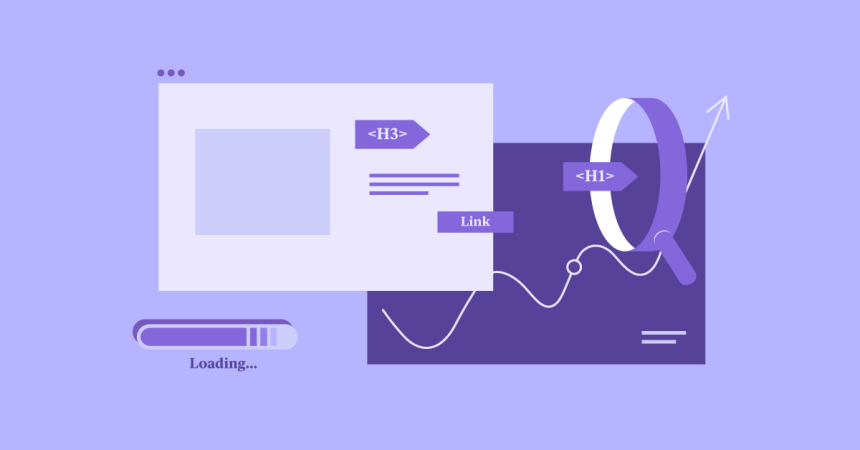
- One H1 per page (your main headline) and clean H2/H3 structure.
- Clear page intent: each page should answer one user goal (not five).
- Internal linking: link to related pages and supporting posts to build topical authority.
- Descriptive buttons: “Get a Quote” beats “Click Here.”
Accessibility basics
- Maintain readable contrast (don’t use light gray text on white)
- Add alt text for images
- Use clear labels on forms
- Make buttons large enough for mobile taps
8) Common beginner mistakes (and fixes)
- Mistake: Designing without a structure.
Fix: Start from a standard page layout (hero → benefits → proof → CTA). - Mistake: Overusing animations and effects.
Fix: Use subtle motion only where it improves clarity (e.g., hover states). - Mistake: Installing too many add-ons.
Fix: Keep your plugin stack minimal; only add what solves a real problem. - Mistake: Ignoring mobile layout until the end.
Fix: After each major page section, check mobile view and adjust spacing. - Mistake: Using oversized images everywhere.
Fix: Resize and compress before upload; use modern formats when possible.
Key Takeaways
- Elementor is one of the fastest ways for beginners to build a WordPress site visually—without coding.
- Start with Elementor Free to learn the editor; upgrade when you need advanced site-wide and marketing features.
- Use templates/kits to move faster and maintain professional design consistency.
- Prioritize mobile layout, image optimization, and a clean site structure for conversions.
- If you want fewer technical decisions, an all-in-one cloud hosting + builder approach can simplify your launch.
FAQs
Is Elementor good for complete beginners?
Yes. It’s designed to reduce the technical barrier by providing visual editing, templates, and beginner-friendly controls—so you can build a professional layout without understanding code.
Do I need Elementor Pro to build a site?
No. Elementor Free can build many simple sites. Pro becomes valuable when you need deeper control across the whole site (headers/footers/templates), advanced marketing tools (forms/popups), or more complex business layouts.
Will Elementor slow down my site?
Any builder can affect performance if you overload pages with heavy images, animations, and unnecessary plugins. Focus on clean layouts, compress images, and keep your plugin stack minimal for best results.
What’s the difference between Elementor Pro and Elementor Cloud Hosting?
Elementor Pro is primarily the advanced plugin/features layer (you choose your hosting separately). Elementor Cloud Hosting is a managed bundle approach that combines hosting + a WordPress environment + a builder workflow, aimed at simplicity and reduced technical overhead.
Can I switch later?
In most cases, yes. Many users start with their own hosting + Elementor, then simplify later—or start managed and expand later. The safest approach is to keep regular backups and avoid excessive third-party add-ons.
References
- Elementor Website Builder (official)
- Elementor on WordPress.org (plugin listing)
- Elementor Pricing (official)
- Elementor Hosting / Cloud Hosting (official)
- Hello Elementor Theme (official)
- Elementor AI (official)