When we format cells in Excel, we change the appearance of a number without changing the number itself. We can apply a number format (0.8, $0.80, 80%, etc) or other formatting (alignment, font, border, etc).
1. Enter the value 0.8 into cell B2.
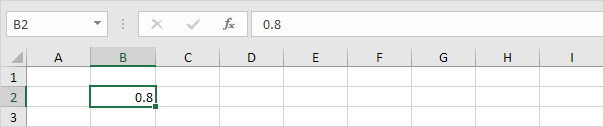
By default, Excel uses the General format (no specific number format) for numbers. To apply a number format, use the ‘Format Cells’ dialog box.
2. Select cell B2.
3. Right click, and then click Format Cells (or press CTRL + 1).
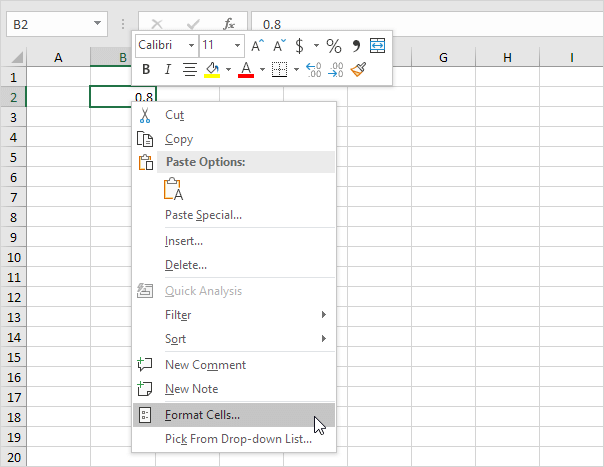
The ‘Format Cells’ dialog box appears.
4. For example, select Currency.
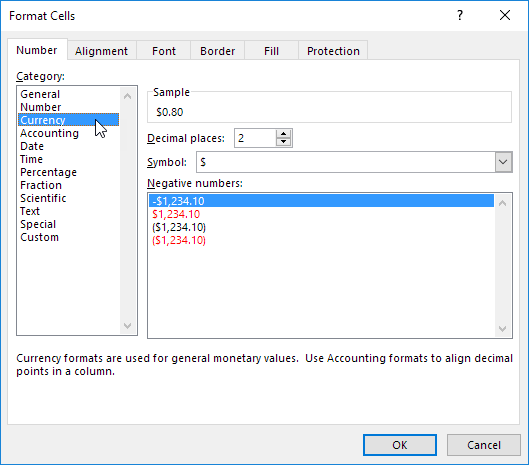
Note: Excel gives you a life preview of how the number will be formatted (under Sample).
5. Click OK.
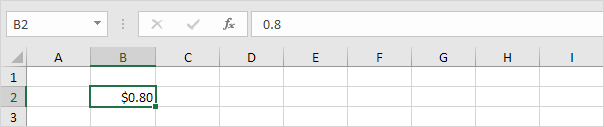
Cell B2 still contains the number 0.8. We only changed the appearance of this number. The most frequently used formatting commands are available on the Home tab.
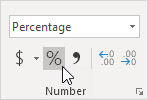
6. On the Home tab, in the Number group, click the percentage symbol to apply a Percentage format.
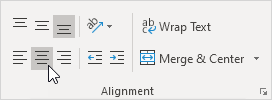
7. On the Home tab, in the Alignment group, center the number.
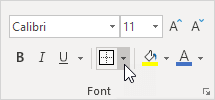
8. On the Home tab, in the Font group, add outside borders and change the font color to blue.
Result: