- Key Takeaways
- What you’ll build
- Choose your method (quick comparison)
- Method 1: Add a WhatsApp Chat button with Elfsight (no-code)
- Step 1) Create your WhatsApp Chat widget
- Step 2) Customize for conversions (recommended settings)
- Step 3) Embed on WordPress (or any site)
- Method 2: DIY WhatsApp “click-to-chat” button (wa.me)
- How to track WhatsApp clicks as leads (GA4 + GTM/gtag)
- Pick an event naming plan (simple + scalable)
- Option A) Track WhatsApp clicks with Google Tag Manager (GTM)
- Option B) Track WhatsApp clicks with gtag.js (simple script)
- Copy-paste templates (messages, events, UTM)
- Template: Pre-filled WhatsApp messages
- Template: Track campaigns with UTM (for your links inside WhatsApp messages)
- Template: “Lead” event parameters you’ll actually use
- Best practices to increase chats (and conversions)
- 1) Place it where intent is highest
- 2) Use a “low-friction” CTA
- 3) Set expectations (availability)
- 4) Don’t show it to everyone, everywhere
- 5) Keep performance clean
- FAQ
- Does Elfsight WhatsApp Chat work with WhatsApp Business?
- Does it support the WhatsApp Business API?
- Can I schedule the WhatsApp button to show only during office hours?
- Can I show the chat button only to new visitors?
- How do I track WhatsApp leads in GA4?
- What’s the simplest WhatsApp link format?
- Can I add a pre-filled message in the WhatsApp chat?
- Can I use multiple WhatsApp agents/numbers?
- Will a WhatsApp button increase conversions?
- More guides on Sensecentral
- References
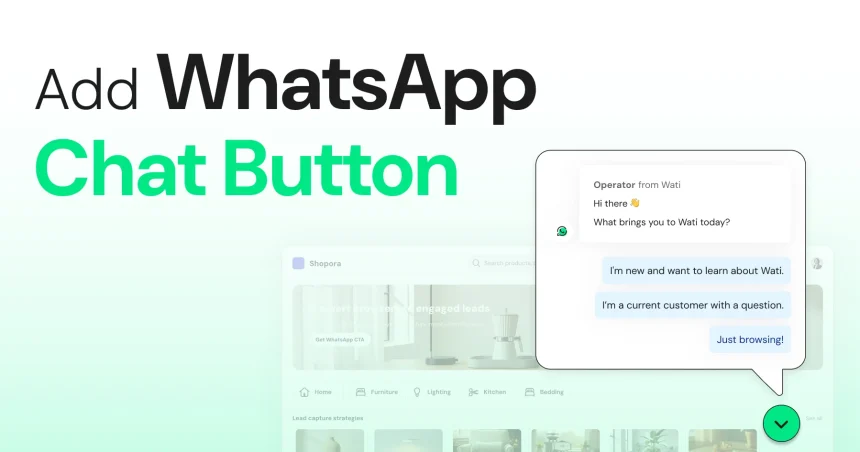
A WhatsApp chat button turns “I have a question” moments into instant conversations—without forcing visitors to fill out long forms or wait for email replies. It’s especially powerful for
affiliate sites, service businesses, local brands, and product review sites because it captures high-intent visitors right when they’re deciding.
Fastest way (no-code): Build a WhatsApp Chat button with Elfsight and embed it on WordPress/Webflow/Shopify/HTML in minutes.
Try Elfsight
(recommended for most sites)
Key Takeaways
- Two ways: DIY “click-to-chat” link (simple) or a no-code widget like Elfsight (best UX + targeting/scheduling options).
- Tracking leads: Track button clicks as a GA4 event (via GTM or gtag). Treat every click as a lead.
- Higher conversions: Use a clear CTA, show availability, add a pre-filled message, and control where/when the button appears.
Table of Contents
- What you’ll build
- Choose your method (quick comparison)
- Method 1: Add a WhatsApp Chat button with Elfsight (no-code)
- Method 2: DIY WhatsApp “click-to-chat” button (wa.me)
- How to track WhatsApp clicks as leads (GA4 + GTM/gtag)
- Copy-paste templates (messages, events, UTM)
- Best practices to increase chats (and conversions)
- FAQ
- References
What you’ll build
By the end of this guide, you’ll have:
- A floating WhatsApp chat button on your site (desktop + mobile).
- A lead tracking setup that records every click in Google Analytics 4 (GA4).
- Optional extras: targeting (new vs returning visitors), scheduling (business hours), and better “ready-to-chat” copy.
Choose your method (quick comparison)
| Method | Best for | Pros | Cons |
|---|---|---|---|
| Elfsight WhatsApp Chat (recommended) | Most websites (WordPress, Webflow, Shopify, HTML) | No-code setup, polished UI, triggers/targeting/scheduling options, easy embed | Needs a widget account; advanced needs depend on plan |
| DIY wa.me link | Ultra-simple sites or “quick test” | Free, fast, fully customizable HTML | No built-in scheduling/targeting; you manage styling/tracking yourself |
Want the easiest setup? Build your button with Elfsight and paste the embed code once.
Method 1: Add a WhatsApp Chat button with Elfsight (no-code)
If you want a high-converting WhatsApp button that looks professional and can be embedded on most platforms,
Elfsight is one of the quickest routes: create the widget, copy the generated code, and paste it into your site.
(See references [1], [2].)
Step 1) Create your WhatsApp Chat widget
- Open Elfsight’s WhatsApp Chat widget page and start creating a widget.
- Connect your WhatsApp number (works with standard WhatsApp and WhatsApp Business accounts [1]).
- Choose a layout/template, then set your button position (bottom-right is most common).
Step 2) Customize for conversions (recommended settings)
Use these settings to increase chats without annoying visitors:
- Welcome message: “Hi! Want a quick recommendation? Tell me what you’re looking for.”
- CTA label: “Chat on WhatsApp” or “Get help in 60 seconds”.
- Visibility: Show on product comparison posts and “best of” pages first.
- Device targeting: Keep it enabled on mobile (most WhatsApp chats start there).
- Schedule (business hours): If you reply only at set times, use scheduling so visitors don’t message at random hours (see [3]).
- Targeting: If available, show to new visitors on first visit and keep it more subtle for returning visitors (see [4]).
Step 3) Embed on WordPress (or any site)
WordPress (Gutenberg):
- Copy the installation code from Elfsight after you finish setup (see [2]).
- In WordPress, edit the page/post → add a Custom HTML block (see [6]).
- Paste the Elfsight code → Update/Publish.
Other platforms: Elfsight provides platform-specific embed guidance (e.g., WordPress/HTML/Shopify) and the flow is similar: copy the widget code and paste it where you want it to appear. (See [1].)
Next: Track your WhatsApp clicks as leads →
Method 2: DIY WhatsApp “click-to-chat” button (wa.me)
If you want a simple WhatsApp button without using a widget, WhatsApp supports “click to chat” links using the
wa.me format. The phone number must be in international format and the link can optionally include a pre-filled message. (See [7].)
Step 1) Build your WhatsApp click-to-chat link
Basic link:
https://wa.me/15551234567
Link with a pre-filled message:
https://wa.me/15551234567?text=Hi%20Sensecentral%2C%20I%20need%20help%20choosing%20a%20product.
That helps you identify which content generates the most WhatsApp leads.
Step 2) Add a floating button (copy-paste HTML)
Paste this into a Custom HTML block (WordPress) or into your site template:
<a class="sc-wa-btn" href="https://wa.me/15551234567?text=Hi%20Sensecentral%2C%20I%27m%20interested%20in%20your%20recommendation."
   target="_blank" rel="noopener"
   style="position:fixed;right:18px;bottom:18px;z-index:9999;
          background:linear-gradient(135deg,#16a34a,#22c55e);
          color:#fff;text-decoration:none;padding:12px 14px;border-radius:999px;
          font-weight:800;box-shadow:0 10px 20px rgba(34,197,94,.25);">
  💬 Chat on WhatsApp
</a>
This DIY approach is great for quick deployment, but you’ll rely on your own tracking setup (next section) and you won’t get
the same built-in display controls that no-code widgets offer.
How to track WhatsApp clicks as leads (GA4 + GTM/gtag)
A WhatsApp chat happens off-site, so the most reliable “lead” signal on your website is: the click.
Track WhatsApp button clicks as a GA4 event. You can do it with:
- Google Tag Manager (recommended): No-code tracking changes later (see [8]).
- gtag.js: Add a small script that fires a GA4 event on click (see [9]).
Pick an event naming plan (simple + scalable)
| What to track | GA4 event name | Useful parameters |
|---|---|---|
| WhatsApp button click | whatsapp_click (custom) | page_path, button_location, campaign |
| Lead intent | generate_lead (recommended event) | method = whatsapp, page_path |
Google’s GA4 docs explain how to implement custom or recommended events with either gtag.js or Google Tag Manager (see [9]).
Option A) Track WhatsApp clicks with Google Tag Manager (GTM)
- Ensure your WhatsApp button link has a clear identifier. Example: add
id="sc-whatsapp"or a class likesc-wa-btn. - In GTM, create a Click trigger (Just Links) that matches your WhatsApp URL (contains
wa.meor “whatsapp”). - Create a GA4 Event tag and set:
- Event name:
whatsapp_click(orgenerate_lead) - Parameters:
method=whatsapp,page_path={{Page Path}},button_location=floating
- Event name:
- Preview in GTM, then Publish.
GTM’s official help outlines the basic flow: create a GA4 Event tag and a trigger for when you want to send the event (see [8]).
Option B) Track WhatsApp clicks with gtag.js (simple script)
If you already have GA4 installed via the Google tag, add this script (update the selector to match your button):
<script>
document.addEventListener('click', function(e) {
  var a = e.target.closest('a');
  if (!a) return;

  var href = a.getAttribute('href') || '';
  var isWhatsApp = href.includes('wa.me') || href.toLowerCase().includes('whatsapp');

  if (isWhatsApp && typeof gtag === 'function') {
    gtag('event', 'whatsapp_click', {
      method: 'whatsapp',
      page_path: location.pathname,
      page_title: document.title,
      button_location: 'floating'
    });
  }
});
</script>
GA4’s developer docs cover event setup and parameters with the Google tag (gtag.js) (see [9]).
Copy-paste templates (messages, events, UTM)
Template: Pre-filled WhatsApp messages
- Product comparison: “Hi Sensecentral, I’m comparing options. My budget is ____ and I prefer ____.”
- Buying intent: “Hi! I’m ready to buy. Which model do you recommend for ____?”
- Support: “Hi, I need help with ____ (quick question).”
Template: Track campaigns with UTM (for your links inside WhatsApp messages)
You can include your page URL (with UTM parameters) in the message so when you send a link back to the visitor, you can later see which campaigns performed best:
https://sensecentral.com/?utm_source=whatsapp&utm_medium=chat&utm_campaign=help_button
Template: “Lead” event parameters you’ll actually use
method: whatsapppage_path: /your-post/button_location: floating | header | footercontent_type: review | comparison | guide
Want the no-code version with display controls? Use Elfsight to build + embed your WhatsApp button quickly.
Best practices to increase chats (and conversions)
1) Place it where intent is highest
- Comparison posts: “Best X vs Y” pages convert extremely well.
- Bottom of reviews: Right after the verdict (“Best for X…”) add a CTA: “Want a quick recommendation?”
- Sticky on mobile: Mobile visitors are more likely to open WhatsApp immediately.
2) Use a “low-friction” CTA
Better than “Contact us”:
- “Get a quick recommendation”
- “Ask before you buy”
- “Tell me your budget—I’ll suggest the best option”
3) Set expectations (availability)
If you respond only during business hours, either mention it in the CTA (“Replies in 1–2 hours”) or use a schedule so the widget appears only when you’re available (see [3]).
4) Don’t show it to everyone, everywhere
If your widget supports targeting (e.g., new vs returning visitors) and device rules, use them to keep the experience helpful (see [4]).
Show it aggressively on your money pages, subtly on informational posts.
5) Keep performance clean
Avoid stacking multiple chat widgets at once. One clear WhatsApp CTA beats five competing buttons.
FAQ
Does Elfsight WhatsApp Chat work with WhatsApp Business?
Yes—Elfsight notes the widget works with both personal WhatsApp and WhatsApp Business accounts via the same phone-number integration [1].
Does it support the WhatsApp Business API?
Elfsight states it works with standard WhatsApp and WhatsApp Business accounts, but not directly with the WhatsApp Business API [1].
Can I schedule the WhatsApp button to show only during office hours?
Yes—Elfsight provides scheduling (Date & Time) options for WhatsApp Chat widget display [3].
Can I show the chat button only to new visitors?
Elfsight’s help docs describe visitor targeting options like All/New/Returning visitors (availability may depend on your setup) [4].
How do I track WhatsApp leads in GA4?
Track the button click as a GA4 event via GTM or gtag.js. Google provides official guides for setting up events and parameters [8][9].
What’s the simplest WhatsApp link format?
Use https://wa.me/<number> where the number is in international format (WhatsApp help center explains the format) [7].
Can I add a pre-filled message in the WhatsApp chat?
Yes—add ?text= followed by a URL-encoded message to your wa.me link [7].
Can I use multiple WhatsApp agents/numbers?
Elfsight’s community notes WhatsApp Chat supports one number; for multiple agents, they recommend using an All-in-One Chat option [5].
Will a WhatsApp button increase conversions?
Often yes—because it reduces friction. The key is placing it on high-intent pages, using a helpful CTA, and tracking clicks so you can optimize.
More guides on Sensecentral
References
- Elfsight — WhatsApp Chat widget overview
- Elfsight — WhatsApp Chat for WordPress (embed steps)
- Elfsight Help — scheduling (Date & Time)
- Elfsight Help — triggers & display settings (visitors/devices)
- Elfsight Community — multiple agents note
- WordPress — Custom HTML block
- WhatsApp Help Center — click to chat (wa.me)
- Google Tag Manager — set up GA4 events
- Google Analytics Developer Guide — GA4 events