Affiliate Disclosure: This article contains affiliate links. If you purchase through these links, SenseCentral may earn a commission at no extra cost to you. This helps us keep publishing product reviews and comparisons.
- Table of Contents
- Why a Custom Post Template Matters
- What You Need Before You Start
- Understand Blog Structure (Single vs Archive)
- Step-by-Step: Build a Single Post Template
- Step 1: Open Theme Builder
- Step 2: Choose a clean layout structure
- Step 3: Add dynamic post elements (core widgets)
- Step 4: Add “reading experience” enhancements
- Step 5: Add your affiliate CTA (without being spammy)
- Recommended Tool
- Set Display Conditions (Where Your Template Applies)
- Build Your Blog Homepage / Archive Template
- Step 1: Create an Archive template
- Step 2: Choose your archive listing method
- Recommended archive layout (high-performing)
- Design Best Practices for Readability + SEO
- Performance & Hosting Notes (Including Elementor Cloud)
- Pre-Publish Checklist
- FAQs
- 1) Do I need Elementor Pro to build a Single Post template?
- 2) Can I use this method with any WordPress theme?
- 3) How do I create different templates for different categories?
- 4) What controls the number of posts shown on archive pages?
- 5) Is Loop Grid better than the Posts widget?
- 6) Will templates affect existing posts?
- 7) Can I still edit content in the WordPress editor?
- 8) Can Elementor Cloud Hosting replace my current hosting?
- Key Takeaways
- References
- Build Faster With Elementor
Try elementor website builder for wordpress
Try elementor cloud hosting for wordpress
Most blogs fail to feel “premium” not because the writing is weak, but because the reading experience is inconsistent: cluttered sidebars, mismatched typography, poor mobile spacing, distracting author boxes, and inconsistent featured image treatment across posts. The fix is simple: stop styling posts one-by-one, and start designing a Single Post template that automatically applies to every post (or specific categories) using Elementor Theme Builder.
In this guide, you’ll build a clean, conversion-friendly blog layout with a reusable custom post template, plus an optimized archive/blog index layout—without touching PHP.
Table of Contents
- Why a Custom Post Template Matters
- What You Need Before You Start
- Understand Blog Structure (Single vs Archive)
- Step-by-Step: Build a Single Post Template
- Set Display Conditions (Where Your Template Applies)
- Build Your Blog Homepage / Archive Template
- Design Best Practices for Readability + SEO
- Performance & Hosting Notes (Including Elementor Cloud)
- Pre-Publish Checklist
- FAQs
- Key Takeaways
- References
Why a Custom Post Template Matters
A blog post template is your “reading system.” Instead of formatting each post manually, the template automatically places your post title, featured image, metadata, content, author box, and related posts into a consistent layout. This consistency:
- Improves time on page (readers don’t fight your layout)
- Boosts brand trust (professional, repeatable design)
- Raises conversions (smart placement of CTAs and opt-ins)
- Reduces production time (publish faster with less formatting work)
With Elementor Theme Builder you can create templates for Single Post, Archive, Header, Footer, Search, and more—so your entire blog becomes a system, not a set of one-off pages.
What You Need Before You Start
1) WordPress + Elementor
- WordPress site (self-hosted or managed hosting)
- Elementor installed
- Elementor Pro (Theme Builder and display conditions are part of the Pro workflow and documentation)
2) A “clean” theme (recommended)
Elementor works with most themes, but lightweight themes reduce conflicts and bloat. Many creators use Hello Elementor because it’s minimal and built to pair well with Elementor’s builder.
Optional: If you want a simple, performance-first foundation, try the Hello Elementor theme from the WordPress repository.
Internal links on SenseCentral (examples):
More Elementor guides on SenseCentral |
More WordPress tutorials on SenseCentral |
More hosting comparisons on SenseCentral
Understand Blog Structure (Single vs Archive)
Before building templates, know what you’re actually designing:
| Template Type | Where It Appears | What You Control |
|---|---|---|
| Single Post | Individual blog post pages | Title, featured image, content layout, author box, comments, CTAs |
| Archive | Blog homepage, categories, tags, author archives, date archives | Post grid/list layout, cards, excerpts, pagination, filters |
Elementor Theme Builder explicitly includes templates such as Header, Footer, Archive, and Single Post, aligning to WordPress’s template hierarchy.
Step-by-Step: Build a Single Post Template
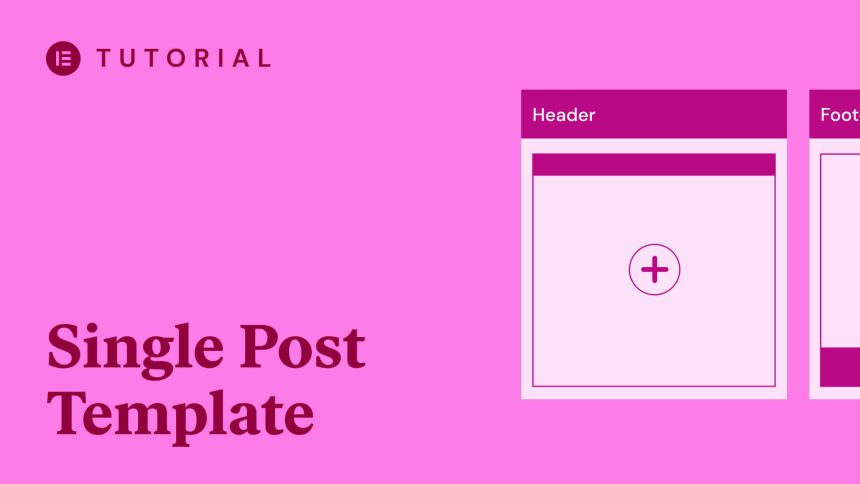
Step 1: Open Theme Builder
- Go to WP Admin → Templates → Theme Builder.
- Find Single Post and click Add New (or the + icon).
- Either pick a ready-made Single Post template from the library or close the library to build from scratch.
Step 2: Choose a clean layout structure
A high-performing blog post template usually follows this hierarchy:
- Header (site navigation)
- Post hero (title + meta + featured image)
- Main content (content width optimized for reading)
- Mid-content CTA (newsletter / affiliate tool mention)
- Author box + related posts
- Comments (optional)
Step 3: Add dynamic post elements (core widgets)
Inside the Elementor editor, add the essential dynamic widgets (names may vary slightly depending on your Elementor version):
- Post Title (dynamic)
- Post Info / Meta (date, author, category)
- Featured Image (dynamic)
- Post Content (dynamic content output)
Pro Tip: Keep your main text column readable. A typical approach is a centered content container with generous line-height and consistent heading spacing—then reuse this across posts.
Step 4: Add “reading experience” enhancements
These upgrades make your blog feel premium:
- Sticky table-of-contents (via a TOC widget/add-on or a lightweight plugin)
- Reading progress bar (optional)
- Social share block (top or bottom)
- Related posts (to increase pageviews)
Step 5: Add your affiliate CTA (without being spammy)
Use a “helpful tool” placement strategy: introduce Elementor when it naturally solves the reader’s problem (custom templates, site design, speed, workflow). For example, after you show how templates work:
Recommended Tool
If you want to design your Single Post + Archive templates visually (without editing theme files), Elementor’s builder workflow is one of the fastest paths.
Set Display Conditions (Where Your Template Applies)
After designing, click Publish. Elementor will prompt you to set Display Conditions—this is where your template becomes “smart.” Display conditions allow you to specify when and where a template is used (for example: all posts, posts in a specific category, posts by a specific author, etc.).
Practical condition strategies
- One template for all posts: Use this if your blog is focused and consistent.
- Different templates per category: Perfect for a site like SenseCentral (reviews vs comparisons vs how-to tutorials).
- Special template for “Money pages”: Use a conversion-optimized layout for affiliate-heavy reviews (without sacrificing UX elsewhere).
Example: Apply “Single Post Template A” to category WordPress Tutorials, and “Single Post Template B” to category Hosting Reviews.
Build Your Blog Homepage / Archive Template
Your archive template controls how visitors browse your content. This includes:
- Main blog page (post list)
- Category pages
- Tag pages
- Author pages
Step 1: Create an Archive template
- WP Admin → Templates → Theme Builder
- Choose Archive → Add New
- Select an archive block or start from scratch
- Publish and set conditions (e.g., “All Archives” or only “Blog Archive”)
Step 2: Choose your archive listing method
You have two common (and powerful) approaches:
- Archive Posts / Posts widget approach (classic listing with controls)
- Loop Grid approach (design the “post card” once, then repeat it in a grid)
The Loop Grid workflow is excellent when you want a highly customized card design: thumbnail, category badge, title, excerpt, author meta, and a “Read more” button—consistently styled.
Recommended archive layout (high-performing)
- Hero section: “Latest Posts” + short tagline
- Category quick links: Reviews, Comparisons, Tutorials
- Loop/Grid: 2–3 column desktop, 1 column mobile
- Pagination: classic numbers or “Load more” (depending on UX)
Design Best Practices for Readability + SEO
Typography and spacing
- Use consistent heading scale: H2 for major sections, H3 for steps/subtopics.
- Increase line-height for body text (readability).
- Keep paragraphs short (2–4 lines).
Featured image and meta
- Use a consistent featured image ratio to avoid layout jumps.
- Place metadata near the title (date, author, category).
Internal linking strategy
Use internal links naturally to guide readers into related clusters:
- Elementor guides: SenseCentral Elementor posts
- WordPress tutorials: SenseCentral WordPress posts
- Hosting comparisons: SenseCentral hosting posts
Performance & Hosting Notes (Including Elementor Cloud)
A beautiful template is only half the job. Blog performance impacts SEO and reader retention.
Fast wins
- Compress images and serve modern formats where possible
- Use a caching plugin (if self-hosted)
- Limit heavy animations on mobile
- Use a lightweight theme and avoid plugin overload
Consider an all-in-one setup (Elementor Cloud Hosting)
If you prefer minimizing setup time, consider a managed approach where hosting + WordPress + Elementor are bundled. Elementor’s hosting pages describe a setup where WordPress and Elementor are pre-installed, with cloud infrastructure and CDN components—useful if you want fewer moving parts.
Try elementor cloud hosting for wordpress
Pre-Publish Checklist
- Single Post template published and conditions set correctly
- Archive template published and conditions set correctly
- Mobile spacing checked (especially headings and images)
- Typography consistent (H2/H3 patterns)
- Author box / related posts placed logically
- CTA buttons work and open in a new tab
- Schema/SEO plugin active (optional but recommended)
FAQs
1) Do I need Elementor Pro to build a Single Post template?
To follow the Theme Builder workflow (Single Post + Archive templates with display conditions), you generally need Elementor Pro features covered in Elementor’s Theme Builder and conditions documentation.
2) Can I use this method with any WordPress theme?
Yes, Elementor’s Theme Builder is designed to work with most themes. However, lightweight themes reduce conflicts and make it easier to fully control styling.
3) How do I create different templates for different categories?
Create multiple Single Post templates and set different Display Conditions (e.g., Category = “Reviews” vs Category = “Tutorials”).
4) What controls the number of posts shown on archive pages?
Often, WordPress “Reading” settings influence how many posts appear per page on blog listings, depending on how your archive is configured.
5) Is Loop Grid better than the Posts widget?
Loop Grid is excellent for custom card design consistency. The Posts/Archive Posts widgets can be faster to set up. Choose based on your design needs and workflow.
6) Will templates affect existing posts?
Yes—templates apply site-wide based on conditions. That’s the main benefit: one change improves every applicable post.
7) Can I still edit content in the WordPress editor?
Absolutely. You write content in the normal post editor; the template controls how that content is presented.
8) Can Elementor Cloud Hosting replace my current hosting?
It can, if you prefer an integrated stack where WordPress and Elementor are set up for you. Evaluate based on budget, traffic needs, and control preferences.
Key Takeaways
- Design your blog as a system (Single + Archive templates), not individual pages.
- Use Display Conditions to apply templates by category and content type.
- Use Loop/Grid layouts for consistent, modern blog cards.
- Prioritize readability on mobile: spacing, typography, and simplified sections.
- Pair great design with performance basics (image optimization + sensible hosting).
References
- Elementor Help: Create a Single Post template
- Elementor Help: Using the Theme Builder
- Elementor Developers: Theme Conditions
- Elementor Help: Create an Archive template
- Elementor Help: Loop Grid
- Elementor: Hosting
- WordPress Documentation: Reading Settings
- WordPress Theme Directory: Hello Elementor
Build Faster With Elementor
If you want to implement everything above quickly—Single Post templates, Archive templates, and a consistent design system—Elementor can drastically reduce build time.