If you want a practical, repeatable way to grow a Digital Product Business, creating a digital planner is one of the best “start-to-finish” projects you can build once and sell many times. In this guide, you’ll learn how to design a planner that people actually use (GoodNotes + printable PDF), package it professionally, price it confidently, and launch it with a buyer-friendly listing. This is written for complete beginners—but it also includes advanced workflows, conversion upgrades, and scaling strategies so you can level up fast.
- Why this matters for Digital Product Business
- Key concepts and definitions
- Step-by-step roadmap (Digital Product Business edition)
- Step 1: Choose a “planner outcome” and niche
- Step 2: Define your planner structure (system first, design second)
- Step 3: Choose format: GoodNotes (hyperlinked) + printable (print-safe)
- Step 4: Build your layout (readability beats decoration)
- Step 5: Create hyperlinks and navigation (the “premium” feel)
- Step 6: Test like a buyer (quality control checklist)
- Step 7: Package files like a professional product
- Step 8: Price and position your planner (value, not just cost)
- Step 9: Create a high-converting listing and launch
- Examples, templates, and checklists
- Copy-paste template: Digital Planner product listing (Etsy/Gumroad-ready)
- Checklist: Launch-ready digital planner (quality + buyer experience)
- Decision table: Which planner format should you sell?
- Common mistakes and how to fix them
- Tools and resources
- Free or low-cost (beginner-friendly)
- Paid (best quality + speed for serious creators)
- Selling platforms (where your digital planner can live)
- UX + SEO essentials (trust + conversions)
- Advanced tips and best practices
- 1) Use the “CORE” framework to make planners people keep using
- 2) Add “conversion upgrades” that increase sales without extra pages
- 3) Make your offer feel premium (without making it complicated)
- 4) SEO for your planner listing and blog content (simple, effective)
- 5) Scale with versions, bundles, and seasonal updates
- 6) Trust and compliance basics (avoid account and customer issues)
- FAQ
- 1) What’s the best format for a GoodNotes planner?
- 2) Should I sell undated or dated planners?
- 3) Can I create a planner in Canva and still make it premium?
- 4) How do I make sure hyperlinks work in GoodNotes?
- 5) What paper sizes should I include for printables?
- 6) Where should I sell: Etsy or Gumroad?
- 7) How many pages should my first planner include?
- 8) How do I price my digital planner?
- 9) Do I need to trademark or copyright my planner?
- 10) How do I reduce support requests and refunds?
- Key takeaways
- Conclusion
Download This Premium Bundle to Jumpstart Your Digital Product Business
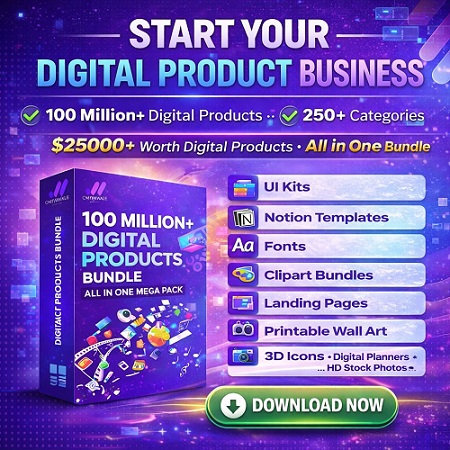
START YOUR DIGITAL PRODUCT BUSINESS — 100 million+ digital products, 250+ categories, an all-in-one bundle worth $25,000+ for just $199.

Quick Answer (Definition + Fast Plan)
A digital planner is a downloadable planning system (usually a hyperlinked PDF) designed for note-taking apps like GoodNotes or for printing at home. It’s a high-demand digital product because it’s useful daily and easy to update into new versions.
- Pick a “planner outcome” (e.g., productivity, fitness tracking, student planning, finance).
- Design a clean system (year → month → week → day + trackers).
- Build it as a PDF (printable) and add hyperlinks (GoodNotes-friendly).
- Test it on iPad + desktop and verify tabs/links work and pages print correctly.
- Package + list it with clear “what’s included,” screenshots, and usage instructions.
- Launch + iterate using buyer feedback, seasonal updates, and bundle offers.
Table of Contents
Why this matters for Digital Product Business
Digital planners are one of the most practical ways to build real skills and real income in a Digital Product Business. You’re not just “making a PDF”—you’re creating a system people rely on, which means repeat customers, upgrades, and bundles.
What problems a digital planner solves
- Decision fatigue: The layout guides the user, so they don’t start from a blank page.
- Consistency: Templates build habits (weekly planning, goals, tracking).
- Organization: Hyperlinks and sections keep everything in one place.
- Accessibility: Users choose iPad (GoodNotes), tablet, desktop, or print.
Who benefits most
- Students: assignment tracking, exam prep, study blocks.
- Professionals: meetings, priorities, project planning, time blocking.
- Creators/freelancers: content calendars, client trackers, finance pages.
- Wellness users: habits, mood, workouts, nutrition, sleep logs.
Best for / Avoid if
Best for: selling digital downloads, printable planner pages, iPad planner templates, and “systems” that can be updated into seasonal versions.
Avoid if: you dislike iterative improvement. Planners sell best when you refine layouts, add versions, and optimize listings over time.
On Sense Central, you can explore more product and marketing ideas using internal guides like Digital Product Business search results and related tutorials via SEO resources and Gumroad strategies.
Key concepts and definitions
Before you design anything, learn the terms buyers use. This helps you create the right product and also improves SEO (people search using these phrases).
Simple definitions (featured-snippet friendly)
- Digital planner: a downloadable planning template (often a hyperlinked PDF) used inside apps like GoodNotes.
- Printable planner: planner pages designed for printing (PDF with correct margins, paper sizes, and simple colors).
- Hyperlinked PDF: a PDF with clickable tabs/buttons that jump between sections (months, weeks, trackers).
- GoodNotes planner: a digital planner optimized for iPad note-taking workflows (tabs, clean writing areas, portrait/landscape).
- Listing assets: product images, previews, mockups, and thumbnails that explain the product quickly.
- Personal use license: buyer can use it for themselves, but cannot resell or redistribute.
Mini glossary (quick reference)
- Undated planner: no printed dates; buyers reuse it any year (often higher long-term sales).
- Dated planner: includes specific year dates (best for annual launches and upgrades).
- Page hierarchy: Year → Month → Week → Day → Notes/Trackers.
- Bleed/margins: print-safe spacing so nothing gets cut off.
- Vector vs raster: vectors stay sharp; raster images can blur when zoomed.
Authority references: For SEO fundamentals and people-first content, use Google’s documentation: SEO Starter Guide.
Step-by-step roadmap (Digital Product Business edition)
This roadmap is designed to take you from idea → finished planner → listing → launch, with quality checkpoints at each stage. Follow it once, then reuse it for future planner products.
Step 1: Choose a “planner outcome” and niche
What to do: Decide the single outcome your planner helps users achieve (e.g., “organize my week,” “track habits,” “plan study sessions”).
Why it matters: Planners sell when they feel purpose-built. Generic planners are harder to differentiate.
How to do it:
- Pick one audience: students, busy professionals, creatives, moms, fitness, finance, ADHD-friendly planning.
- List the top 10 “pages” that audience needs weekly.
- Decide: undated (evergreen) vs dated (annual refresh).
Example: “Student Exam Planner” with monthly calendar + assignment tracker + revision timetable + exam countdown.
Pro tip: Start with an undated version for evergreen sales, then release a dated yearly version as an upgrade.
Step 2: Define your planner structure (system first, design second)
What to do: Build a clear page hierarchy: Year → Month → Week → Day → Trackers/Notes.
Why it matters: A planner is a navigation product. If the structure is confusing, refunds and bad reviews happen.
How to do it:
- Sketch a sitemap on paper or a simple doc.
- Decide your “core loop” pages (the pages people use daily/weekly).
- Plan your tabs: months, sections, trackers.
Example: “Productivity Planner” → Monthly overview → Weekly time-block → Daily priorities → Habit tracker.
Pro tip: Keep the first version smaller but perfect. Add expansions (extra trackers, bonus pages) as updates.
Step 3: Choose format: GoodNotes (hyperlinked) + printable (print-safe)
What to do: Decide what you’re shipping: hyperlinked PDF, printable PDF, or both (recommended).
Why it matters: Buyers often want flexibility: iPad now, print later.
How to do it:
- Create a main “digital” PDF (tabs, hyperlinks, richer visuals).
- Create a “print” PDF (lighter ink, clean margins, standard sizes like US Letter/A4).
- Offer both as one product (higher perceived value).
Example: One listing: “Hyperlinked iPad Planner + Printable Pages (A4/US Letter).”
Pro tip: Add a “minimal ink” printable variant. It reduces buyer hesitation immediately.
Step 4: Build your layout (readability beats decoration)
What to do: Design a clean grid, consistent spacing, and writing-friendly areas.
Why it matters: Users write on these pages. If it’s too busy, it’s frustrating.
How to do it:
- Use 2 fonts max (one for headings, one for body).
- Use high contrast: dark text on light backgrounds.
- Make boxes big enough for handwriting (especially on iPad).
Example: Daily page: top 3 priorities + schedule + notes + “done” checkbox row.
Pro tip: Test at 100% zoom and 200% zoom. If lines blur or text looks thin, increase weight/contrast.
Step 5: Create hyperlinks and navigation (the “premium” feel)
What to do: Add clickable tabs and buttons that jump to sections (months, weeks, trackers).
Why it matters: Hyperlinks are a key reason buyers choose a GoodNotes planner over plain printables.
How to do it:
- Design tabs consistently on every page.
- Link each tab to its destination page.
- Include “Back to Index” links for fast navigation.
Example: Monthly tabs on the right edge (Jan–Dec) + top menu buttons (Year/Month/Week/Trackers).
Pro tip: Validate on GoodNotes: hyperlink behavior varies by mode and platform—confirm tap experience and readability. Useful references: GoodNotes Hyperlink Support and GoodNotes PDF hyperlink guidance.
Step 6: Test like a buyer (quality control checklist)
What to do: Run your planner through real usage tests.
Why it matters: Most planner complaints come from small issues: broken links, wrong margins, confusing pages.
How to do it:
- Open on iPad (GoodNotes), desktop PDF viewer, and a phone.
- Tap every tab/link (yes, every one).
- Print 2–3 pages to verify margins and ink usage.
Example: Print your weekly spread on US Letter and A4—confirm nothing is cut off.
Pro tip: Create a “test page” with all navigation buttons. If that page works, you’ll catch errors faster.
Step 7: Package files like a professional product
What to do: Deliver clean files + instructions so buyers get instant success.
Why it matters: Professional packaging reduces support requests and improves reviews.
How to do it:
- Provide a ZIP containing: Digital PDF, Printable PDF (A4/Letter), Instructions (PDF).
- Use clear naming: “Planner_Digital_Hyperlinked.pdf,” “Planner_Print_A4.pdf,” “How_to_Import.pdf”.
- Add license terms (personal use) inside the instructions.
Example: Folder: “READ_FIRST.pdf” + “DIGITAL.pdf” + “PRINTABLE_A4.pdf” + “PRINTABLE_LETTER.pdf”.
Pro tip: Include a 1-page “Start Here” guide with 3 steps: download → import → use tabs.
Step 8: Price and position your planner (value, not just cost)
What to do: Set a price based on outcome + completeness + uniqueness.
Why it matters: Underpricing signals “low quality.” Overpricing without proof reduces conversions.
How to do it:
- Entry undated planners: typically lower; premium systems: higher.
- Add “value boosters”: printable versions, bonus trackers, minimal-ink edition, icon stickers.
- Offer bundles (planner + stickers + trackers) for higher AOV.
Example: $12 planner + $8 sticker set → $17 bundle (buyers feel they “save”).
Pro tip: Run a limited launch price for the first 7–14 days, then raise price after you have reviews.
Step 9: Create a high-converting listing and launch
What to do: Build a listing that answers questions before they’re asked.
Why it matters: Your listing is your salesperson. Clear visuals + clarity = conversions.
How to do it:
- Use 6–10 images: cover, index, monthly, weekly, daily, trackers, printable preview, “what’s included.”
- Write scannable bullets: compatibility, file types, page counts, sizes, license.
- Add “how to use” and “who it’s for.”
Example: “Works with GoodNotes, Notability, Noteshelf (hyperlinked PDF). Printable pages included (A4 + US Letter).”
Pro tip: For Etsy digital downloads, follow official guidance on listing and delivery: How to Sell Digital Downloads on Etsy and Manage Digital Listings.
Want to Launch Faster?
If you’re building a Digital Product Business, this bundle helps you skip months of guessing: 100M+ digital products, 250+ categories, and $25,000+ value for $199.
Get / Download the Bundle ($199)
Examples, templates, and checklists
Copy-paste template: Digital Planner product listing (Etsy/Gumroad-ready)
Title: [Your Niche] Digital Planner (GoodNotes + Printable) — Hyperlinked PDF + Trackers
Short description (2–3 lines): Plan your weeks in minutes with a clean, easy-to-use hyperlinked planner built for GoodNotes. Includes printable pages (A4 + US Letter) and a minimal-ink option.
What you’ll get:
- 1 Hyperlinked digital planner PDF (GoodNotes-friendly)
- Printable planner PDFs: A4 + US Letter
- Bonus: minimal-ink printable edition
- Quick-start instructions (import + usage)
Highlights:
- Clickable tabs (months/sections) + “back to index” links
- Undated (reusable every year) OR dated (year-specific)
- Designed for handwriting space + readability
- Works with GoodNotes and any PDF-annotation app
How to use:
- Download the files after purchase
- Import into GoodNotes (or your preferred app)
- Use the tabs to jump to sections
License: Personal use only. No reselling, sharing, or redistribution.
Checklist: Launch-ready digital planner (quality + buyer experience)
- ✅ Hyperlinks tested (every tab, every button)
- ✅ Index page included (fast navigation)
- ✅ Writing areas are spacious and readable
- ✅ Printable versions included (A4 + US Letter) with safe margins
- ✅ File names are clear and professional
- ✅ “Start Here” instructions included (download → import → use)
- ✅ Listing images show real pages (not just the cover)
- ✅ “What’s included” section is bullet-based and scannable
- ✅ License terms are visible
- ✅ Customer questions answered (compatibility, file types, printing)
Decision table: Which planner format should you sell?
| Format | Best for | Pros | Cons | Recommended offer |
|---|---|---|---|---|
| Hyperlinked PDF (GoodNotes) | iPad users, daily planning | Premium feel, fast navigation, strong differentiation | More time to build and test links | Main product + bonus printable pack |
| Printable PDF (A4/Letter) | Home/office printing, low-tech users | Easy to produce, broad audience, fast to update | More competition, less “wow” factor | Budget-friendly product or upsell |
| Hybrid bundle (Hyperlinked + Printable) | Most buyers | Higher value, higher price point, fewer objections | More packaging + documentation | Best “default” offer for sales |
Need more digital product ideas and positioning angles? Browse Sense Central’s internal topics: Digital planner ideas, Etsy strategy, and affiliate + monetization tips.
Common mistakes and how to fix them
Most planners fail for predictable reasons. Fix these early and your product instantly feels premium.
- Mistake: Too many decorative elements.
Fix: Prioritize whitespace and writing room. Add style only to headers/tabs. - Mistake: Broken or inconsistent hyperlinks.
Fix: Use a single “tab template” and duplicate it across pages. Retest after exporting. - Mistake: No clear “Start Here” instructions.
Fix: Add a 1-page guide and link to official import support if needed: Import files into Goodnotes. - Mistake: Printable pages waste ink or print poorly.
Fix: Create a minimal-ink version with lighter grids and fewer filled backgrounds. - Mistake: Your listing doesn’t show what buyers get.
Fix: Include screenshots of monthly/weekly/daily pages and a “What’s included” image. - Mistake: Confusing file names and folders.
Fix: Use simple naming and put “READ_FIRST.pdf” at the top. - Mistake: No compatibility statement.
Fix: Explicitly list: GoodNotes, Notability, Noteshelf, and “any PDF annotation app.” - Mistake: Overpromising (e.g., “works as an app”).
Fix: Be precise: it’s a PDF template used inside note-taking apps. - Mistake: You ignore licensing/copyright basics.
Fix: Include a personal-use license and use properly licensed assets. Reference: Creative Commons licenses and U.S. Copyright Office. - Mistake: No iteration plan after launch.
Fix: Add a “Version 1.1” update within 2–4 weeks (small improvements + bonus page).
Tools and resources
Choose tools based on how fast you want to move and how “premium” you want the final product to feel.
Free or low-cost (beginner-friendly)
- Canva: great for fast layouts and exports (PDF). Canva Help Center
- Google Slides / PowerPoint: surprisingly effective for page design and exporting PDFs.
- Figma (free plan): clean layout control; export PDF pages.
- PDF viewers: Preview (Mac), Adobe Acrobat Reader, Chrome PDF viewer for testing.
Paid (best quality + speed for serious creators)
- Adobe Illustrator: professional vector control and crisp exports. Illustrator
- Affinity Designer: strong alternative to Illustrator (often one-time purchase). Affinity Designer
- Keynote (Mac): excellent for layout + export, quick iteration.
- Mockups: Placeit for quick iPad/print mockups. Placeit
Selling platforms (where your digital planner can live)
- Etsy: huge marketplace traffic; strong competition. Start with their official guides: Seller Handbook.
- Gumroad: simple storefront + delivery tools. Gumroad Help Center.
UX + SEO essentials (trust + conversions)
- Google Search documentation: content + discoverability. Google Search Central docs.
- Page speed checks: ensure listing pages and images load quickly. PageSpeed Insights
More Sense Central reading paths: Canva tutorials, SEO guides, and Gumroad publishing tips.
Advanced tips and best practices
Once your first planner is live, you’re not “done”—you’re building a product line. This is where your Digital Product Business becomes predictable.
1) Use the “CORE” framework to make planners people keep using
- Clarity: pages are self-explanatory (labels, examples).
- Outcomes: each section supports a specific goal (plan, track, review).
- Rhythm: weekly and monthly review pages create habit loops.
- Ease: navigation tabs + consistent layout reduce friction.
2) Add “conversion upgrades” that increase sales without extra pages
- Compatibility callout: clearly state apps and devices.
- Preview image strategy: show the most valuable pages first (weekly + daily).
- Proof of value: include a “sample filled page” image to show real usage.
- FAQ in the listing: reduce buyer hesitation instantly.
3) Make your offer feel premium (without making it complicated)
Premium offer stack example:
- Main hyperlinked planner PDF
- Printable pack (A4 + US Letter)
- Minimal-ink printable edition
- Bonus tracker pack (habits, finance, goals)
- Quick-start guide (import + usage)
4) SEO for your planner listing and blog content (simple, effective)
- Use long-tail phrases naturally: how to make a GoodNotes planner, hyperlinked PDF planner, printable planner PDF A4, sell digital planners on Etsy, Gumroad digital downloads.
- Write for the buyer’s question: “Will this work on my device/app?” “What files do I get?” “Can I print it?”
- Make headings and bullets scannable (helps users and search engines).
5) Scale with versions, bundles, and seasonal updates
- Versioning: release V1.1, V1.2 updates to improve retention and reviews.
- Bundles: planner + stickers + trackers = higher average order value.
- Seasonal drops: “New Year Reset,” “Back to School,” “Q4 Goals,” “Ramadan Planner,” “Wedding Planner.”
- Spin-offs: turn your core planner into niche variants (student, teacher, entrepreneur, fitness).
6) Trust and compliance basics (avoid account and customer issues)
- Use your own designs or properly licensed assets (fonts, icons, illustrations).
- Be clear about refunds and “digital download” policies per platform.
- Include a short license inside the PDF (not just the listing).
FAQ
1) What’s the best format for a GoodNotes planner?
The most popular format is a hyperlinked PDF with clickable tabs for months/sections. Keep writing areas large, use high contrast, and test link behavior inside GoodNotes across different modes/devices.
2) Should I sell undated or dated planners?
Undated planners are evergreen and can sell year-round. Dated planners can spike in seasonal demand (New Year, school starts) but require yearly updates. Many sellers do both: undated core + dated annual edition.
3) Can I create a planner in Canva and still make it premium?
Yes. Canva can produce clean, premium layouts if you keep designs minimal, align elements consistently, and export high-quality PDFs. The “premium” feel comes from structure, usability, and packaging—not just design tools.
4) How do I make sure hyperlinks work in GoodNotes?
Hyperlinks must be embedded in the PDF during export and tested inside GoodNotes. Test all tabs and navigation and consider that different platforms can behave slightly differently. See GoodNotes support resources for hyperlink behavior and troubleshooting.
5) What paper sizes should I include for printables?
Most buyers want US Letter and A4. If your audience is global, offering both reduces buyer objections. Always test print margins on at least one real printer.
6) Where should I sell: Etsy or Gumroad?
Etsy can bring marketplace traffic but is competitive and listing-driven. Gumroad is simpler for direct sales and audience-based marketing. A strong approach is Etsy for discovery + Gumroad for direct traffic from your blog/social.
7) How many pages should my first planner include?
Enough to solve one clear problem—without becoming overwhelming. Many first planners work well with monthly + weekly + daily + 2–5 trackers. You can expand later with add-ons and updates.
8) How do I price my digital planner?
Price based on value: hyperlinks, completeness, printables included, and niche specificity. Add “value boosters” (minimal-ink edition, bonus trackers) and test pricing after you get early reviews.
9) Do I need to trademark or copyright my planner?
Copyright generally exists automatically when you create original work, but policies vary by region and legal advice. If you’re concerned, review official resources and use clear licensing terms. This is general information, not legal advice.
10) How do I reduce support requests and refunds?
Include a short “Start Here” guide, list compatibility clearly, and show exactly what files buyers receive. Clear expectations, clean packaging, and tested links prevent most issues.
Key takeaways
- A digital planner is a system first (structure + navigation), then design.
- Build a hybrid offer: hyperlinked GoodNotes PDF + printable PDFs (A4 + Letter).
- Hyperlinks and consistent tabs are the main “premium” differentiator.
- Test everything like a buyer: links, devices, print margins, readability.
- Package professionally: clear file names + “READ FIRST” instructions + license.
- Optimize your listing with scannable bullets and real page previews.
- Scale your Digital Product Business with versions, bundles, and niche spin-offs.
- Use SEO-friendly long-tail terms naturally (GoodNotes planner, printable planner PDF, hyperlinked PDF planner, sell digital planners).
Final Recommendation: Accelerate Your Digital Product Business
START YOUR DIGITAL PRODUCT BUSINESS — 100 million+ digital products, 250+ categories, all-in-one bundle worth $25,000+ for just $199.
Get / Download the Bundle ($199)

Conclusion
Creating a digital planner is one of the most skill-building, evergreen ways to grow a Digital Product Business. When you focus on structure, usability, and buyer experience—then package and list it professionally—you’re not just selling a file. You’re selling a system people rely on.
Next steps: Choose one niche, build a small but excellent first version, test it thoroughly, and publish with clear visuals and instructions. Then improve based on buyer feedback and scale with versions and bundles.
Explore more on Sense Central: