
Shortcuts are a great way to quickly access programs, files, folders, and even web pages. They can be conveniently placed on your desktop or in certain directories or folders. There are a few methods used to achieve these results. To proceed, make your selection from the list below follow the steps below.
Create a shortcut using Microsoft’s wizard
This method allows users to create shortcuts on the Windows desktop or in a folder.
1. Right-click a blank space on the Windows desktop, a folder, or in a directory.
2. Move your mouse cursor over New in the drop-down menu that appears.
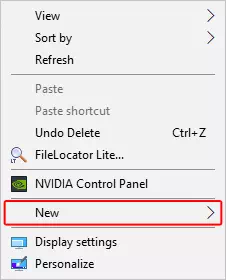
3. Then select Shortcut.
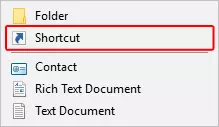
4. On the Create Shortcut window, click the  button.
5. Locate the program for which you’d like to create a shortcut (A), and then click OK (B).
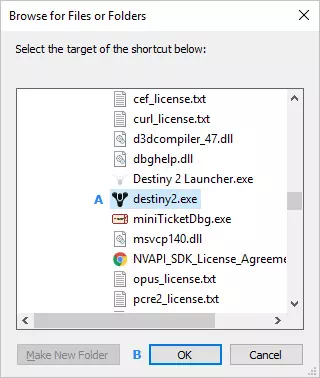
6. Click the  button.
7. Type in a name for the shortcut, then click the  button.
Tip
You can pin a desktop shortcut for a program to the taskbar by dragging and dropping it there.
Create a shortcut from a folder
1. Open the Windows File Explorer by pressing the Windows key and E at the same time.
2. Browse to the folder that contains the program for which you’d like to create a shortcut.
3. Right-click on the program and select Create Shortcut from the drop-down menu that appears.
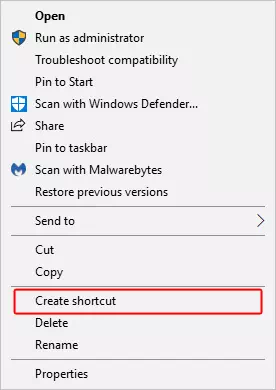
4. Doing so creates a shortcut named “<selected program’s name> – Shortcut” in the current directory.
Tip
If you want to rename this shortcut, right-click the file and select Rename.
5. Once the steps above have been completed, you can right-click the shortcut to copy or cut it, and then paste it to another location.