- Table of Contents
- 1) What is Elementor Popup Builder (and when it’s the right tool)
- 2) Before you build: the 60-second popup strategy
- 3) Setup checklist (Elementor + WordPress basics)
- 4) How to create your first popup in Elementor (step-by-step)
- Step A: Create a new popup template
- Step B: Choose a template or start from scratch
- Step C: Design for mobile (from the beginning)
- Step D: Publish and set Conditions, Triggers, and Advanced Rules
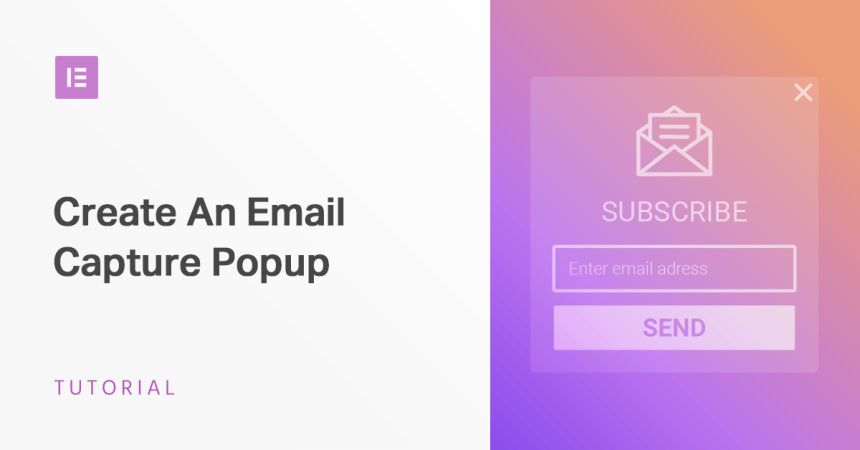
- 5) Popup #1: Email capture popup (newsletter / lead magnet)
- Best use cases
- High-converting layout (simple and proven)
- How to build it in Elementor (design + form)
- Recommended trigger + rules (to avoid annoyance)
- 6) Popup #2: Offers popup (coupon, deal, content upgrade)
- Best use cases
- Offer popup structure that converts
- Recommended triggers
- Targeting tips for affiliate + comparison pages
- 7) Popup #3: Exit-intent popup (desktop) + mobile alternatives
- What to offer on exit intent
- Recommended settings (exit intent done right)
- Important: Mobile “exit intent” is different
- 8) Targeting rules that convert without annoying people
- 9) Tracking & optimization (what to measure and how to improve)
- 10) Speed & UX: avoid slowing down your site
- 11) Quick reference tables (best triggers + rules by goal)
- 12) FAQs
- Do popups still work in 2026?
- What’s the best popup for an affiliate site like SenseCentral?
- Should I ask for name + email?
- How often should I show a popup?
- Why doesn’t exit intent work on mobile?
- How do I avoid annoying returning visitors?
- Will popups slow down my site?
- What’s the fastest path if I don’t want to manage hosting + plugins?
- 13) Key Takeaways
- 14) References & further reading
Affiliate disclosure: This post contains affiliate links. If you purchase through these links, SenseCentral may earn a commission at no extra cost to you. We only recommend tools we believe are genuinely useful.
Popups have a bad reputation because most sites use them badly: they’re intrusive, generic, and shown too often. But when you treat popups as targeted micro-offers—shown to the right person, on the right page, at the right time—they become one of the highest-ROI conversion tools you can add to a WordPress site.
In this guide, you’ll learn how to build three high-performing popup types using Elementor Popup Builder:
(1) email capture popups, (2) limited-time offer popups, and (3) exit-intent popups—plus the exact conditions, triggers, and frequency controls that prevent “popup fatigue.”
Table of Contents
- What is Elementor Popup Builder (and when it’s the right tool)
- Before you build: the 60-second popup strategy
- Setup checklist (Elementor + WordPress basics)
- How to create your first popup in Elementor (step-by-step)
- Popup #1: Email capture popup (newsletter / lead magnet)
- Popup #2: Offers popup (coupon, deal, content upgrade)
- Popup #3: Exit-intent popup (desktop) + mobile alternatives
- Targeting rules that convert without annoying people
- Tracking & optimization (what to measure and how to improve)
- Speed & UX: avoid slowing down your site
- Quick reference tables (best triggers + rules by goal)
- FAQs
- Key Takeaways
- References & further reading
1) What is Elementor Popup Builder (and when it’s the right tool)
Elementor Popup Builder is a built-in popup system for WordPress sites using Elementor. You design popups with the same visual editor you use for pages—so your popup can match your site perfectly (fonts, buttons, spacing, responsive behavior).
It’s a strong choice when you want:
- On-brand popups with precise layout control (not cookie-cutter templates)
- Smart targeting (show on specific pages, devices, sessions, referrers)
- One-tool workflow (build pages + popups without adding another heavy popup plugin)
If you need advanced features like built-in A/B testing, multi-step funnels, or deep behavioral personalization, you may prefer a dedicated popup/lead-gen platform. But for most WordPress creators, SaaS sites, bloggers, and affiliate sites, Elementor popups cover the core use cases extremely well.
Recommended setup (fastest path): Use Elementor for design + popups, and keep your stack light for speed.
2) Before you build: the 60-second popup strategy
Before touching settings, decide these four things. This is the difference between “annoying popup” and “high-converting popup.”
- One goal per popup: email signup, coupon claim, demo booking, or content upgrade (not everything at once).
- One audience: new visitors vs returning, blog readers vs product-page visitors, buyers vs browsers.
- One trigger moment: after reading (scroll), before leaving (exit intent), or after engaging (click).
- One next step: the button or form submission should match the promise exactly.
A simple rule: Match popup intent to page intent. On a product comparison page, offer a “Top picks + deal alerts” signup. On a pricing page, offer a “setup checklist” or “demo.” On a blog post, offer a relevant lead magnet.
3) Setup checklist (Elementor + WordPress basics)
- Elementor installed and activated on WordPress
- Elementor Pro (required for the native Popup Builder + Form integrations in most cases)
- Email destination: where leads should go (email notifications, CRM, or email platform)
- Basic compliance: add a consent checkbox when collecting emails for marketing
Optional but recommended if you want fewer moving parts:
- All-in-one hosting: Elementor’s managed hosting can simplify SSL/CDN/security and reduce plugin chaos for many site owners.
4) How to create your first popup in Elementor (step-by-step)
Step A: Create a new popup template
- Go to your WordPress admin.
- Navigate to Templates → Popups (or Elementor’s Templates area, depending on your UI).
- Click Add New and choose Popup.
- Name it clearly, e.g., Email Capture – Blog Readers.
Step B: Choose a template or start from scratch
You can start with a popup template and customize it, or build from scratch. If you’re optimizing for speed, keep the layout minimal:
- One headline
- One benefit line
- One form (or one button)
- One trust cue (e.g., “No spam” or “Unsubscribe anytime”)
Step C: Design for mobile (from the beginning)
Popups that look great on desktop often break on mobile. In Elementor’s responsive controls:
- Use full-width inputs/buttons on mobile
- Increase tap targets (buttons shouldn’t be tiny)
- Avoid huge images and multi-column layouts
- Use a max width and padding so content doesn’t touch screen edges
Step D: Publish and set Conditions, Triggers, and Advanced Rules
This is where most people get popups wrong. The design is 30%—targeting and frequency are 70%.
5) Popup #1: Email capture popup (newsletter / lead magnet)
Best use cases
- Grow your newsletter for product reviews, deals, and comparisons
- Offer a lead magnet: “WordPress speed checklist,” “tool stack,” “buying guide PDF,” etc.
- Turn blog traffic into repeat visitors (email beats algorithms)
High-converting layout (simple and proven)
- Headline: “Get the weekly top picks + deal alerts”
- Benefit line: “Short, practical. No spam. Unsubscribe anytime.”
- Form fields: Email only (start frictionless)
- Button: “Send me the picks” (matches intent)
How to build it in Elementor (design + form)
- Add a Form widget inside the popup.
- Use one field: Email (you can add Name later if needed).
- Add an Acceptance checkbox if you’re collecting marketing consent (example text below).
- Set “Actions After Submit” to your destination (email, webhook, or integration).
- Show a success message or redirect to a “Thank you” page.
Consent checkbox copy (example):
I agree to receive emails from SenseCentral about product picks and updates. I can unsubscribe at any time.
Recommended trigger + rules (to avoid annoyance)
- Trigger: On Scroll (e.g., 40–60%) or After Inactivity (e.g., 20–30 seconds)
- Advanced Rule: Show up to X times (e.g., 1 per 7–14 days) or show after X sessions (so you don’t hit first-time visitors instantly)
- Device control: Use a less aggressive layout on mobile (or switch to a bottom sheet / slide-in style)
If you want a clean internal linking path, you can pair this with a “conversion widgets” strategy (popup + trust + CTA placement).
Related SenseCentral guides:
Best Website Widgets to Increase Conversions (2026),
Best Popup Tools for Lead Generation
6) Popup #2: Offers popup (coupon, deal, content upgrade)
Best use cases
- Limited-time coupon or bonus (affiliate promo, seasonal deal, launch)
- Content upgrade on a specific article (“Download the checklist”)
- Bundle offer on a category page (“Best tools for X”)
Offer popup structure that converts
- Headline: “Limited-time bonus: Get the checklist”
- One-line value: “Avoid the 7 settings that slow WordPress sites.”
- Visual cue: small icon or minimal image (optional)
- CTA: one button or short form
Recommended triggers
- On Click (best UX): Open the popup when users click a “Get the checklist” button in the article.
- On Scroll to Element: Trigger the popup when users reach your comparison table or “Top Pick” section.
- After X page views: Show offers only after they’ve engaged with multiple pages.
Targeting tips for affiliate + comparison pages
- Show the offer only on your highest-intent pages (product comparisons, “best” posts, pricing pages).
- Use “arriving from specific URL” rules to show special offers only to campaign traffic (e.g., from an email or ad).
- Hide the popup for logged-in users if it’s not relevant (or if your site has members/subscribers).
If you’re running WordPress offers, keep performance in mind—heavy popups + heavy caching misconfiguration can create a messy experience.
Related: Best Caching Setup for WordPress (What Works in 2026)
7) Popup #3: Exit-intent popup (desktop) + mobile alternatives
Exit-intent popups can work extremely well—when you offer something genuinely useful at the moment someone is about to leave. The key: don’t “beg.” Provide a smart last chance.
What to offer on exit intent
- Newsletter: “Get the weekly top picks + deal alerts”
- Free resource: “Download the speed checklist”
- Soft CTA: “See the 3 best options (quick summary)”
- Deal: “Limited bonus ends tonight” (use honestly)
Recommended settings (exit intent done right)
- Trigger: On Page Exit Intent (desktop)
- Advanced Rules:
- Show up to X times: 1 (or 2 max)
- Show after X sessions: 1–2 (avoid immediate first-visit exit intent)
- Show on devices: Desktop only (and create a separate mobile-friendly variant)
Important: Mobile “exit intent” is different
Classic exit-intent relies on mouse movement (desktop). On mobile, use alternatives:
- After scroll (e.g., 60–75%)
- After inactivity (e.g., 25–40 seconds)
- On click (best UX)
Want a deeper playbook for exit intent across platforms? This SenseCentral guide includes templates and settings to prevent popup fatigue:
How to Create a High-Converting Exit-Intent Popup (templates + settings)
8) Targeting rules that convert without annoying people
Elementor popups become powerful when you combine:
Conditions (where it can appear) + Triggers (when it appears) + Advanced Rules (additional requirements).
Targeting rules that typically improve results immediately
- Show only on specific pages: comparison posts, category hubs, product pages, pricing pages.
- Limit frequency: 1 view per visitor per week (or even less).
- Use session/pageview thresholds: show after engagement, not instantly.
- Use referrer targeting: show different popups to Google traffic vs email traffic vs internal navigation.
- Device targeting: separate desktop and mobile popups (layout + trigger).
Two practical “anti-annoyance” rules
- Rule #1: Never show the same popup on every page of your site. That’s how popups become noise.
- Rule #2: If someone closes a popup, don’t show it again for a while. Respect the “no.”
9) Tracking & optimization (what to measure and how to improve)
A popup is only “good” if it changes one of these metrics:
- Email signup rate (signups / popup views)
- Click-through rate (button clicks / popup views)
- Downstream conversion (sales, bookings, trials from those leads)
Optimization loop (simple and effective)
- Start with one popup on your highest-traffic, highest-intent page.
- Run it for 7–14 days with conservative frequency.
- Change only one variable at a time:
- Offer (lead magnet vs newsletter vs coupon)
- Trigger (scroll vs exit intent vs click)
- Copy (headline and button text)
- Friction (email-only vs name+email)
- Keep winners, remove losers. A popup that doesn’t improve outcomes is just page weight.
10) Speed & UX: avoid slowing down your site
Popups can hurt performance when they add heavy scripts, large images, or excessive DOM elements—especially if you add multiple popups plus other widgets.
Performance best practices
- Keep popup designs lightweight (minimal images, minimal animations).
- Delay aggressive triggers (let the page load and the user engage first).
- Avoid stacking multiple popup plugins (conflicts + duplicate scripts).
- Test Core Web Vitals after publishing popups.
If you’re using Elementor for design, keep your above-the-fold layout clean and avoid heavy sliders and nested sections.
Related performance guide:
Core Web Vitals for WordPress: Practical Steps to Pass
11) Quick reference tables (best triggers + rules by goal)
Table A — Best popup type by goal
| Goal | Best Trigger | Best Advanced Rule | Notes |
|---|---|---|---|
| Email capture (blog) | On Scroll (40–60%) | Show up to X times (1 / 7–14 days) | Keep fields minimal (email only at first) |
| Offer / coupon | On Click (best UX) | Show after X page views (2–3) | Use on high-intent pages only |
| Exit intent (desktop) | On Page Exit Intent | Show up to X times (1) | Create a separate mobile alternative |
| Content upgrade | On Scroll to Element | Arriving from internal link / specific URL | Trigger near the section that created desire |
Table B — Elementor popups vs common alternatives (high level)
| Option | Pros | Cons | Best For |
|---|---|---|---|
| Elementor Popup Builder | Unified design workflow, brand control, strong targeting | Advanced experimentation may require extra tooling | Creators, SMBs, affiliate sites, WordPress marketing pages |
| Dedicated popup platforms | Advanced lead-gen features, sometimes built-in testing | Extra scripts/cost, separate UI | Teams running heavier funnels and experiments |
| Single-purpose WP popup plugins | Often cheap/free | Plugin overload, mixed quality, conflicts | One-off needs on simple sites |
12) FAQs
Do popups still work in 2026?
Yes—when they’re targeted, respectful, and relevant. Most “popups don’t work” complaints come from bad timing, generic offers, and showing the same popup to everyone.
What’s the best popup for an affiliate site like SenseCentral?
A scroll-based email capture popup that offers deal alerts + top picks, shown only on your best comparison pages, with low frequency (e.g., once per week).
Should I ask for name + email?
Start with email only. Add name later if you truly need it for personalization. Every extra field reduces submissions.
How often should I show a popup?
Conservatively. Start at 1 display per visitor per 7–14 days for broad popups. For page-specific content upgrades, you can be slightly more frequent.
Why doesn’t exit intent work on mobile?
Traditional exit intent relies on mouse movement. On mobile, use scroll or inactivity triggers instead, or a click-triggered popup for the best experience.
How do I avoid annoying returning visitors?
Use frequency caps (“show up to X times”), session/pageview thresholds, and consider hiding popups for logged-in users or subscribers.
Will popups slow down my site?
They can—if you overload the page with scripts, large images, or multiple popup tools. Keep designs light, reduce the number of popups, and test performance after publishing.
What’s the fastest path if I don’t want to manage hosting + plugins?
An all-in-one setup (builder + managed hosting) reduces moving parts for many creators.
13) Key Takeaways
- Popups work when they’re relevant, targeted, and shown with restraint.
- Design is only 30%; Conditions + Triggers + Advanced Rules drive real performance.
- Start with one popup on your highest-intent page, then iterate based on results.
- Email capture: scroll/inactivity triggers + low frequency.
- Offers: click-triggered popups are the best UX.
- Exit intent: desktop-focused; use mobile-friendly alternatives like scroll/inactivity.
- Keep popups lightweight to protect speed and Core Web Vitals.
14) References & further reading
- Elementor: Learn How to Use Popups
- Elementor Academy: Popup Conditions, Triggers & Advanced Rules
- Elementor: Form Widget (Acceptance field + form options)
- Elementor Hosting: Plans & Features
- SenseCentral: High-Converting Exit-Intent Popup (Templates + Settings)
- SenseCentral: Best Website Widgets to Increase Conversions (2026)
- SenseCentral: Core Web Vitals for WordPress (Practical Steps)
- Contact SenseCentral