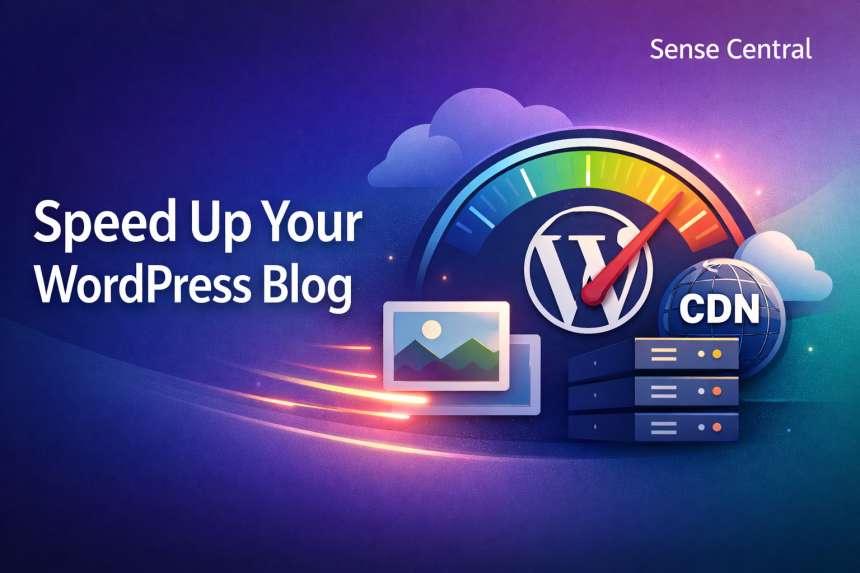
If your WordPress blog feels slow, you are not just losing patience—you are losing readers, conversions, and often visibility in search. Speed is a practical advantage in Blogging & SEO: faster pages tend to keep people engaged longer, reduce bounce, and improve the user signals that search engines try to reward.
- Quick Answer (Featured Snippet)
- Table of Contents
- Why this matters for Blogging & SEO
- What speed improves (beyond “it feels faster”)
- Who needs this guide most
- The real problems you are solving
- Key concepts and definitions
- Step-by-step roadmap for Blogging & SEO speed wins
- Step 1) Establish your baseline (and pick one target metric)
- Step 2) Fix hosting and server response time (TTFB)
- Step 3) Enable page caching (the highest ROI change)
- Step 4) Optimize images (often the biggest LCP improvement)
- Step 5) Use a CDN to serve static assets globally
- Step 6) Reduce plugin and theme bloat (and remove “silent weight”)
- Step 7) Optimize CSS/JS delivery (minify, defer, and prioritize)
- Step 8) Clean up the database and background tasks
- Examples, templates, and checklists
- Copy-paste template: WordPress Speed Audit Notes (1-page)
- Checklist: Monthly speed maintenance (copy into your workflow)
- Table: Decision matrix for caching, images, CDN, and hosting
- Common mistakes and how to fix them
- 1) Installing multiple caching plugins “for extra speed”
- 2) Uploading huge images and relying on “compression later”
- 3) Using heavy page builders for simple blog layouts
- 4) Not reserving space for ads, images, and embeds (CLS issues)
- 5) Letting third-party scripts run uncontrolled
- 6) Minifying/combining assets without testing
- 7) Ignoring fonts (slow text rendering)
- 8) “Optimizing” the wrong thing first
- 9) Forgetting mobile-first testing
- 10) Not backing up before major changes
- Tools and resources
- Free tools (high value)
- Paid tools (best for speed-focused sites)
- Beginner-friendly picks (low risk, big results)
- Advanced picks (for scaling traffic)
- Advanced tips and best practices
- 1) Build a “performance budget” (so the site stays fast)
- 2) Optimize fonts like a performance engineer
- 3) Use critical CSS (and keep it clean)
- 4) Tame third-party scripts (ads, trackers, embeds)
- 5) Consider object caching if your site is “backend heavy”
- 6) Improve database query health (advanced troubleshooting)
- 7) Stabilize CLS with “reserved space” rules
- FAQ
- 1) Does WordPress speed affect rankings directly?
- 2) What is the fastest way to speed up a WordPress blog?
- 3) Which matters more: caching or a CDN?
- 4) How do I know if my hosting is the problem?
- 5) Should I use WebP or AVIF?
- 6) How many plugins are “too many” for speed?
- 7) Can a heavy theme slow down Blogging & SEO performance?
- 8) What should I prioritize for Core Web Vitals?
- 9) Is it safe to minify and combine CSS/JS?
- 10) How often should I run speed audits?
- 11) Do I need Redis object caching for a normal blog?
- 12) What is a realistic “good” load time for a WordPress blog?
- Key takeaways
- Conclusion
This Sense Central guide walks you from fundamentals to advanced optimization with a clear roadmap: measuring your baseline, fixing the biggest bottlenecks first, then layering caching, image optimization, CDN delivery, and better hosting. You will get step-by-step actions, real examples, templates, and checklists you can reuse for every site you manage.
Quick Answer (Featured Snippet)
Definition: Speeding up a WordPress blog means reducing time-to-first-byte (TTFB), page load time, and render delays by optimizing hosting, caching, images, scripts, and content delivery so pages become fast and stable for real users.
- Measure first: Use PageSpeed Insights + Core Web Vitals to find the top bottleneck.
- Fix hosting/TTFB: Choose modern PHP, good server caching, and low-latency infrastructure.
- Enable caching: Page caching + browser caching + (optionally) object caching.
- Optimize images: WebP/AVIF, lazy-load, correct sizes, compress, and remove heavy sliders.
- Use a CDN: Serve static files from edge locations and reduce origin load.
- Trim bloat: Limit plugins, minimize CSS/JS, defer non-critical scripts, and optimize fonts.
Table of Contents
Why this matters for Blogging & SEO
Speed is not an “extra.” It is a user experience baseline. When your blog loads quickly, people read more, click deeper, and trust your site more. When it loads slowly, they leave—often before the first paragraph appears.
What speed improves (beyond “it feels faster”)
- Reader retention: Faster pages reduce drop-offs and increase time on site.
- Conversion rates: Even informational blogs benefit—email signups, affiliate clicks, and product page visits usually rise when friction drops.
- Crawl efficiency: Search engines can crawl more URLs with less server strain when your site responds quickly.
- Core Web Vitals performance: Better user experience metrics can support stronger visibility over time.
Who needs this guide most
- New bloggers who installed “too many plugins” while experimenting.
- Growing sites with heavy images, ads, analytics scripts, and multiple authors.
- Affiliate and review blogs where speed directly influences clicks and trust.
- Advanced site owners ready for CDNs, object caching, and performance budgets.
The real problems you are solving
- Slow server response (high TTFB): weak hosting, overloaded database, no caching.
- Heavy pages: oversized images, video embeds, bloated themes and builders.
- Render-blocking resources: CSS/JS delaying above-the-fold content.
- Too many third-party scripts: ads, tracking, chat widgets, social embeds.
Next step if you want a structured approach: use this internal guide placeholder to align speed work with content goals: Blog Performance Strategy for Beginners.
Key concepts and definitions
Before you optimize, you need a shared language. This section gives quick, practical definitions you can use while reading reports and configuring tools.
Simple definitions (snippet-friendly)
- TTFB (Time to First Byte): How quickly your server starts responding. High TTFB usually means hosting or backend issues. (More context: https://web.dev/ttfb/)
- Core Web Vitals: Google’s user experience metrics—mainly LCP (loading), INP (interactivity), and CLS (visual stability). https://web.dev/vitals/
- Page caching: Serving a ready-made HTML version of a page instead of rebuilding it for each visitor.
- Browser caching: Instructing the visitor’s browser to store files like images/CSS so repeat visits load faster.
- CDN (Content Delivery Network): A global network that serves your static files from locations closer to users. https://www.cloudflare.com/learning/cdn/what-is-a-cdn/
- Image optimization: Compressing images, using modern formats (WebP/AVIF), and serving the right size for each device.
- Minification: Removing unnecessary characters from CSS/JS without changing functionality.
- Lazy loading: Loading images/videos only when they are close to appearing on screen.
Mini glossary (quick reference)
- LCP (Largest Contentful Paint): How fast the main content loads. Aim to improve hero image, server speed, and caching.
- INP (Interaction to Next Paint): Responsiveness. Improve by reducing heavy JavaScript and third-party scripts. https://web.dev/inp/
- CLS (Cumulative Layout Shift): Visual stability. Fix by reserving image/ad space and avoiding late-loading fonts. https://web.dev/cls/
- HTTP/2 + HTTP/3: Faster protocols that improve parallel requests and latency on modern hosts/CDNs.
- Object caching (Redis/Memcached): Storing database query results to reduce backend work (useful for dynamic sites).
If you want a performance glossary tailored for content sites, add this internal reference later: WordPress Speed & Core Web Vitals Glossary.
Step-by-step roadmap for Blogging & SEO speed wins
This is a practical 8-step process. Follow it in order. Each step includes what to do, why it matters, how to do it, an example, and a pro tip.
Step 1) Establish your baseline (and pick one target metric)
- What to do: Run 3 tests and record results: PageSpeed Insights, Lighthouse, and a real-user metric if available.
- Why it matters: Optimization without measurement becomes guesswork. You need to know your biggest bottleneck.
- How to do it:
- Test your homepage and one heavy blog post at https://pagespeed.web.dev/
- Run Lighthouse in Chrome DevTools (overview: https://developer.chrome.com/docs/lighthouse/overview/)
- Check Core Web Vitals in Google Search Console (official guide: https://support.google.com/webmasters/answer/9205520)
- Example: Your report shows “Reduce initial server response time” and LCP is high. That points to hosting/TTFB + caching as the first priority.
- Pro tip: Pick one primary target first (usually TTFB or LCP). Improvements cascade into other metrics.
Step 2) Fix hosting and server response time (TTFB)
- What to do: Ensure your host runs modern PHP, has strong server-level caching, and provides enough CPU/RAM for peak traffic.
- Why it matters: A slow server can sabotage every other speed effort. If the origin is slow, CDN and caching only help so much.
- How to do it:
- Update PHP to a supported version (PHP performance background: https://www.php.net/)
- Confirm your host uses fast storage (NVMe/SSD), modern database tuning, and HTTP/2 or HTTP/3.
- Use server caching if offered (many managed WordPress hosts include it).
- Consider upgrading hosting if TTFB stays high even after caching.
- Example: Moving from an overloaded shared host to a well-optimized managed WordPress plan often reduces TTFB dramatically, especially during traffic spikes.
- Pro tip: Look for hosts with strong WordPress performance engineering and transparent architecture details.
Step 3) Enable page caching (the highest ROI change)
- What to do: Turn on page caching so WordPress serves static HTML instead of rebuilding pages for every visitor.
- Why it matters: WordPress is dynamic by default. Page caching removes repeated PHP/database work and speeds up requests.
- How to do it:
- Choose one caching approach: host-level cache or plugin cache (avoid stacking multiple cache plugins).
- Enable cache for:
- Homepage and posts/pages
- Mobile cache (if separate)
- Logged-in users only if needed (often not necessary for blogs)
- Exclude sensitive pages (checkout, cart, account) if you run WooCommerce.
- Example: A blog with 40+ plugins can still load fast if page caching is properly configured and the theme is lightweight.
- Pro tip: After enabling caching, test “view source” to confirm cached headers or cache indicators are present. Use one cache solution, not three.
Step 4) Optimize images (often the biggest LCP improvement)
- What to do: Convert images to modern formats, compress them, and serve the correct size for each device.
- Why it matters: Images commonly make up the largest percentage of page weight on blogs. Oversized images crush LCP and mobile performance.
- How to do it:
- Use WebP or AVIF where possible (format guidance: https://web.dev/serve-images-webp/)
- Resize images to match display size (avoid uploading 4000px images for a 900px layout).
- Enable lazy loading for below-the-fold images (WordPress supports lazy-loading by default for many cases: https://wordpress.org/documentation/)
- Preload the hero image (if it is your LCP element) using your performance plugin or theme settings.
- Replace heavy sliders with a single optimized hero image when possible.
- Example: If your blog post header image is 1.8MB JPEG, converting it to WebP at 180–280KB can instantly improve LCP on mobile.
- Pro tip: Create an image policy: “No image uploads above 250KB unless justified.” Your future self will thank you.
Step 5) Use a CDN to serve static assets globally
- What to do: Put a CDN in front of your WordPress site to serve images, CSS, and JS from edge locations.
- Why it matters: A CDN reduces latency for visitors far from your server and offloads bandwidth from your origin host.
- How to do it:
- Choose a CDN provider and connect it to your domain (Cloudflare overview: https://www.cloudflare.com/learning/)
- Enable CDN for static assets at minimum.
- Consider “full-page caching” at the edge only after you have stable caching rules and exclusions.
- Retest from different locations (e.g., WebPageTest: https://www.webpagetest.org/)
- Example: A UK visitor accessing a US-hosted blog can see faster load times when images are delivered from a London edge node.
- Pro tip: CDN helps most when your audience is geographically spread and your site serves many images.
Step 6) Reduce plugin and theme bloat (and remove “silent weight”)
- What to do: Audit plugins and theme features that add scripts, styles, and database load.
- Why it matters: Many slow sites are not slow because of “WordPress”—they are slow because of unnecessary features and third-party scripts.
- How to do it:
- List all plugins and their purpose. Remove anything redundant.
- Replace multi-purpose “do everything” plugins with lighter alternatives when possible.
- Check for plugins that load assets site-wide when needed only on one page (contact forms, sliders, popups).
- Choose a lightweight theme built with performance in mind.
- Example: Using three plugins for “social sharing” can add multiple tracking scripts. Switching to one lightweight share plugin can reduce requests and improve INP.
- Pro tip: Keep a “plugin budget” for content sites. Every new plugin should earn its place.
Step 7) Optimize CSS/JS delivery (minify, defer, and prioritize)
- What to do: Minify CSS/JS, defer non-critical scripts, and remove render-blocking resources where possible.
- Why it matters: Heavy JavaScript can harm INP and overall responsiveness. Render-blocking CSS delays what users see.
- How to do it:
- Enable minification in your performance tool (do not combine/minify blindly if it breaks layouts).
- Defer non-critical JavaScript (analytics, chat widgets, social embeds).
- Use “delay JS execution” for third-party scripts if available.
- Generate Critical CSS (above-the-fold CSS) if your tool supports it.
- Example: A blog with multiple ad tags and social embeds often improves INP when scripts are delayed until interaction or after the main content becomes visible.
- Pro tip: After every change, check one post template and one category page. Performance gains are useless if layouts break.
Step 8) Clean up the database and background tasks
- What to do: Reduce database clutter (revisions, transients), optimize tables, and control cron jobs and heartbeat where appropriate.
- Why it matters: Bloated databases slow admin tasks and can increase backend load, which can raise TTFB during traffic spikes.
- How to do it:
- Limit post revisions in WordPress (official guidance is scattered, but database hygiene is a standard practice; use trusted plugins or host tools).
- Remove spam/trashed content regularly.
- Use a database optimization tool carefully (always back up first).
- Reduce unnecessary background tasks and plugins that run frequent scans.
- Example: A site with years of revisions and orphaned data can become noticeably faster after cleanup—especially in admin and query-heavy pages.
- Pro tip: Schedule cleanup monthly, not daily. Aggressive cleanup can cause unintended issues if misconfigured.
To align speed work with a broader content plan, use this internal link placeholder: SEO Content Planning That Supports Faster Sites.
Examples, templates, and checklists
This section gives you reusable assets: a copy-paste template, a checklist you can run monthly, and a decision table to choose the right stack for your site.
Copy-paste template: WordPress Speed Audit Notes (1-page)
Use this template to document what you changed, why you changed it, and what impact it had. It makes optimization repeatable—especially useful for Blogging & SEO sites that publish frequently.
WORDPRESS SPEED AUDIT (Sense Central Template) Site: Date: Pages Tested: - Homepage: - 1 Heavy Post: - Category/Archive: Baseline Metrics: - PageSpeed (Mobile/Desktop): - Core Web Vitals Status (GSC): - TTFB: - LCP: - INP: - CLS: - Total Page Weight: - Requests Count: Top 3 Bottlenecks (from reports): 1) 2) 3) Changes Made (one at a time): 1) Change: Why: How: Result: 2) Change: Why: How: Result: 3) Change: Why: How: Result: Caching Setup: - Page cache: - Browser cache: - Object cache: - CDN: Image Policy: - Max upload size: - Format: - Lazy-load: - Hero preload: Plugin Notes: - Removed: - Replaced: - Kept (with reason): Next Tests: - Retest date: - Pages to retest:
Checklist: Monthly speed maintenance (copy into your workflow)
- Re-test 3 URLs (homepage, heavy post, category page) in PageSpeed Insights.
- Check Search Console for Core Web Vitals changes and new issues.
- Review plugin updates and remove anything unused or redundant.
- Scan recent posts for oversized images and convert/compress if needed.
- Validate caching is working (page cache headers, CDN hits).
- Audit third-party scripts (ads, analytics, embeds). Remove or delay any new additions.
- Database cleanup (revisions/spam/trash) after a fresh backup.
- Track one KPI: LCP or TTFB trend month-over-month.
Table: Decision matrix for caching, images, CDN, and hosting
This table helps you choose the best approach based on your site stage and constraints.
Useful reference for performance best practices and real-world metrics: https://httparchive.org/ (HTTP Archive).
Common mistakes and how to fix them
Most WordPress speed problems come from a few repeat patterns. Fixing these is often more impactful than chasing micro-optimizations.
1) Installing multiple caching plugins “for extra speed”
Why it hurts: Cache plugins can conflict, create inconsistent headers, and break pages.
Fix: Use one caching solution (host-level or one plugin). Remove the rest, then retest.
2) Uploading huge images and relying on “compression later”
Why it hurts: Oversized images inflate page weight and damage LCP on mobile.
Fix: Resize before upload, convert to WebP/AVIF, enforce an upload size policy, and lazy-load below-the-fold images.
3) Using heavy page builders for simple blog layouts
Why it hurts: Builders often add extra DOM elements, scripts, and CSS.
Fix: For content-first blogs, use a lightweight theme and reserve builders for landing pages only.
4) Not reserving space for ads, images, and embeds (CLS issues)
Why it hurts: Layout shifts make reading frustrating and harm Core Web Vitals.
Fix: Set width/height attributes, use placeholders, and define ad container dimensions.
5) Letting third-party scripts run uncontrolled
Why it hurts: Analytics, ads, chat widgets, and social embeds can destroy INP and cause jank.
Fix: Delay non-essential scripts, load only where needed, and remove anything not tied to outcomes.
6) Minifying/combining assets without testing
Why it hurts: Aggressive optimization can break layouts and interactive elements.
Fix: Enable one feature at a time, test critical templates, and keep a rollback plan.
7) Ignoring fonts (slow text rendering)
Why it hurts: Too many font files increase requests and can block rendering.
Fix: Use fewer weights, self-host if appropriate, and preconnect to font origins. Background: https://web.dev/font-best-practices/
8) “Optimizing” the wrong thing first
Why it hurts: If TTFB is high, compressing images may not fix the main pain.
Fix: Follow the roadmap: measure → fix hosting/TTFB → caching → images → scripts → extras.
9) Forgetting mobile-first testing
Why it hurts: Most blog traffic is mobile for many niches, and mobile is where performance breaks first.
Fix: Treat mobile PageSpeed as your main KPI and optimize for real devices.
10) Not backing up before major changes
Why it hurts: Performance work can touch caching rules, scripts, and database cleanup.
Fix: Backup first. Then make one change at a time and measure impact.
Tools and resources
Below is a curated stack for WordPress speed optimization, grouped by budget and skill level. The goal is not “more tools.” The goal is the right tools for your stage.
Free tools (high value)
- Google PageSpeed Insights: Core Web Vitals and lab metrics. https://pagespeed.web.dev/
- Lighthouse (Chrome DevTools): Performance audits and opportunities. https://developer.chrome.com/docs/lighthouse/overview/
- WebPageTest: Waterfall charts, geographic testing. https://www.webpagetest.org/
- Google Search Console: Real-world CWV reporting. https://search.google.com/search-console
- Cloudflare (free plan): CDN basics and caching controls. https://www.cloudflare.com/plans/
Paid tools (best for speed-focused sites)
- Premium caching/performance plugins: Often include critical CSS, script delay, and advanced caching options. (Example plugin ecosystem: https://wordpress.org/plugins/)
- Image optimization services: Automated WebP/AVIF conversion and compression at scale.
- Managed WordPress hosting: Built-in server caching, security, and performance tuning.
Beginner-friendly picks (low risk, big results)
- Start with: Page caching + image compression + a CDN for static assets.
- Best for: Personal blogs, niche sites, affiliate blogs starting to grow.
- Avoid if: You want to customize server-level caching rules without learning basics first.
Advanced picks (for scaling traffic)
- Object caching (Redis): Ideal for dynamic sites and heavy database use.
- Edge caching: Full-page caching at the CDN edge when rules/exclusions are stable.
- Performance budgets: Hard limits on page weight, scripts, and third-party calls.
Helpful official references for deeper learning:
- WordPress documentation hub: https://wordpress.org/documentation/
- Google Search Central (site performance & user experience): https://developers.google.com/search/docs
- Chrome Developers performance guides: https://developer.chrome.com/docs/web-platform/performance/
- Mozilla HTTP caching basics: https://developer.mozilla.org/en-US/docs/Web/HTTP/Caching
Advanced tips and best practices
Once you have the fundamentals (hosting, caching, images, CDN) working well, these advanced moves deliver incremental gains and better stability—especially as your traffic and content library grow.
1) Build a “performance budget” (so the site stays fast)
A performance budget sets limits that protect speed over time.
- Examples:
- Max page weight: 1.5–2.0MB for typical blog posts
- Max requests: 60–90 (lower is better)
- Max third-party scripts: 6–10
- Target LCP: under ~2.5s on mobile for key templates
- Why this helps: Every new plugin, embed, or ad tag must fit the budget.
2) Optimize fonts like a performance engineer
- What to do: Use fewer weights, remove unused fonts, and avoid loading multiple families.
- How: Preconnect to font domains and use font-display settings (best practices: https://web.dev/font-best-practices/).
- Pro tip: If typography is central to your brand, self-hosting fonts can improve control and reduce third-party latency.
3) Use critical CSS (and keep it clean)
- What to do: Inline only the CSS needed for above-the-fold content and defer the rest.
- Why: This helps the page render quickly even if the full stylesheet takes longer to load.
- How: Generate Critical CSS via a performance plugin or build process, then test templates.
4) Tame third-party scripts (ads, trackers, embeds)
- Best practice: Load third-party scripts only when needed and delay them when possible.
- Best for: Affiliate and review sites that depend on multiple tracking/partner scripts.
- Avoid if: You cannot validate compliance or functionality after delaying scripts.
5) Consider object caching if your site is “backend heavy”
- Signs you need it: High TTFB despite page caching, slow admin, heavy search/filtering, many logged-in users.
- How: Use Redis or Memcached via your host or plugin. Confirm it is actually active and not “installed but unused.”
- Pro tip: Object cache is not a magic button. It works best after you fix heavy plugins and slow queries.
6) Improve database query health (advanced troubleshooting)
If performance issues persist, you may have slow queries from plugins, themes, or large tables.
- Approach: Identify query-heavy pages, reduce plugin load, and optimize large tables after backup.
- Reference: MySQL documentation for indexing and performance concepts: https://dev.mysql.com/doc/
7) Stabilize CLS with “reserved space” rules
- Do: Reserve dimensions for images, embeds, and ads.
- Do: Avoid inserting banners above content after load.
- Why: CLS is a user trust metric—readability matters as much as raw speed.
FAQ
1) Does WordPress speed affect rankings directly?
Speed supports rankings indirectly by improving user experience, engagement, and Core Web Vitals performance. Even when speed is not the only factor, a faster site reduces friction and improves outcomes that search engines try to reward over time.
2) What is the fastest way to speed up a WordPress blog?
For most blogs, the fastest wins come from (1) enabling page caching, (2) compressing and resizing images, and (3) using a CDN for static files. If TTFB is high, upgrading hosting can produce the biggest immediate improvement.
3) Which matters more: caching or a CDN?
Caching usually matters first because it reduces server work and speeds up page generation. A CDN then improves global delivery and reduces latency, especially for image-heavy sites with visitors across different regions.
4) How do I know if my hosting is the problem?
If PageSpeed or Lighthouse repeatedly flags “reduce initial server response time,” or your TTFB remains high after enabling caching, hosting is likely a bottleneck. Consistent slow response during traffic spikes is another strong indicator.
5) Should I use WebP or AVIF?
WebP is widely supported and usually easy to implement. AVIF can be even smaller at similar quality, but compatibility and workflow may require more careful setup. Many sites use both with fallbacks.
6) How many plugins are “too many” for speed?
There is no perfect number. A site with 40 plugins can be fast if they are lightweight and well-managed, while a site with 10 heavy plugins can be slow. Focus on what loads on the front-end and what adds scripts, queries, and third-party calls.
7) Can a heavy theme slow down Blogging & SEO performance?
Yes. A heavy theme can increase page size, requests, and render-blocking assets—hurting both user experience and Blogging & SEO results. Lightweight, performance-oriented themes often make optimization simpler and more stable.
8) What should I prioritize for Core Web Vitals?
Prioritize LCP (optimize hero elements and server response), then INP (reduce JavaScript and third-party scripts), then CLS (reserve space and avoid layout shifts). Improvements often overlap, so one fix can benefit multiple metrics.
9) Is it safe to minify and combine CSS/JS?
Minification is usually safe, but combining can sometimes cause issues depending on how scripts are loaded. Enable one optimization at a time, test key pages, and keep rollback options ready.
10) How often should I run speed audits?
Monthly is a good baseline for active blogs. Also re-test after major theme changes, plugin additions, ad script updates, or hosting migrations.
11) Do I need Redis object caching for a normal blog?
Not always. If you have strong page caching and your blog is mostly public content, object caching may offer limited benefit. It becomes more valuable for dynamic functionality, heavy queries, or lots of logged-in users.
12) What is a realistic “good” load time for a WordPress blog?
It depends on niche, design, and scripts, but many high-performing blogs aim for fast mobile experiences with strong LCP and stable layout. Rather than chasing a single number, focus on improving Core Web Vitals and ensuring the site feels fast on real devices.
Key takeaways
- Start with measurement: PageSpeed + Lighthouse + Search Console Core Web Vitals.
- Fix TTFB first when it is high—hosting and caching drive everything else.
- Enable one solid page cache solution; avoid stacking cache plugins.
- Image optimization is usually the biggest LCP improvement for blogs.
- A CDN improves global delivery and reduces origin load for static assets.
- Reduce plugin bloat and tame third-party scripts to protect INP and stability.
- Use a monthly checklist to keep performance from degrading over time.
- Advanced gains come from critical CSS, font optimization, and performance budgets.
- Always test after each change—speed improvements must not break UX.
Conclusion
Speed is a long-term advantage for a WordPress blog: it improves user experience, makes your content easier to consume, and supports stronger outcomes in Blogging & SEO. The winning approach is systematic—measure, fix the biggest bottleneck first, then layer caching, images, CDN delivery, and careful script control.
Next steps: run a baseline test today, complete Steps 1–4 this week, and then follow the monthly checklist to keep your blog fast as it grows.