Children often seem to know more about computers and the internet than many adults. However, being an expert in technology doesn’t necessarily mean having the know-how to handle all the situations they might encounter online.
Fortunately, there’s plenty of advice online for children, young people and parents. There are also special ‘parental control’ programs that can be used to restrict the types of websites that the young can visit – for example, Net Nanny, which costs approximately £30, and K9, which is free to download.
Other things you can do:
· Talk to your children about the dangers lurking online and set up appropriate boundaries. You’ll find advice on this on the Get Safe Online website.
· The Think U Know website has games to teach five to seven-year-olds about online safety, plus advice for 11- to 16-year-olds and for parents and teachers.
· Even if your children have their own computers, it’s best to set them up with standard user accounts. This will prevent them from downloading programs by mistake or inadvertently deleting vital system files. Instructions on how to create a user account are below.
· For greater control over your child’s online activities, consider using specialist parental control software. The Which? website can tell you what’s available and what’s good.
This guide explains how to install the parental controls available in Windows 7.
Follow these step-by-step instructions to make the internet safer for your children
Step 1: Click Start.
Step 2: Click Control Panel.
Step 3: Click Add or remove user accounts.
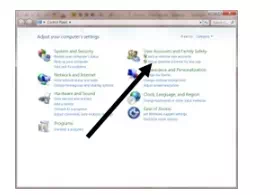
Step 4: Click Create a new account.
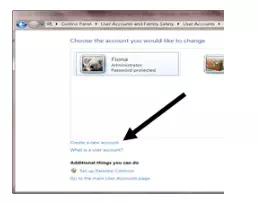
Step 5: Type a name for the account and make sure ‘Standard user’ is selected.
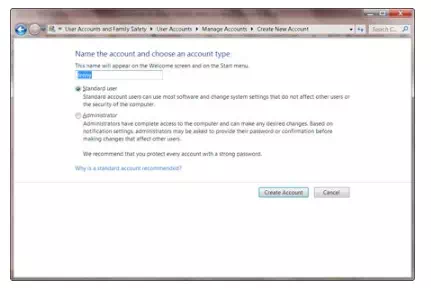
Step 6: Click Create Account.
Step 7: Now return to the control panel and click Set up parental controls for any user.
Step 8: Click the new user account.
Step 9: Under ‘Parental Controls’, select the radio button for ‘On, enforce current settings’.
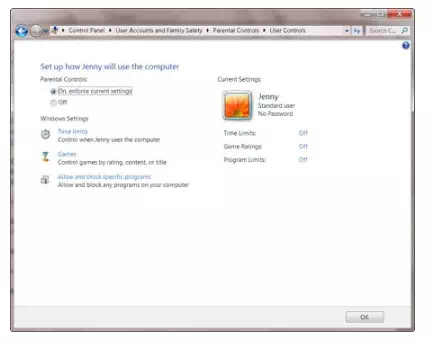
Step 10: You can now set time limits, control the type of online games your child can play and block specific programs by clicking the appropriate links. Once you’ve finished with this, click OK.
Done!