Two drives nearly all computers have are a floppy drive (drive A:) and a hard drive (drive C:). If you have more than one drive, then they are named D:, E: and so on. If you have a CD drive or a DVD drive, it also is named with a letter. Opening a hard drive is easy. Just double click the icon representing the drive you want to open. Files and folders contained in the drive are now shown in the opened window. Now for opening a folder, double click its icon.
Copying or Moving a file or Folder using My Document
· Click on Start, and then click on My Documents.
· Click the file or folder to be copied. More than one file or folder can be copied at a time.
· To select more than one consecutive files or folders, click the first file or folder, press and hold down SHIFT key, and then click the last files or folders.
· To select non-consecutive files or folders, press and hold down CTRL key, and then click each of the files or folders to be copied.
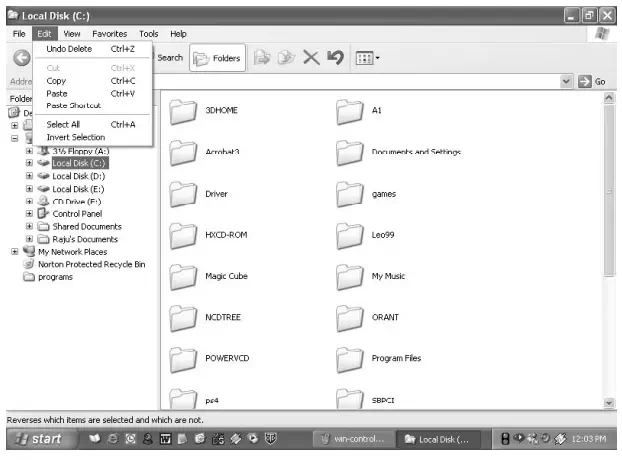
· Under Edit menu, select Copy.
· Select the target drive or folder to which you want to copy the files
· Under Edit menu, select Paste to copy the desired file or folder to the target drive.
View file details
1. Click on Start, and then click on My Documents.
2. Double-click the folder that contains the files to be viewed.
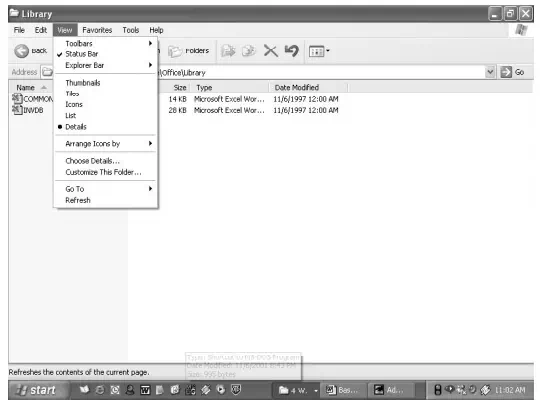
3. On the View menu, click Details (see Fig. 1.21).
4. It will display all the details about the files such as Name, Type, size etc.