Styles
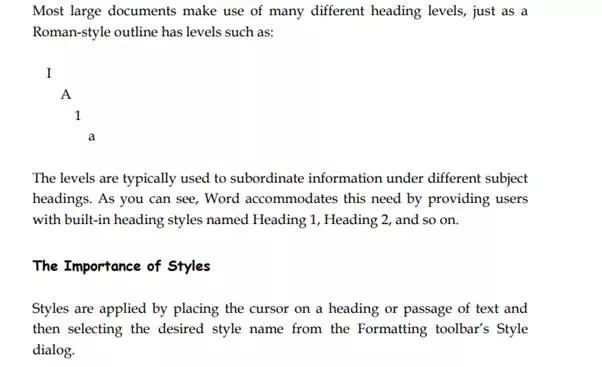
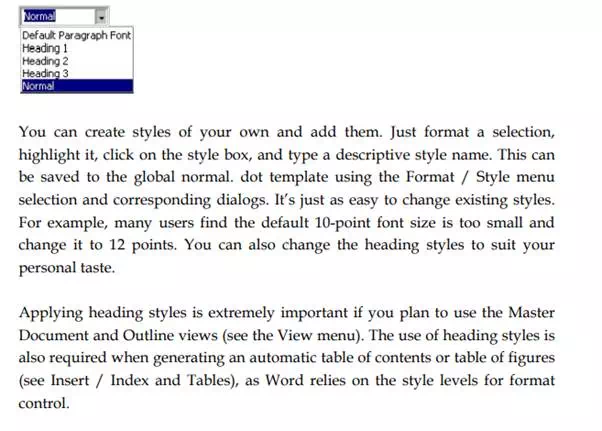
Word comes with a number of built-in styles that are applied to both document headings and normal text. Styles are accessed in the Style box at the left edge of the Formatting toolbar. Look at the Style box illustration at right.
Deleting a Style
Delete an unwanted style using the Format / Style selection. Just pick the style name in the Style dialog Styles list and click the Delete button. Finally, click Close to exit the dialog.
Copying Styles to Other Documents
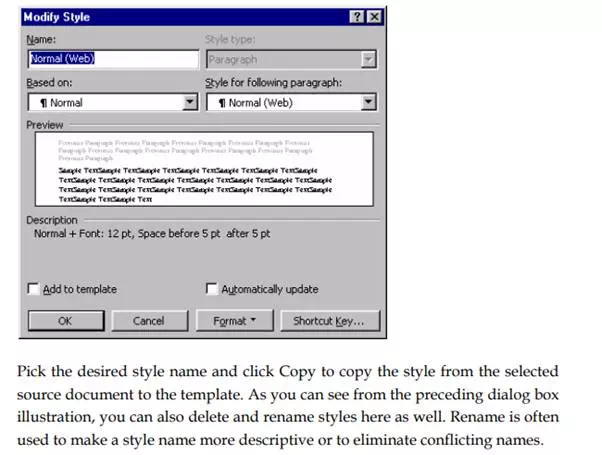
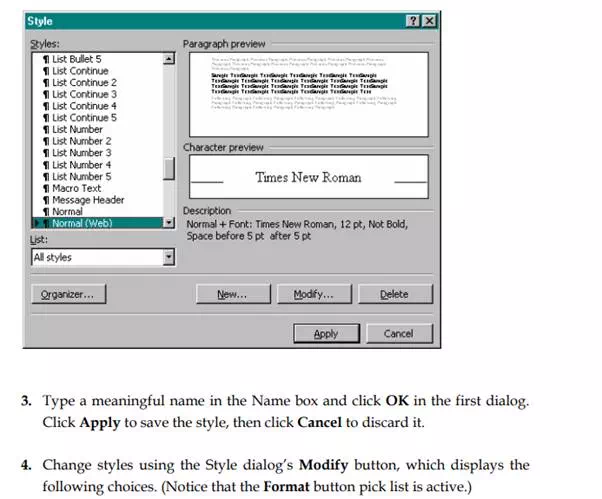
You can use the Style dialog box to copy a new style to a template file. For example, you may want to put a Note title style in the Normal.dot template. Begin by opening the document in which the new style is available. Then open the Style dialog. Note that you can change the List setting to pick styles from different sources. When set, click the Organizer button to display the Organizer dialog box.