




MS-Visio is a drawing and diagramming software that helps transform concepts into a visual representation. Visio provides you with pre-defined shapes, symbols, backgrounds, and borders. Just drag and drop elements into your diagram to create a professional communication tool.
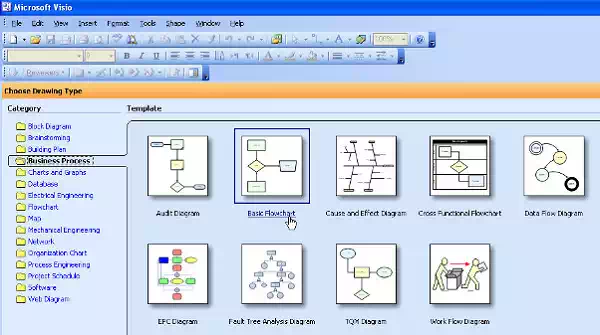
Step 1 − To open a new Visio drawing, go to the Start Menu and select Programs → Visio.
Step 2 − Move your cursor over “Business Process” and select “Basic Flowchart”.
The following screenshot shows the major sections of MS-Visio application.
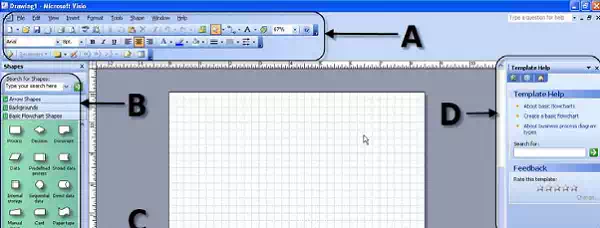
Let us now discuss the basic utility of each component −
A − the toolbars across the top of the screen are like other Microsoft programs such as Word and PowerPoint. If you have used these programs before, you may notice a few different functionalities, which we will explore later.
Selecting Help Diagram Gallery is a good way to become familiar with the types of drawings and diagrams that can be created in Visio.
B − The left side of the screen shows the menus specific to the type of diagram you are creating. In this case, we see −
● Arrow Shapes
● Backgrounds
● Basic Flowchart Shapes
● Borders and Titles
C − The center of the screen shows the diagram workspace, which includes the actual diagram page as well as some blank space adjacent to the page.
D − The right side of the screen shows some help functions. Some people may choose to close this window to increase the area for diagram workspace, and re-open the help functions when necessary.


