- Key Takeaways
- Table of Contents
- Quick Glossary (Plain English)
- What is TTFB (and why it matters)?
- What is Caching? (Browser vs Server vs Object Cache)
- What is a CDN? (and what it does NOT do)
- How TTFB, Caching, and CDN Work Together
- How to Measure Your Site (No-tech method)
- The Simple Action Plan (Do this in order)
- Step 1: Fix the “foundation” (hosting and server response)
- Step 2: Add caching (page cache first)
- Step 3: Add a CDN (especially if you have global traffic)
- Step 4: Reduce page weight (the hidden speed killer)
- Step 5: Re-test and lock in wins
- Common Mistakes That Keep Sites Slow
- Where Elementor Fits (Builder + Cloud Hosting)
- Elementor Website Builder (WordPress)
- Elementor Cloud Hosting (All-in-one: hosting + performance stack)
- Important note (honest performance expectation)
- SenseCentral internal resources (quick links)
- FAQ
- 1) If I use a CDN, do I still need caching?
- 2) What’s the fastest improvement if my site “feels slow”?
- 3) Can caching break my site?
- 4) Does caching help SEO?
- 5) What is “browser cache” and do I control it?
- 6) Why is my TTFB okay but my site still loads slowly?
- 7) Should non-technical owners choose “all-in-one” WordPress hosting?
- 8) How often should I check performance?
- References & Further Reading
Some links below are affiliate links. If you purchase through them, SenseCentral may earn a commission at no extra cost to you.
We only recommend tools we believe can genuinely help site owners improve performance and reduce maintenance headaches.
If you own a website (especially WordPress) and you’ve ever heard terms like TTFB, CDN, and caching,
you might feel like you need a developer to translate everything into plain English.
The good news: you don’t need to be technical to understand the basics—and more importantly, you don’t need to be technical to make meaningful improvements.
This guide explains what these terms really mean, how they connect, and what you can do—step-by-step—to make your website feel faster
for visitors (and often improve SEO and conversions at the same time).
Key Takeaways
- TTFB is “how long your server takes to start responding.” If it’s high, everything feels slower.
- Caching avoids repeating work (loading, computing, database queries) by reusing saved copies.
- A CDN stores content closer to visitors so it loads faster globally and reduces load on your main server.
- The fastest sites usually combine good hosting + smart caching + a CDN (plus basic image optimization).
- You can measure progress with tools like PageSpeed Insights and focus on practical wins first.
Quick Glossary (Plain English)
What is TTFB (and why it matters)?
TTFB stands for Time To First Byte. In simple terms, it’s the time between:
(1) a visitor requesting your page and (2) your server starting to respond by sending the first byte of data.
If the server “thinks too long” before it begins responding, the whole site feels sluggish—no matter how pretty your design is.
A practical way to think of it: imagine ordering food at a restaurant.
TTFB is the time before the kitchen even starts bringing anything out—before the first appetizer hits the table.
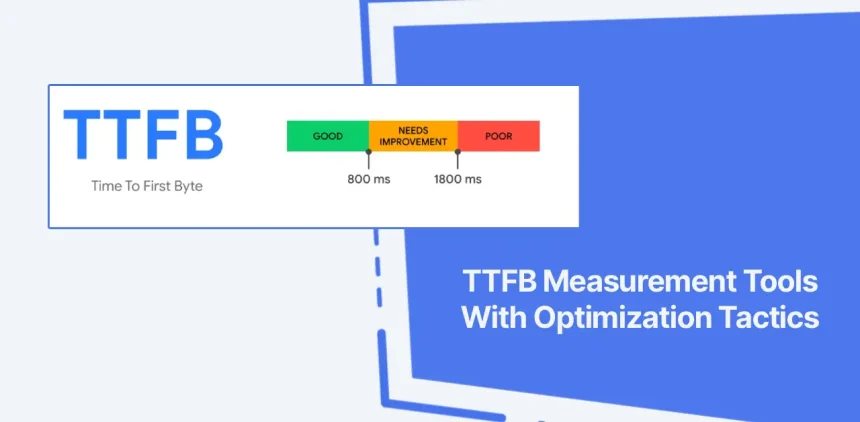
What’s a “good” TTFB?
There’s no single number for every website, but a widely used rough guideline is:
aim for 0.8 seconds or less; values above 1.8 seconds are generally considered poor and likely to hurt perceived speed.
What typically causes high TTFB?
- Slow hosting (overloaded servers, low resources, bad routing)
- Too many plugins doing heavy work on every page load
- Database delays (large/unclean database, slow queries)
- No caching (server rebuilds every page for every visitor)
- Long distance to visitors (a single server far from global users)
What is Caching? (Browser vs Server vs Object Cache)
Caching is the “don’t repeat yourself” rule for websites.
Instead of generating the same page from scratch every time, caching stores a ready-to-serve version and reuses it.
This reduces server work, decreases wait time, and often improves stability during traffic spikes.
The 4 caching layers that matter for most site owners
Why caching can reduce TTFB
When a page is cached, your server does less work per request. Less work usually means it can respond faster,
which reduces the delay before the first byte is sent—i.e., better TTFB.
What is a CDN? (and what it does NOT do)
A CDN (Content Delivery Network) is a worldwide network of servers that stores copies of your content.
When someone visits your site, the CDN delivers cached files from the server closest to that visitor.
What a CDN is great at
- Serving images, CSS, JavaScript, fonts, and other static assets faster
- Reducing traffic and load on your main hosting server
- Helping international visitors get local-speed performance
- Improving reliability during traffic spikes
What a CDN does NOT automatically fix
- Slow WordPress backend (heavy plugins, slow database) unless HTML is cached properly
- Unoptimized images (a CDN delivers them faster, but huge images are still huge)
- Too much JavaScript (a CDN won’t remove scripts; it only delivers them)
How TTFB, Caching, and CDN Work Together
Here’s the simplest way to understand the relationship:
- TTFB tells you how quickly your server starts responding.
- Caching reduces the work needed to respond.
- CDN reduces the distance and serves cached files closer to visitors.
The “speed chain” (what visitors feel)
- Server responds (TTFB) → “Do I see anything yet?”
- Page starts to render → “Do I see content?”
- Images + scripts load → “Does it look complete?”
- Site becomes interactive → “Can I click and buy?”
If you improve only one thing, performance may improve a little. But the biggest wins happen when you improve the chain end-to-end:
fast hosting + caching + CDN + basic media optimization.
How to Measure Your Site (No-tech method)
You don’t need a developer dashboard to measure the basics. Start with these tools:
- PageSpeed Insights (Google): checks field + lab data and highlights issues
- GTmetrix: waterfall view for seeing what loads and when
- WebPageTest: deeper diagnostics if you want a second opinion
When you run a test, look specifically for:
- TTFB (server response time)
- Total page size (especially images)
- Number of requests (too many scripts/fonts/plugins)
That way you’ll know what actually worked—without guessing.
The Simple Action Plan (Do this in order)
If you want the fastest path to improvements, follow this order. Each step builds on the previous one:
Step 1: Fix the “foundation” (hosting and server response)
- If TTFB is consistently high, consider upgrading hosting or moving to a better-managed setup.
- Make sure PHP and WordPress are updated (new versions often improve performance and security).
- Remove unused plugins/themes (less backend work = faster response).
Step 2: Add caching (page cache first)
- Enable page caching (HTML output saved and served quickly).
- Enable browser caching for static assets.
- If you run WooCommerce or membership: consider object caching (often Redis) to reduce database load.
Step 3: Add a CDN (especially if you have global traffic)
- Use a CDN to serve images, CSS, JS, and fonts from nearby regions.
- Ensure the CDN cache is configured correctly (cache static assets aggressively; be careful with dynamic pages).
Step 4: Reduce page weight (the hidden speed killer)
- Compress images (and avoid uploading 4000px images when you display them at 800px).
- Limit “extras”: multiple font families, heavy sliders, too many popups, and large animation libraries.
- Keep pages focused: fewer sections and widgets usually means fewer requests.
Step 5: Re-test and lock in wins
- Re-run PageSpeed Insights and check if TTFB improved.
- Confirm the site still behaves correctly (cart/checkout/login pages must not cache improperly).
- Schedule a monthly “speed hygiene” check: plugin updates, image checks, database cleanup.
Common Mistakes That Keep Sites Slow
- Installing multiple caching plugins (they can conflict and make performance worse).
- Using a CDN but not caching correctly (you pay for a CDN but still serve everything from origin).
- Overusing page builder widgets (more widgets often means more CSS/JS).
- Huge images everywhere (the #1 real-world bloat issue for many sites).
- Too many third-party scripts (chat widgets, trackers, ad scripts, heatmaps—all add requests).
Quick comparison: Which lever solves which problem?
Where Elementor Fits (Builder + Cloud Hosting)
Many non-technical site owners want two things at the same time:
(1) an easy way to build pages and (2) a setup that’s fast without constant troubleshooting.
That’s where an ecosystem approach can help—using a reliable builder plus a managed hosting environment that includes performance layers.
Elementor Website Builder (WordPress)
Elementor is a drag-and-drop WordPress website builder that helps you design pages visually without coding.
For site owners, the practical advantage is speed of publishing: landing pages, product pages, blog layouts, and marketing sections can be created quickly.
Try elementor website builder for wordpress
Elementor Cloud Hosting (All-in-one: hosting + performance stack)
If your primary goal is less technical maintenance, an all-in-one hosting stack can reduce complexity.
Elementor’s hosting positioning highlights a managed cloud setup with built-in performance/security components such as
Google Cloud infrastructure, Cloudflare CDN, and SSL (exact features vary by plan).
Try elementor cloud hosting for wordpress
Important note (honest performance expectation)
No tool guarantees speed by itself. You still need sensible content habits:
optimized images, avoiding plugin overload, and keeping third-party scripts under control.
The advantage of a managed stack is that many “baseline” performance items (CDN/SSL/security monitoring) are simpler to implement and maintain.
SenseCentral internal resources (quick links)
- Search SenseCentral: TTFB guides
- Search SenseCentral: CDN reviews & comparisons
- Search SenseCentral: caching tutorials
- Search SenseCentral: WordPress speed optimization
- Search SenseCentral: Elementor posts
FAQ
1) If I use a CDN, do I still need caching?
Yes. A CDN mainly accelerates delivery of static assets and cached content at the edge.
Server-side caching reduces work on your WordPress backend and can lower TTFB.
They solve different parts of the speed chain.
2) What’s the fastest improvement if my site “feels slow”?
Start by measuring TTFB and total page weight. If TTFB is high, fix hosting/caching first.
If page weight is huge, compress images and reduce heavy sections/widgets.
3) Can caching break my site?
It can if misconfigured—especially for dynamic pages (checkout, cart, account).
Most caching tools let you exclude sensitive URLs. Always test after enabling caching.
4) Does caching help SEO?
Indirectly, yes. Faster sites usually improve user experience metrics and reduce bounce rate.
Search engines also care about overall performance and usability.
5) What is “browser cache” and do I control it?
Browser cache stores files on the visitor’s device. You influence it through caching headers (often managed by your host/CDN or a plugin).
The goal is to reuse assets so repeat visits load faster.
6) Why is my TTFB okay but my site still loads slowly?
That often means your server responds quickly, but your page is heavy:
too many images, scripts, fonts, or third-party trackers.
Reduce page weight and requests.
7) Should non-technical owners choose “all-in-one” WordPress hosting?
If you want fewer moving parts, it can be a good choice.
All-in-one stacks typically bundle CDN/SSL/security monitoring so you don’t have to assemble everything yourself.
8) How often should I check performance?
A good cadence is monthly (or after major plugin/theme changes).
Performance can drift as you add content, plugins, and marketing scripts.
References & Further Reading
- web.dev: Time to First Byte (TTFB)
- web.dev: Optimize TTFB
- MDN: HTTP Caching guide
- Cloudflare Learning: What is caching?
- PageSpeed Insights
- Elementor: Hosting for WordPress
- Elementor: Cloud Security & Performance
Last note: If you only take one action today, run a PageSpeed Insights test, note your TTFB, then implement one improvement at a time.
Small, measurable changes beat random “plugin stacking” every time.