Microsoft Word gives you five different views of a document, and each has its own advantages over the others. They are Print Layout, Full Screen Reading, Web Layout, Outline and Draft and you can guess what purpose some of them serve just by their names. There are two ways of changing the view you have of a document. You can click the View tab and then choose a particular view from teh Document Views tab, or you can use the view buttons next to the zoom slider in the bottom right of the work space. We’ll look at the different Word views now.
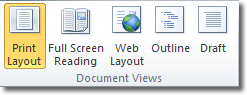
Print Layout View
This is the default view you’ll find yourself in when opening a document. This view is best used when your document will contain things like images, headers, and footers, columns, etc. Each of these components will be visible. In this view you can see how the document will print according to its page breaks.
Full Screen Reading View
Full Screen Reading view is optimized for reading a document on the computer screen. In Full Screen Reading view, you also have the option of seeing the document as it would appear on a printed page. You should view the document in full screen reading view to maximise the space available for reading or commenting on the document.
Web Layout View
Use web layout view to view the document as it would look like as a web page. In this view you can see the background, text is wrapped to fit the window, and images appear as they would online.
Outline View
Using outline view you can view the document as an outline and show the outlining tools. This is useful if you are moving sections of your document, or creating an outline.
Draft View
Use draft view to view the document as a draft, to enable you to quickly edit the text. Certain elements of the document, such as headers and footers, will not be visible in this view.