- Key Takeaways
- When you should upgrade hosting
- Define your upgrade goals (what “better hosting” means)
- 1) Performance targets
- 2) Reliability targets
- 3) Security + recovery targets
- 4) Workflow targets (teams & developers)
- Pre-upgrade checklist (do this before you touch DNS)
- A. Baseline your current site (so you can prove improvement)
- B. Create a migration inventory
- C. Backups and rollback plan
- Performance checklist (cache, CDN, PHP, DB, plugins)
- 1) Caching layers (the “big lever”)
- 2) CDN strategy (international and mobile traffic)
- 3) Runtime and database health
- 4) Media and front-end payload
- Core Web Vitals targets (and what to do if you miss)
- Security checklist (hardening + operational safety)
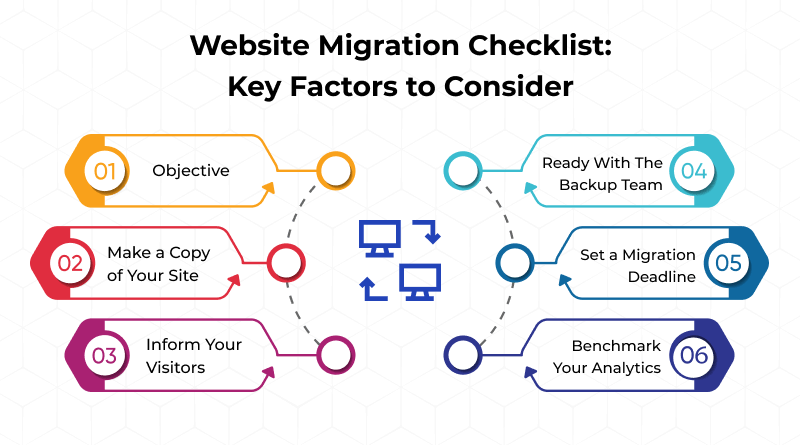
- Migration checklist (low-risk, low-drama)
- Post-upgrade validation (what to test after the move)
- Where Kinsta fits (managed hosting upgrade shortcut)
- Quick comparison table: shared vs VPS vs managed WP
- Free Download: Hosting Upgrade Checklist (copy + PDF setup)
- FAQs
- Will upgrading hosting automatically fix a slow WordPress site?
- What is the safest way to upgrade hosting with minimal downtime?
- Do I need a CDN if I choose a good host?
- Is managed WordPress hosting worth it?
- What’s a simple “best next step” if I want fewer hosting headaches?
- References
This post contains affiliate links. If you purchase through them, SenseCentral may earn a commission at no extra cost to you. We only recommend products we believe are a strong fit for real-world use.
Upgrading hosting is one of the highest-leverage moves you can make for a WordPress site—when you do it with a plan.
The problem is that most “hosting upgrades” fail for one of three reasons: (1) the site wasn’t prepared (no clean backups, no staging, messy plugins),
(2) the upgrade focused on price instead of outcomes (speed, stability, workflow), or (3) the migration wasn’t validated (DNS, caching, forms, email, analytics).
Zero-downtime migration steps
Core Web Vitals checkpoints
Security & backup validation
Post-move QA checklist
- Key Takeaways
- When you should upgrade hosting
- Define your upgrade goals (what “better hosting” means)
- Pre-upgrade checklist (do this before you touch DNS)
- Performance checklist (cache, CDN, PHP, DB, plugins)
- Core Web Vitals targets (and what to do if you miss)
- Security checklist (hardening + operational safety)
- Migration checklist (low-risk, low-drama)
- Post-upgrade validation (what to test after the move)
- Where Kinsta fits (managed hosting upgrade shortcut)
- Quick comparison table: shared vs VPS vs managed WP
- Free Download: Hosting Upgrade Checklist (copy + PDF setup)
- FAQs
- References
Key Takeaways
- Upgrade for outcomes, not specs: Speed, uptime, and workflow beat “more RAM” marketing.
- Do pre-work first: Clean backups, plugin audit, and staging reduce 80% of migration risk.
- Measure what matters: Use Core Web Vitals + real-user metrics (not just one lab test run).
- Prefer integrated caching + CDN: Fewer moving parts means fewer conflicts and faster recovery.
- Validate after the move: Payments, forms, email deliverability, analytics, and caching must be tested.
When you should upgrade hosting
Hosting upgrades are not only for “big sites.” They are for any site where performance, reliability, or security has become a business risk.
If you recognize two or more of the signals below, it’s time to plan an upgrade.
| Signal | What it usually means | Why it matters |
|---|---|---|
| Pages feel “randomly slow” even after image optimization | Server overload, weak caching, poor PHP/DB performance, or distant server location | Hurts conversions, engagement, and SEO—especially on mobile |
| Frequent downtime or intermittent 5xx errors | Resource limits, unstable stack, noisy neighbors (shared hosting), or poor monitoring | Lost revenue + crawling/indexing issues + brand damage |
| Traffic spikes break the site (sales, viral posts, ads) | No burst capacity + weak caching/CDN + restrictive CPU limits | You pay for marketing but your site cannot “receive” customers |
| You’re afraid to update plugins/themes | No staging, rollback, or reliable backups | Security risk grows every month you delay updates |
| Support is slow, generic, or ticket-only | Budget host with limited WordPress expertise | Issues that should take minutes take days |
Internal reading on SenseCentral (replace or adjust as needed):
Hosting articles •
WordPress speed guides •
Security checklists
Define your upgrade goals (what “better hosting” means)
“Better hosting” should be defined by a short list of measurable outcomes. Before you compare providers, lock these in:
1) Performance targets
- Target a meaningful reduction in TTFB, Largest Contentful Paint, and overall load time (especially on mobile).
- Confirm the host supports modern caching layers (page cache + object cache) and has a CDN strategy.
- Ensure you can upgrade PHP versions and scale resources without a full re-platform.
2) Reliability targets
- Uptime monitoring and clear incident visibility (you should know when things break).
- Ability to handle traffic spikes without emergency firefighting.
3) Security + recovery targets
- Automatic backups you can restore quickly.
- WAF / DDoS protection, SSL, and secure access (SFTP/SSH, 2FA).
- Clear process for malware response and post-incident cleanup.
4) Workflow targets (teams & developers)
- Staging environments, push/pull workflows, and safe deployments.
- Logs/APM tooling to diagnose performance issues, not guess.
Managed WordPress hosting can reduce the number of plugins and server tweaks you must maintain manually.
Pre-upgrade checklist (do this before you touch DNS)
This is the part most people skip—and it is exactly why migrations fail. Do the following in order.
A. Baseline your current site (so you can prove improvement)
- Record current performance using PageSpeed Insights (home page + 2–3 key templates).
- Note current hosting plan limits (CPU, RAM, visits, bandwidth) and your peak traffic patterns.
- List your critical “money pages” (checkout, lead forms, booking pages, account pages).
B. Create a migration inventory
- Export a plugin list and remove anything unused or redundant.
- Document DNS records: A/AAAA, CNAME, MX, TXT (SPF/DKIM/DMARC), and subdomains.
- Confirm where email is hosted (do not accidentally break email when you change DNS).
- Note integrations: payment gateways, SMTP provider, CDN, security plugin, analytics, tag manager.
C. Backups and rollback plan
- Create a fresh full backup (files + database) and verify it can be restored.
- Set a “rollback window” and decide who will make the go/no-go decision.
- Lower DNS TTL 24 hours before the move (so changes propagate faster).
People migrate a messy site, then blame the host. Clean the plugins and theme first, or you carry problems to the new server.
Performance checklist (cache, CDN, PHP, DB, plugins)
Hosting upgrades work best when you treat performance as a system: server stack, caching layers, front-end payload, and database efficiency.
1) Caching layers (the “big lever”)
- Page caching: confirm full-page cache exists at the server/edge level, not just via a plugin.
- Object caching: for dynamic sites (WooCommerce, LMS, membership), ensure object caching is available and correctly configured.
- Cache rules: ensure logged-in pages, cart/checkout, and personalized content are excluded appropriately.
2) CDN strategy (international and mobile traffic)
- Use a CDN for static assets (images, CSS, JS) and consider edge caching for full pages where appropriate.
- Choose a data center close to your primary audience, then rely on CDN/edge for global reach.
3) Runtime and database health
- Run the latest stable PHP version supported by your theme/plugins.
- Clean autoloaded options, reduce cron bloat, and optimize slow queries (especially on large content sites).
- Limit heavy “all-in-one” plugins that duplicate functionality (security + cache + optimizer collisions are common).
4) Media and front-end payload
- Serve images in modern formats where possible and lazy-load below the fold.
- Minimize render-blocking resources and reduce unused CSS/JS.
- Use a lightweight theme and avoid page builders that generate excessive DOM/CSS if speed is a priority.
Core Web Vitals targets (and what to do if you miss)
If you want a practical performance checklist in 2026, you cannot ignore Core Web Vitals. These are user-experience metrics that help you track loading,
responsiveness, and visual stability. A useful rule is to aim for “good” thresholds on your key templates.
| Metric | “Good” target | What usually fixes it |
|---|---|---|
| LCP (Largest Contentful Paint) | ≤ 2.5s | Better hosting + caching, reduce hero image size, eliminate render-blocking CSS/JS, use CDN/edge caching |
| INP (Interaction to Next Paint) | ≤ 200ms | Reduce main-thread JS, remove heavy plugins/scripts, optimize theme, defer non-critical scripts |
| CLS (Cumulative Layout Shift) | ≤ 0.1 | Set image/video dimensions, avoid late-loading banners, stabilize fonts, reserve space for embeds/ads |
Security checklist (hardening + operational safety)
A hosting upgrade is also a security upgrade—if you use it to reduce attack surface and improve recovery.
Baseline hardening
- Enable SSL (HTTPS) everywhere and enforce it.
- Use strong admin passwords, limit admin accounts, and enable 2FA.
- Block XML-RPC if not needed, and restrict wp-admin access where appropriate.
- Use secure file access (SFTP/SSH) and avoid shared credentials.
Operational safety
- Automatic backups + on-demand backups before major changes.
- WAF + DDoS mitigation (so attacks do not even reach WordPress).
- Uptime monitoring and alerting so incidents are detected early.
- Staging environment for updates (test before production).
Migration checklist (low-risk, low-drama)
Here is a clean migration sequence that minimizes downtime and surprises.
- Create/confirm staging: build a staging copy on the new host and validate the site loads.
- Freeze changes (briefly): avoid publishing big changes during the migration window.
- Migrate content + database: move the site via your preferred method (host migration, plugin, or manual). Verify URL structure and permalinks.
- Validate critical flows: login, checkout, forms, search, comment submission, membership/LMS flows.
- Prepare DNS switch: ensure TTL was lowered; verify DNS records are ready (including subdomains).
- Switch DNS: update A/AAAA and relevant records; keep old hosting active during propagation.
- Verify HTTPS + redirects: force HTTPS, check www/non-www consistency, confirm no redirect loops.
- Enable caching/CDN: turn on caching layers and confirm exclusions (cart/checkout, logged-in pages).
- Monitor logs + uptime: watch for 404 spikes, 5xx errors, and plugin conflicts.
Post-upgrade validation (what to test after the move)
This is your “QA gate.” If you skip it, you may not notice broken revenue flows until days later.
Functional tests (do these first)
- Forms (contact, lead magnets), email notifications, SMTP deliverability
- Payments (test transaction), order emails, webhooks, cart/checkout stability
- Search, category archives, important landing pages
- Logins, password reset, account pages
Tracking and SEO checks
- Google Analytics / Tag Manager firing correctly
- Search Console verification, sitemap accessible, robots.txt unchanged
- Canonical tags correct, no accidental noindex on production
- 404 monitoring (broken assets often appear after a migration)
Performance re-test
- Re-run PageSpeed on the same templates you used for baseline
- Check caching headers and confirm CDN is serving static assets
- Validate CWV improvements across mobile and desktop templates
Where Kinsta fits (managed hosting upgrade shortcut)
If your checklist priorities are: speed, security, and less maintenance, managed WordPress hosting can simplify the entire upgrade process.
Kinsta’s platform positioning is built around managed WordPress operations—integrated performance tooling, staging, backups, and a security posture designed to block attacks before they reach WordPress.
Why Kinsta aligns with this upgrade checklist
- Edge caching via Cloudflare integration: full-page cache can be served from a global network, reducing latency for visitors far from your origin data center.
- Security posture: firewall + DDoS protections (and operational security features such as SSL and secure access workflows).
- Staging environments: test updates safely before pushing to production.
- Monitoring/diagnostics: performance tooling and visibility so you can find bottlenecks faster.
- Migration support: ideal if you want to reduce manual steps and migration risk.
Note: Always match hosting to your site type. For example, WooCommerce/LMS/membership sites benefit from strong caching rules, reliable object caching, and stable PHP/DB performance.
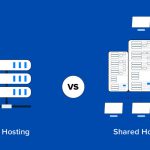
Quick comparison table: shared vs VPS vs managed WP
| Hosting type | Best for | Pros | Cons |
|---|---|---|---|
| Shared hosting | Very small, low-risk sites | Cheap, easy to start | Noisy neighbors, limited scaling, weaker performance consistency |
| VPS / Cloud server | Technical teams that want control | Flexible, scalable, customizable | You manage security, updates, caching, backups (or pay extra) |
| Managed WordPress (e.g., Kinsta) | Businesses that want speed + low maintenance | Integrated caching/CDN options, staging, backups, WP-focused support | Higher cost than shared; some advanced custom server tweaks may be restricted |
| DIY “stack” (mix of services) | Agencies/engineers building a tailored platform | Maximum control | More moving parts = more failure points and more operational overhead |
Free Download: Hosting Upgrade Checklist (copy + PDF setup)
Below is the full checklist you can copy/paste. If you want this as a “free download,” the simplest approach is:
(1) copy the checklist into a Google Doc, (2) export as PDF, (3) upload the PDF to WordPress Media,
and (4) replace the button link below with your uploaded file URL.
Download the Checklist (PDF)
Try Kinsta
Tip: Gate the PDF behind an email opt-in if you’re building a list.
Copy/Paste Checklist (Website Hosting Upgrade)
1) Baseline (Before)
- Run PageSpeed Insights on key templates (home + top landing pages + checkout/lead page)
- Record traffic patterns (peak hour/day), top countries, and device split
- List critical revenue flows (forms, payments, bookings, logins)
2) Inventory
- Export plugin list and remove unused plugins
- Document DNS records (A/AAAA, CNAME, MX, TXT for SPF/DKIM/DMARC)
- Confirm email hosting provider and SMTP configuration
- List third-party integrations (payments, CRM, ads, analytics, CDN)
3) Backup + Rollback
- Create full backup (files + database) and verify restore procedure
- Lower DNS TTL 24 hours before migration
- Define rollback window and decision owner
4) Performance Setup
- Enable page caching (server/edge where appropriate)
- Enable object caching for dynamic sites (WooCommerce/LMS/membership)
- Enable CDN for static assets
- Update PHP version (compatible stable) and verify theme/plugin compatibility
- Optimize database (slow queries, autoload bloat, cron hygiene)
- Optimize media (lazy-load, correct dimensions, modern formats where possible)
5) Security Setup
- SSL enabled + HTTPS enforced
- 2FA enabled for admins; remove unused admin accounts
- WAF/DDoS protection active; block abuse patterns
- Secure access only (SFTP/SSH); rotate passwords/keys post-migration
- Backups scheduled + on-demand backups enabled
6) Migration Execution
- Create staging copy on new host and validate site loads
- Freeze major site changes during migration window
- Migrate site, then validate: login, checkout, forms, search, key pages
- Switch DNS; keep old host active during propagation
- Enable caching/CDN and confirm exclusions (cart/checkout, logged-in pages)
7) Post-Migration QA
- Test forms + email deliverability (SMTP)
- Test payment flow with a real (or sandbox) transaction
- Confirm analytics/tracking firing correctly
- Check Search Console, sitemap, robots.txt, canonicals
- Re-run PageSpeed and compare to baseline
- Monitor uptime, error logs, and 404s for 72 hours
FAQs
Will upgrading hosting automatically fix a slow WordPress site?
It can, but only if the hosting change removes the bottlenecks (TTFB, caching, CPU limits, DB performance).
If the site is weighed down by heavy plugins, bloated themes, or unoptimized media, you will still need the performance checklist steps.
What is the safest way to upgrade hosting with minimal downtime?
Use a staging environment on the new host, validate everything first, lower DNS TTL in advance, then switch DNS during a low-traffic window.
Keep the old host active while DNS propagates and run post-migration QA immediately.
Do I need a CDN if I choose a good host?
Often yes—especially if you have international traffic or media-heavy pages. A CDN reduces latency and improves repeat performance by serving assets closer to the visitor.
Is managed WordPress hosting worth it?
It is typically worth it when your time is valuable, uptime matters, and you want integrated performance and security features without stitching together many tools.
If you prefer full control and have strong sysadmin resources, a VPS/cloud server can also work.
What’s a simple “best next step” if I want fewer hosting headaches?
Choose a managed WordPress provider with strong caching + security + staging workflows.
If you’re evaluating Kinsta specifically, you can start here:
Try Kinsta.
References
Use the checklist above, then pick a provider that reduces operational work while improving performance.