- Table of Contents
- What “Slow” Means in 2026 (Core Web Vitals + Real UX)
- Diagnose First: The 10-Minute Speed Triage
- Step 1: Run PageSpeed Insights on your homepage + 1 key internal page
- Step 2: Identify the bottleneck category
- Step 3: Confirm with one extra tool
- The 17-Point Fix Checklist (Prioritized)
- 1) Fix the “Hosting Ceiling” (CPU, PHP workers, storage, network)
- 2) Update PHP (and stay current)
- 3) Enable full-page caching (server-level if possible)
- 4) Add a CDN + edge caching for global speed
- 5) Implement object caching (Redis/Memcached) for dynamic speed
- 6) Reduce image weight (the most common “silent killer”)
- 7) Optimize above-the-fold content (LCP-first thinking)
- 8) Remove render-blocking CSS (or reduce it)
- 9) Reduce JavaScript execution time (INP-friendly)
- 10) Optimize fonts (fewer families, fewer weights)
- 11) Audit third-party scripts (they can dominate your waterfall)
- 12) Clean the database (and control autoload bloat)
- 13) Reduce plugin load (quality over quantity)
- 14) Simplify your theme and page builder footprint
- 15) Fix layout shift (CLS): reserve space for images, ads, and embeds
- 16) Tame background tasks (cron, scheduled jobs, backups)
- 17) Monitor performance and prevent regressions
- Quick Wins vs Deep Fixes (Comparison Table)
- When Managed Hosting (Kinsta) Moves the Needle Most
- FAQs
- 1) Why is my WordPress admin dashboard slow?
- 2) Should I use a caching plugin if my host already has server caching?
- 3) What is the fastest way to improve LCP?
- 4) What is the fastest way to improve INP?
- 5) Do page builders make WordPress slow?
- 6) Is a CDN enough to make WordPress fast?
- 7) How often should I re-check performance?
- Key Takeaways
- References & Further Reading
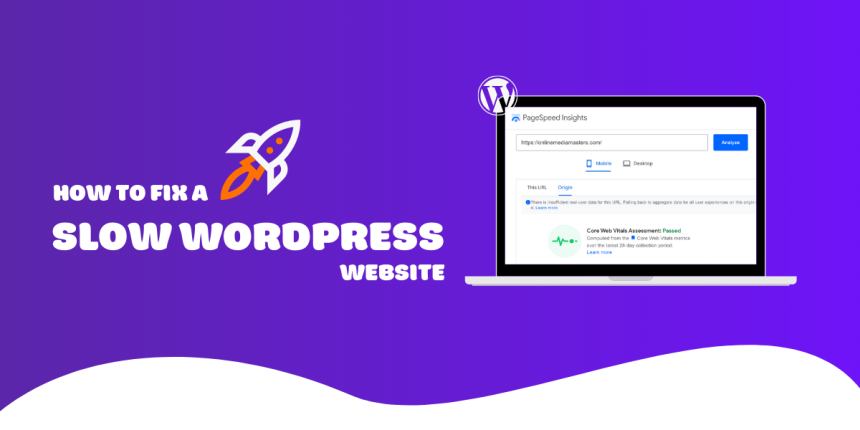
Updated for 2026: a practical, step-by-step speed repair guide you can follow in one weekend.
Affiliate disclosure: Sensecentral may earn a commission if you purchase through links in this post (at no extra cost to you). We only recommend products we believe can genuinely help improve results.
If your WordPress site feels “randomly slow,” it’s usually not random at all. WordPress performance is the sum of many small decisions—hosting, theme, plugins, images, fonts, database hygiene, and how much work the server has to do on every visit.
This guide gives you a 17-point fix checklist that covers the most common root causes of slowness—along with a “what to do next” action for each one. You can treat it like a diagnostic playbook: run the tests, identify your bottlenecks, then apply fixes in priority order.
Table of Contents
What “Slow” Means in 2026 (Core Web Vitals + Real UX)
Before you fix anything, it helps to define “slow” properly. Many site owners chase a perfect “speed score,” but real performance is about how quickly users can see, interact, and complete tasks (reading, searching, adding to cart, checking out).
Start with Core Web Vitals
Core Web Vitals focus on three user-centric metrics:
- LCP (Largest Contentful Paint): how fast the main content becomes visible.
- INP (Interaction to Next Paint): how responsive the page feels when users click/tap/type.
- CLS (Cumulative Layout Shift): how stable the page layout is while loading.
Don’t overcomplicate it: if LCP is high, your pages look slow; if INP is high, your site feels laggy; if CLS is high, your site feels unstable and frustrating.
Lab data vs field data
Tools like Lighthouse run “lab tests” in controlled conditions. PageSpeed Insights also shows “field data,” which is aggregated real-user experience. You want both:
- Lab data helps you identify technical opportunities (render-blocking CSS, heavy JS, image sizing).
- Field data tells you what users actually experience across devices and networks.
Rule of thumb: Fix what hurts real users first, then polish the score.
Diagnose First: The 10-Minute Speed Triage
Use this quick triage so you don’t waste time “optimizing everything” blindly.
Step 1: Run PageSpeed Insights on your homepage + 1 key internal page
- Homepage (often image-heavy, many sections)
- One revenue page (product page, checkout, lead-gen landing page)
Step 2: Identify the bottleneck category
Most WordPress slowness falls into one of these buckets:
- High TTFB (server response time): hosting/caching/database/PHP bottleneck.
- Heavy page weight: oversized images, too many fonts, videos, large CSS.
- Too much JavaScript: theme/page builder bloat, too many scripts, tracking tags.
- Third-party delays: chat widgets, ad scripts, tag managers, social embeds.
- Database & backend tasks: post revisions, autoloaded options, cron spikes.
Step 3: Confirm with one extra tool
Pick one of these, depending on what you suspect:
- Query Monitor (backend queries, slow hooks, plugin impact)
- Chrome DevTools Waterfall (what blocks rendering, what loads late)
- Server logs / host APM (slow PHP transactions, database calls)
Now you’re ready for the checklist.
The 17-Point Fix Checklist (Prioritized)
How to use this checklist: Start at #1 and move down. In most cases, the first 6–8 fixes deliver the biggest gains. The rest remove lingering friction and prevent regressions.
1) Fix the “Hosting Ceiling” (CPU, PHP workers, storage, network)
If your host is underpowered, every other optimization hits a ceiling. Signs you’ve hit the hosting ceiling:
- TTFB consistently high (especially on uncached pages)
- Admin area slow (saving posts/products takes too long)
- Traffic spikes cause timeouts or “resource limit” errors
Action: Upgrade to infrastructure designed for WordPress performance (modern PHP, optimized stack, adequate resources). If you’re serious about speed and stability, managed WordPress hosting can remove a lot of operational burden.
2) Update PHP (and stay current)
PHP performance improves across versions, and modern WordPress runs best when your PHP version is current and supported.
Action: In your hosting panel, upgrade PHP to the newest stable version your plugins support. Then retest. (Always take a backup first.)
3) Enable full-page caching (server-level if possible)
For most content sites, full-page caching is the single biggest lever. Without it, WordPress rebuilds pages repeatedly—PHP + database + theme logic—for every visitor.
Action: Ensure full-page caching is enabled. If your host provides server-side caching, use it. If not, use a reputable caching plugin—but recognize plugin caching is usually a workaround for hosting limitations.
4) Add a CDN + edge caching for global speed
CDNs reduce latency and offload static assets (images, CSS, JS). Edge caching can go further by caching whole pages closer to users.
Action: Enable a CDN. If your site has a global audience or you want consistently fast delivery across regions, consider edge caching.
5) Implement object caching (Redis/Memcached) for dynamic speed
Full-page caching helps anonymous visits. But logged-in users, membership sites, and WooCommerce rely on dynamic pages where object caching matters.
Action: Enable persistent object caching (often Redis). Then retest admin speed + dynamic page speed.
6) Reduce image weight (the most common “silent killer”)
On many sites, images are the majority of page weight. One oversized hero image can wreck LCP.
Action:
- Convert images to modern formats (like WebP where appropriate)
- Serve properly sized images (avoid uploading 4000px when you display 900px)
- Compress aggressively for web (especially for product and blog images)
7) Optimize above-the-fold content (LCP-first thinking)
LCP usually depends on what’s visible at the top of the page: hero image, headline block, featured product image.
Action:
- Use a properly sized hero image and compress it
- Avoid loading heavy sliders above the fold
- Preload the LCP image if necessary
8) Remove render-blocking CSS (or reduce it)
Big CSS files can delay first render.
Action:
- Remove unused CSS where possible
- Minify CSS
- Consider critical CSS generation if your setup supports it
9) Reduce JavaScript execution time (INP-friendly)
INP gets worse when the browser is busy running scripts (page builders, animation libraries, third-party tags).
Action:
- Remove unnecessary scripts (especially marketing tags that aren’t essential)
- Delay non-critical JS until user interaction or after load
- Avoid stacking multiple heavy plugins that all inject frontend JS
10) Optimize fonts (fewer families, fewer weights)
Fonts can quietly add multiple requests and block text rendering.
Action:
- Use 1 font family (2 max) and limit weights
- Host fonts locally when possible
- Use
font-display: swapto prevent invisible text
11) Audit third-party scripts (they can dominate your waterfall)
Chat widgets, heatmaps, ad scripts, social embeds, and tracking pixels can add huge delays—especially on mobile.
Action: Make a list of every third-party script and ask: “Does this directly generate revenue or essential insights?” Remove or delay everything else.
12) Clean the database (and control autoload bloat)
Over time, WordPress databases accumulate revisions, transients, orphaned metadata, and bloated options.
Action:
- Remove old post revisions and expired transients
- Clean orphaned tables left by deleted plugins
- Check for large “autoloaded” options slowing every page load
13) Reduce plugin load (quality over quantity)
Plugin count alone isn’t the problem. The problem is heavy plugins that do too much, load assets sitewide, or run slow database queries.
Action: Replace “Swiss army knife” plugins with lighter alternatives. Deactivate anything you don’t truly need. Retest after each removal.
14) Simplify your theme and page builder footprint
Some themes and builders generate excessive DOM size, load large CSS/JS bundles, and add layout shifts.
Action:
- Avoid heavy sliders and animations on every page
- Use fewer global sections and fewer nested containers
- Test a lightweight theme on a staging site (you may be shocked by the difference)
15) Fix layout shift (CLS): reserve space for images, ads, and embeds
CLS often happens when images/ads load late and push content down.
Action:
- Always set width/height (or aspect ratio) for images
- Reserve space for ads and embedded content
- Avoid late-loading banners above content
16) Tame background tasks (cron, scheduled jobs, backups)
Backups, cron jobs, SEO scans, and import/export tasks can spike CPU and slow the site intermittently.
Action:
- Schedule heavy tasks during low-traffic hours
- Reduce the frequency of non-essential scans
- Use a real server cron when appropriate instead of default WP cron behavior
17) Monitor performance and prevent regressions
The biggest reason sites get slow again: changes happen (new plugins, new scripts, new theme edits) without performance checks.
Action:
- Track Core Web Vitals over time
- Re-run speed audits after major plugin/theme changes
- Create a “performance acceptance checklist” for every new feature
Quick Wins vs Deep Fixes (Comparison Table)
| Fix Area | Typical Impact | Effort | Best For |
|---|---|---|---|
| Image compression + resizing | High (LCP + overall load) | Low–Medium | Blogs, portfolios, product sites |
| Full-page caching | Very High (TTFB) | Low | Content-heavy sites |
| Remove third-party scripts | High (INP + render delay) | Low | Mobile-first audiences |
| Upgrade hosting + edge delivery | Very High (global speed + stability) | Medium | Growing businesses, WooCommerce |
| Theme/plugin refactor | High (JS/CSS + long-term) | High | Sites with heavy builders/bloat |
When Managed Hosting (Kinsta) Moves the Needle Most
Some speed work is “site-level” (images, theme bloat, scripts). But many of the biggest bottlenecks are “infrastructure-level”:
- How caching is handled
- How quickly the server responds under load
- How content is delivered globally
- How easily you can debug slow backend requests
Kinsta positions itself as premium managed WordPress hosting focused on performance, security, and support—especially useful when you’re past the “cheap shared hosting” stage.
Practical scenarios where Kinsta is a strong fit
- Your site is growing and speed issues are tied to server response, not just images.
- You run WooCommerce and need stable performance during traffic spikes.
- You manage multiple sites and want a streamlined dashboard + predictable performance.
- You want edge delivery benefits without complex DIY CDN configuration.
Tip: If you want more hosting comparisons, browse Sensecentral’s hosting reviews and comparisons here:
Sensecentral.com
FAQs
1) Why is my WordPress admin dashboard slow?
Admin slowness usually points to backend bottlenecks: heavy plugins, slow database queries, too many autoloaded options, or inadequate server resources. Start with Query Monitor and review recently installed plugins.
2) Should I use a caching plugin if my host already has server caching?
If your host provides strong server-side caching, you often don’t need a traditional caching plugin. In some cases, stacking both can cause conflicts. Prioritize host-level caching first, then add a plugin only for specific features (like minification) if needed.
3) What is the fastest way to improve LCP?
Optimize your LCP element: usually the hero image or featured image. Resize it to the maximum display size, compress it heavily, and avoid loading sliders above the fold.
4) What is the fastest way to improve INP?
Reduce JavaScript execution: remove unnecessary scripts, delay non-critical tags, and avoid piling multiple heavy frontend plugins. INP is often a “too much JS” problem.
5) Do page builders make WordPress slow?
They can. Some builders generate large DOMs and ship big CSS/JS bundles. That said, a well-configured builder on good hosting with caching can still be fast. The key is controlling bloat and minimizing global assets.
6) Is a CDN enough to make WordPress fast?
A CDN helps, but it’s not magic. If your TTFB is slow due to server and database issues, a CDN won’t fully fix that. Combine CDN with caching, image optimization, and backend cleanup.
7) How often should I re-check performance?
At minimum: after major plugin/theme changes. Ideally: monthly. Speed regressions are common when sites evolve without a performance checklist.
Key Takeaways
- Don’t chase scores first—diagnose the bottleneck category (TTFB, images, JS, third-party, database).
- Full-page caching + image optimization are usually the highest ROI fixes.
- INP problems are often JavaScript problems—reduce scripts and frontend bloat.
- Hosting sets your performance ceiling; premium managed hosting can remove infrastructure bottlenecks.
- Make performance a process: test after changes, monitor Core Web Vitals, prevent regressions.
References & Further Reading
- Google: Understanding Core Web Vitals
- Google: About PageSpeed Insights (lab vs field data)
- web.dev: INP replaces FID as a Core Web Vital
- WordPress.org: Performance Optimization Handbook
- WordPress.org: Performance Lab plugin
- Kinsta Docs: Server Caching
- Kinsta Docs: Edge Caching
- Kinsta: Cloudflare Integration (speed + security)
- Kinsta: Speed Up WordPress (guide)