Introduction
Paid software is everywhere—photo editors, office suites, project managers, video tools, note apps, and even basic PDF utilities. A lot of these tools are excellent… but many people don’t actually need the premium plan to get real work done.
- Introduction
- Table of Contents
- 1) Productivity & Work
- 1. Notion (Free plan) → Replaces: Basic project docs + personal wiki tools
- 2. Trello (Free plan) → Replaces: paid kanban task managers
- 3. ClickUp (Free plan) → Replaces: premium all-in-one productivity suites
- 4. Clockify (Free plan) → Replaces: paid time tracking tools
- 5. Google Calendar → Replaces: paid scheduling/calendar apps for most users
- 2) Writing, Notes & Docs
- 6. Obsidian (Free for personal use) → Replaces: paid note apps for deep thinking
- 7. Joplin (Free + open-source) → Replaces: paid Evernote-style apps
- 8. Google Docs → Replaces: paid word processors for most workflows
- 9. LibreOffice (Free + open-source) → Replaces: Microsoft Office for offline work
- 10. Grammarly (Free plan) → Replaces: basic proofreading subscriptions
- 3) Design & Creative
- 11. Canva (Free plan) → Replaces: basic paid design tools
- 12. Figma (Free plan) → Replaces: UI design subscriptions for small teams/solo
- 13. GIMP (Free + open-source) → Replaces: Photoshop for many use-cases
- 14. Inkscape (Free + open-source) → Replaces: Illustrator for vector design basics
- 15. Photopea (Free, browser-based) → Replaces: Photoshop for quick edits
- 4) Photo Editing
- 16. Snapseed (Free) → Replaces: paid mobile photo editors
- 17. Darktable (Free + open-source) → Replaces: Lightroom-style RAW editing
- 5) Video & Audio
- 18. DaVinci Resolve (Free version) → Replaces: many paid video editors
- 19. CapCut (Free plan) → Replaces: paid short-form editors
- 20. Shotcut (Free + open-source) → Replaces: basic paid desktop video editors
- 21. Audacity (Free + open-source) → Replaces: paid audio editors
- 22. OBS Studio (Free + open-source) → Replaces: paid screen recorders + streaming tools
- 6) Meetings & Communication
- 23. Zoom (Free plan) / Google Meet (Free) → Replaces: paid meeting tools for small sessions
- 24. Discord (Free) → Replaces: paid community/chat tools
- 7) PDF & Document Utilities
- 8) Storage, Backup & Security
- How to Choose the Right Free Alternative (Without Regrets)
- Key Takeaways
- FAQs
- 1) Are these apps really free?
- 2) Which free alternative is best for Microsoft Office?
- 3) What’s the best free Photoshop alternative?
- 4) Is DaVinci Resolve free version enough for YouTube?
- 5) Will switching tools hurt productivity?
- 6) What’s the safest password manager with a free plan?
- 7) Should I delete my paid tools immediately?
- Final Thoughts
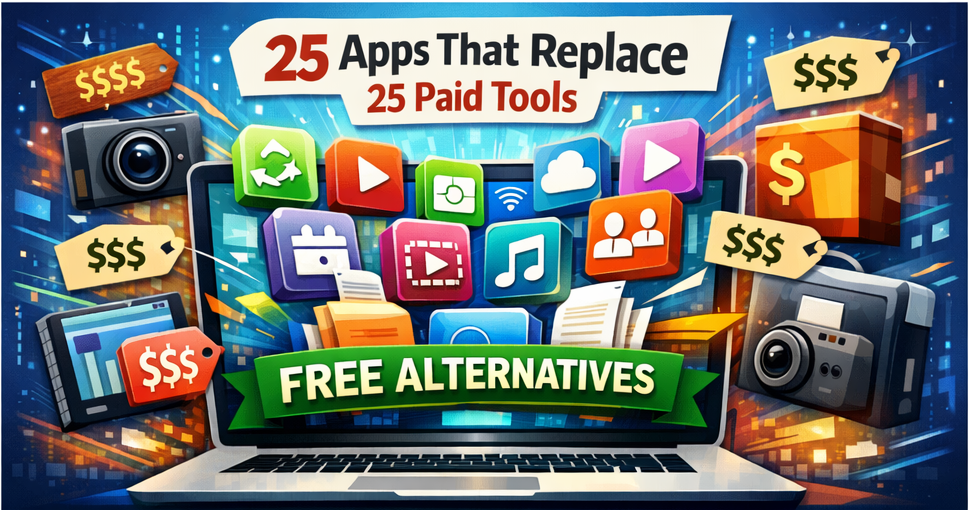
The truth: there are powerful free apps that can replace many popular paid tools—sometimes completely, and sometimes “good enough” for 90% of users.
This post is your shortcut.
You’ll get:
25 free apps
each one mapped to a common paid tool category
what it replaces + why it’s a strong alternative
and how to choose the right free option for your workflow
Quick note: Some apps here are 100% free and open-source. Others have a free plan that’s genuinely useful. If you need advanced features later, you can still upgrade—but you’ll stop paying for tools you don’t truly need.
Table of Contents
Productivity & Work
Writing, Notes & Docs
Design & Creative
Photo Editing
Video & Audio
Meetings & Communication
PDF & Document Utilities
Storage, Backup & Security
Automation & Developer Tools
Key Takeaways
FAQs
1) Productivity & Work
1. Notion (Free plan) → Replaces: Basic project docs + personal wiki tools
If you used paid workspaces mainly for notes, databases, and simple task tracking, Notion’s free plan is a strong replacement. Use it for:
personal knowledge base
content calendars
lightweight project boards
2. Trello (Free plan) → Replaces: paid kanban task managers
For simple workflows, Trello’s free board system is still one of the easiest ways to organize tasks, content pipelines, and team boards.
3. ClickUp (Free plan) → Replaces: premium all-in-one productivity suites
If you like “everything in one place” (tasks, docs, goals), ClickUp’s free tier can cover a lot—especially for solo users.
4. Clockify (Free plan) → Replaces: paid time tracking tools
Perfect for freelancers, agencies, and anyone who wants time logs without paying monthly.
5. Google Calendar → Replaces: paid scheduling/calendar apps for most users
With reminders, multiple calendars, invites, and integrations—Google Calendar is usually more than enough.
2) Writing, Notes & Docs
6. Obsidian (Free for personal use) → Replaces: paid note apps for deep thinking
Obsidian is excellent for:
offline notes
linking ideas (“second brain” style)
writing long-form content
7. Joplin (Free + open-source) → Replaces: paid Evernote-style apps
If you want open-source, cross-platform notes with sync options, Joplin is a serious contender.
8. Google Docs → Replaces: paid word processors for most workflows
Docs is fast, collaborative, and cloud-based. For 90% of writing tasks, it’s enough.
9. LibreOffice (Free + open-source) → Replaces: Microsoft Office for offline work
You get Writer, Calc, Impress—powerful and local. Great for those who want no subscriptions.
10. Grammarly (Free plan) → Replaces: basic proofreading subscriptions
The free plan catches major grammar issues and clarity problems—useful for bloggers and students.
3) Design & Creative
11. Canva (Free plan) → Replaces: basic paid design tools
For social posts, thumbnails, banners, and simple brand kits, Canva’s free tier is extremely capable.
12. Figma (Free plan) → Replaces: UI design subscriptions for small teams/solo
If your use is UI mockups, landing page wireframes, or simple prototyping—Figma’s free plan is often enough.
13. GIMP (Free + open-source) → Replaces: Photoshop for many use-cases
GIMP is strong for:
photo retouching
graphics editing
thumbnails, banners, blog images
It’s not identical to Photoshop, but it’s a real replacement for many creators.
14. Inkscape (Free + open-source) → Replaces: Illustrator for vector design basics
Need logos, icons, SVG designs, or vector illustrations? Inkscape is a top free alternative.
15. Photopea (Free, browser-based) → Replaces: Photoshop for quick edits
If you want a Photoshop-like interface in the browser, Photopea is surprisingly powerful for quick work.
4) Photo Editing
16. Snapseed (Free) → Replaces: paid mobile photo editors
One of the best free editors on mobile for:
tuning, curves
selective editing
quick professional results
17. Darktable (Free + open-source) → Replaces: Lightroom-style RAW editing
If you shoot RAW and want deep controls without paying monthly, Darktable is worth learning.
5) Video & Audio
18. DaVinci Resolve (Free version) → Replaces: many paid video editors
The free version is extremely capable for:
YouTube editing
color correction
timelines, transitions, audio basics
(If your PC can handle it, this is one of the best “free-but-pro” tools ever.)
19. CapCut (Free plan) → Replaces: paid short-form editors
Great for reels, shorts, TikTok-style edits with templates and fast exports.
20. Shotcut (Free + open-source) → Replaces: basic paid desktop video editors
If you want something lighter than Resolve, Shotcut is reliable and free.
21. Audacity (Free + open-source) → Replaces: paid audio editors
Perfect for:
podcasts
voice cleanup
trimming audio for videos
22. OBS Studio (Free + open-source) → Replaces: paid screen recorders + streaming tools
Screen record tutorials, capture gameplay, stream live—OBS is a powerhouse.
6) Meetings & Communication
23. Zoom (Free plan) / Google Meet (Free) → Replaces: paid meeting tools for small sessions
If you’re doing basic calls, interviews, or small team meetings—free plans can be enough.
24. Discord (Free) → Replaces: paid community/chat tools
For creators, teams, and communities, Discord covers chat, voice, channels, roles, and file sharing.
7) PDF & Document Utilities
25. PDF24 Tools (Free) / iLovePDF (Free plan) → Replaces: paid PDF editing utilities
For merging, splitting, compressing, converting PDFs—these tools often replace expensive PDF subscriptions for everyday tasks.
8) Storage, Backup & Security
Bonus picks (if you want to swap subscriptions too)
If you’re also paying monthly for storage or security tools, consider:
Google Drive / OneDrive free tiers for basic cloud files
Bitwarden (Free plan) for password management
Malwarebytes (Free) for on-demand scans
These can reduce “silent monthly” costs a lot.
How to Choose the Right Free Alternative (Without Regrets)
Before switching, ask these 5 questions:
Do I need advanced features or just the basics?
If you only edit occasionally, free tools are often perfect.Do I need offline access?
If yes, prefer tools like LibreOffice, Obsidian, GIMP, Inkscape.Is collaboration critical?
If yes, Google Docs, Notion, Trello, and Figma shine.Do I care about privacy / open-source?
Choose: Joplin, Obsidian, GIMP, Inkscape, Audacity, OBS, Darktable.Will I actually use it weekly?
If not, avoid subscriptions. Use free tools and upgrade only when needed.
Key Takeaways
You can replace many paid subscriptions with free tools that are genuinely powerful.
A good free alternative is either open-source or has a useful free tier (not just a trial).
The best strategy: switch first → test for a week → upgrade only if you hit a real limitation.
Keep your workflow simple: one notes app, one editor, one task tool—don’t collect tools.
FAQs
1) Are these apps really free?
Many are fully free and open-source (like GIMP, Inkscape, Audacity, OBS). Others are freemium (free plan + paid upgrades). The free plans are still useful for everyday needs.
2) Which free alternative is best for Microsoft Office?
If you want offline: LibreOffice.
If you want collaboration and cloud: Google Docs/Sheets.
3) What’s the best free Photoshop alternative?
For desktop: GIMP (powerful)
For quick browser edits: Photopea
4) Is DaVinci Resolve free version enough for YouTube?
Yes—most YouTubers can do full workflows on the free version unless they need specific premium effects.
5) Will switching tools hurt productivity?
Only temporarily. Expect a small learning curve, but you’ll often end up with a simpler system and fewer monthly costs.
6) What’s the safest password manager with a free plan?
Many people choose Bitwarden because it’s widely trusted and offers a strong free tier.
7) Should I delete my paid tools immediately?
No. Keep your paid tool active until you’ve used the free replacement for a week and confirmed it covers your needs.
Final Thoughts
Monthly subscriptions add up silently. Replacing even 5 paid tools with free alternatives can save a surprising amount every year—without sacrificing quality for most users.
If you want, tell me which paid tools you currently use, and I’ll build a personalized “swap plan” (free alternatives + best migration steps) based on your workflow.