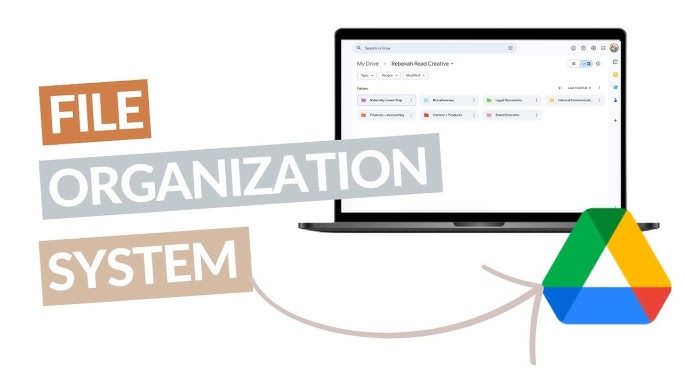
If your Drive feels like a messy attic—random files, duplicated docs, “final_final_v7” everywhere—this guide will fix it with a folder system that stays clean without becoming complicated.
- Table of contents
- Why most folder systems fail
- The 7 principles of folders that work
- 1) Design for retrieval, not for storage
- 2) Keep the top level small (5–8 folders max)
- 3) Use an Inbox folder (always)
- 4) Sort by actionability (what you do with it)
- 5) Limit depth (2–4 clicks)
- 6) Naming should sort automatically
- 7) Archive aggressively
- The core Drive organization system (Inbox + PARA)
- Top-level folder blueprint (copy this)
- File naming rules that make search effortless
- Shared files, team drives, and permissions (without chaos)
- Rule A: Separate “My work” from “Shared work”
- Rule B: Don’t duplicate—use shortcuts
- Permissions: keep them predictable
- Version history: stop saving duplicates
- Search + shortcuts: work faster without adding folders
- Use Drive search filters
- Use “search operators” when you’re power-searching
- Keyboard shortcuts (optional, but huge)
- Cross-platform note (OneDrive / iCloud / Dropbox)
- Maintenance routines: weekly reset + monthly archive
- The weekly 10-minute reset
- The monthly archive (15–30 minutes)
- Backup mindset (important)
- Security basics (quick win)
- Ready-to-use examples (personal, creator, small business)
- Key Takeaways
- FAQ
- 1) How many folders should I have at the top level?
- 2) How deep should my folders go?
- 3) Should I organize by file type (Docs, PDFs, Images)?
- 4) What do I do with files I don’t know where to put?
- 5) How do I handle “Shared with me” files?
- 6) Is it okay to use emojis in folder names?
- 7) What’s the fastest way to find a file when I forgot the folder?
- 8) When should I archive vs delete?
- 9) Can I use this system on OneDrive, Dropbox, or iCloud Drive?
- 10) How do I keep it organized long-term?
- References
This is not a “make 200 folders” tutorial. It’s a practical system built around how you actually work: you create things, you collaborate, you search, you reuse, you finish, and you archive. You’ll get:
- a simple folder blueprint you can set up in under 30 minutes
- file naming rules that make everything sortable and searchable
- a clean way to handle shared files and team folders
- maintenance routines so your Drive stays organized automatically
Table of contents
Why most folder systems fail
Most “organization” fails for one simple reason: it’s designed for a perfect life where you always have time to file things neatly.
Real life looks like this:
- You download invoices at midnight.
- You get shared a doc and forget where it lives.
- You open Drive on mobile and dump screenshots somewhere “for now.”
- You start projects, pause them, restart them, and rename them.
So the system collapses when:
- There are too many top-level folders (decision fatigue).
- Folder depth gets too deep (you can’t find anything quickly).
- There’s no “inbox” (everything becomes the inbox).
- Naming is inconsistent (search and sorting stop helping).
- Shared files have no home (they float around in “Shared with me”).
The solution is not “more discipline.” It’s a system that works with your behavior.
The 7 principles of folders that work
1) Design for retrieval, not for storage
Your goal is not “a pretty Drive.” Your goal is: find any file in 10 seconds. That means fewer decisions, clearer names, and predictable locations.
2) Keep the top level small (5–8 folders max)
If your Drive homepage shows 30 folders, your brain won’t know where to start. A small top level makes filing fast.
3) Use an Inbox folder (always)
An inbox prevents “temporary dumps” from spreading everywhere. Everything lands in one place first, then gets filed later.
4) Sort by actionability (what you do with it)
Most people sort by file type (Docs, PDFs, Images). That breaks quickly because projects contain everything. Sort by what the information is for: active work, ongoing areas, reference material, archives.
5) Limit depth (2–4 clicks)
When folders get too deep, you stop using them. A flatter structure beats a complex tree. (Box even recommends keeping folder levels limited because flatter structures are easier to navigate.)
6) Naming should sort automatically
If your naming is right, your Drive sorts itself. The easiest win is date-first naming in the ISO format: YYYY-MM-DD.
7) Archive aggressively
Old work shouldn’t live next to current work. Archiving is not deleting—it’s removing noise.
The core Drive organization system (Inbox + PARA)
Here’s the system that works for most people and teams because it maps to real life. It’s based on PARA:
- Projects — short-term outcomes with a deadline (client work, launch, course, app update)
- Areas — ongoing responsibilities (finance, health, content, operations)
- Resources — reference material (templates, research, tutorials, brand assets)
- Archive — inactive projects and old materials
We add one missing piece that makes PARA actually usable day-to-day:
- Inbox — the landing zone for everything new
Why this works: every file has a clear “why.” If it supports an active goal → Projects. If it supports ongoing life/work → Areas. If it’s knowledge/reference → Resources. If it’s done → Archive. If you’re unsure → Inbox.
Learn more about PARA here: The PARA Method (Forte Labs) and a simpler explanation: PARA method overview (Todoist).
Top-level folder blueprint (copy this)
Create these folders at the top level of your Drive:
| Folder | What goes inside | Rule |
|---|---|---|
| 00_Inbox | New downloads, scans, screenshots, quick saves | Nothing stays here longer than 7–14 days |
| 01_Projects | Active work with an outcome (client, launch, app update) | If it has a deadline, it belongs here |
| 02_Areas | Ongoing responsibilities (Finance, Health, Content, Admin) | Stable categories only |
| 03_Resources | Reference & reusable items (Templates, Research, Branding) | Don’t store “active work” here |
| 04_Archive | Completed projects + old materials | Default destination when work is done |
| 99_Templates | Reusable folder templates, checklists, doc templates | Copy from here, never edit originals |
Inside 01_Projects (use this pattern)
Keep it simple and consistent:
- Project Name
- 01_Admin
- 02_Working Files
- 03_Assets
- 04_Deliverables
Inside 02_Areas (examples)
- Finance (tax, invoices, bank statements)
- Legal (contracts, IDs, compliance)
- Content (blog, YouTube, thumbnails, scripts)
- Operations (SOPs, vendors, tools)
- Personal (health, family, travel)
Tip: Google Drive supports folders, subfolders, and even folder color-coding—use it sparingly for quick scanning (guide: Organize your files in Google Drive).
File naming rules that make search effortless
A good folder system reduces decisions. A good naming system removes decisions entirely.
The universal naming formula
YYYY-MM-DD — Topic/Client — What it is — Status (optional)
Examples:
- 2026-01-07 — Acme — Proposal — v1
- 2026-01-03 — Blog — Drive organization system — draft
- 2025-12-29 — Taxes — GST filing — submitted
Why YYYY-MM-DD? Because it sorts correctly everywhere, and it’s the ISO standard format (reference: ISO 8601 date format).
Use these 6 naming rules
- Start with a date when time matters (invoices, drafts, meetings).
- Use consistent separators: “ — ” or “ – ”. Pick one.
- Avoid special characters that can cause syncing issues (especially across platforms). Dropbox has a good list of file-name do’s and don’ts: Naming Dropbox files and folders.
- Keep it human: short, clear, searchable words.
- Use versions intentionally: v1, v2, v3… (not “final_final”).
- Mark status only when needed: draft / review / approved.
Optional: numbering for predictable order
Numbering keeps important folders in the same sequence everywhere:
- 01_Admin
- 02_Working
- 03_Assets
- 04_Deliverables
If you want an even more systematic approach, look at: Johnny.Decimal (great for people managing lots of categories).
Shared files, team drives, and permissions (without chaos)
Collaboration is where Drive organization breaks… unless you handle it with two simple rules:
Rule A: Separate “My work” from “Shared work”
If you’re using shared/team spaces, keep a dedicated shared location for team content instead of mixing it into personal folders. Google Workspace shared drives are designed for that, and Google recommends managing membership and access levels thoughtfully (see: Best practices and tips for shared drives).
Rule B: Don’t duplicate—use shortcuts
Duplicate copies create version confusion. In Google Drive, prefer shortcuts so the file lives in one place but is accessible from multiple places (guide: Find files & folders with Google Drive shortcuts).
Permissions: keep them predictable
- Grant access at the folder level, not file-by-file, whenever possible.
- Use role-based access (Viewer/Commenter/Editor) and avoid “everyone can edit” by default.
- For team platforms like Box, permissions typically inherit down the folder tree, so plan structure with that in mind (example guidance: Plan your folder structure (Box)).
Version history: stop saving duplicates
Instead of “Proposal_v1 / v2 / v3” as separate files, consider tools with version history, or Drive’s built-in file versions where applicable (see: Check activity & file versions in Google Drive).
Search + shortcuts: work faster without adding folders
Folders are for predictable storage. Search is for instant retrieval. A modern Drive workflow uses both.
Use Drive search filters
Drive can narrow results by type, owner, date modified, and more. Official guide: Search for files in Google Drive.
Use “search operators” when you’re power-searching
If you regularly lose files, learning a few Drive search operators can save hours (example list: Google Drive search operators).
Keyboard shortcuts (optional, but huge)
If you live in Drive all day, shortcuts reduce friction (official list: Keyboard shortcuts for Google Drive).
Cross-platform note (OneDrive / iCloud / Dropbox)
The same folder principles work across cloud platforms:
- OneDrive: Quick tips: Organize your files in OneDrive
- iCloud Drive: Organise files and folders in iCloud Drive
- Dropbox: Organize Dropbox files and folders
Maintenance routines: weekly reset + monthly archive
The secret to an organized Drive isn’t talent. It’s a tiny routine you can keep.
The weekly 10-minute reset
- Open 00_Inbox.
- Delete obvious junk (duplicates, failed exports, random screenshots).
- Move remaining files into Projects / Areas / Resources.
- If you’re unsure: create a quick note doc called “INBOX NOTES” and list what you need to decide later.
This is similar to the idea behind a weekly review in productivity systems like GTD (overview: What is GTD?).
The monthly archive (15–30 minutes)
- Move completed projects from 01_Projects to 04_Archive.
- Inside Archive, group by year: 2026, 2025, etc.
- Keep the top level clean so current work stays visible.
Backup mindset (important)
Organization is not backup. If your Drive matters, consider the “3-2-1 backup strategy” so you’re not relying on a single copy (explainer: 3-2-1 Backup Strategy).
Security basics (quick win)
Your Drive is only as secure as your account login. Turn on 2-Step Verification (official: Turn on 2-Step Verification).
Ready-to-use examples (personal, creator, small business)
Example A: Personal setup
- 00_Inbox
- 01_Projects
- Trip — Kerala 2026
- Home — Renovation
- 02_Areas
- Finance
- Health
- Family
- 03_Resources
- Templates
- Learning
- Receipts (reference only)
- 04_Archive
- 99_Templates
Example B: Content creator setup
- 00_Inbox (uploads, screenshots, ideas)
- 01_Projects
- Blog — Drive organization system
- YouTube — Car Maintenance Series
- 02_Areas
- Brand
- Publishing
- Partnerships
- 03_Resources
- Brand assets
- B-roll
- Music licenses
- Thumbnail templates
- 04_Archive (by year)
Example C: Small business setup
- 00_Inbox
- 01_Projects (active clients + internal projects)
- 02_Areas
- Admin
- Finance
- Legal
- HR
- Operations
- Marketing
- 03_Resources
- SOPs
- Templates
- Training
- Vendors
- 04_Archive (Clients → Year → Project)
Extra reading: Dropbox has practical digital file management tips that apply across platforms: Digital File Management Tips.
Key Takeaways
- Keep the top level small (5–8 folders) so filing stays effortless.
- Always use an Inbox to prevent clutter spreading across your Drive.
- Organize by actionability (Projects/Areas/Resources/Archive) instead of file type.
- Name files to sort themselves using ISO date format (YYYY-MM-DD) when time matters.
- Don’t duplicate shared files—use Drive shortcuts so there’s one source of truth.
- Archive aggressively so current work is always easy to see.
- Maintain with tiny routines (weekly reset + monthly archive) to stay organized permanently.
FAQ
1) How many folders should I have at the top level?
Ideally 5–8. If you need more, they usually belong inside Areas or Resources, not on the homepage.
2) How deep should my folders go?
Try to keep most files within 2–4 clicks. If you need 7 nested folders, the structure is doing too much work.
3) Should I organize by file type (Docs, PDFs, Images)?
Only inside a specific project if it helps. In general, action-based organization works better because projects contain mixed file types.
4) What do I do with files I don’t know where to put?
Put them in 00_Inbox. Schedule a weekly reset to decide later. The inbox is your safety net.
5) How do I handle “Shared with me” files?
Create a shortcut to the file/folder and place the shortcut where it belongs in your structure. This avoids duplicates and keeps one source of truth.
6) Is it okay to use emojis in folder names?
It can help visually, but keep it consistent and minimal. If you collaborate with teams, avoid emojis unless everyone agrees (some systems and exports don’t love them).
7) What’s the fastest way to find a file when I forgot the folder?
Search first. Use Drive filters (type, owner, modified date) and the words you remember. A good naming system makes this easy.
8) When should I archive vs delete?
Delete junk and duplicates. Archive anything you might need later (final deliverables, legal docs, important project history).
9) Can I use this system on OneDrive, Dropbox, or iCloud Drive?
Yes. The structure and naming rules work everywhere. Only the sharing/shortcut features differ slightly by platform.
10) How do I keep it organized long-term?
Make it easy: weekly 10-minute reset + monthly archive. If your system requires “perfect discipline,” it won’t last.
References
- Google Drive Help: Organize your files in Google Drive
- Google Drive Help: Search for files in Google Drive
- Google Drive Help: Drive shortcuts
- Google Workspace: Best practices for shared drives
- Forte Labs: The PARA Method
- Johnny.Decimal organization system
- ISO: ISO 8601 date format
- Backblaze: 3-2-1 Backup Strategy
- Microsoft: Organize files in OneDrive
- Dropbox: Organize files and folders