Locked out of your Google Account or Gmail? Don’t panic—and don’t trust random “recovery” websites or people claiming they can unlock it. Google provides official recovery tools, but success depends on using the right method for your situation and proving you’re the rightful owner.
- Table of Contents
- Key Takeaways
- Quick Triage: What “Locked Out” Actually Means
- 1) You forgot the password
- 2) You know the password but 2-Step Verification blocks you
- 3) You think someone changed your password
- 4) Google says “Your account is disabled”
- Before You Start: Recovery Success Checklist
- Method 1: Use Google’s Official Account Recovery (g.co/recover)
- Method 2: Forgot Your Email/Username?
- Method 3: Can’t Get 2FA Codes (Lost Phone / SIM / Authenticator)
- A) Try backup codes (fastest if you saved them)
- B) Use a security key (if you set one up)
- C) Use Google prompts or another second step
- D) If this is a Work/School account (Google Workspace)
- Method 4: Passkeys (What to Do If You Lose the Device)
- Method 5: Recovery Contacts (Friends/Family Can Help)
- Method 6: Sign in with Mobile Number (Android)
- If You Suspect Hacking or Suspicious Activity
- If Your Google Account Is Disabled
- If You Deleted the Account Recently
- Why Recovery Can Be Delayed (and Why You Can’t Skip It)
- After You Get Back In: Secure It in 10 Minutes
- Do this immediately
- If your phone was lost or stolen
- Optional: Advanced Protection (high-security mode)
- FAQs
- 1) What is the fastest way to recover a Google account?
- 2) I’m not receiving verification codes. What should I do?
- 3) Can Google support unlock my account for me?
- 4) Why does Google delay account recovery?
- 5) What if I forgot both my email and password?
- 6) What if my account was hacked?
- 7) What if Google says my account is disabled?
- 8) How do I prevent this from happening again?
- References
This guide walks you through every common lockout scenario: forgotten password, lost phone/2FA, compromised account, disabled account, and newer options like Recovery Contacts and Sign in with Mobile Number (availability may vary by account/device).
Important: This article is for recovering your own account. If you’re trying to access someone else’s account without permission, stop—account access without authorization is illegal and unsafe.
Key Takeaways
- Always start with official tools like g.co/recover.
- Recovery works best from a familiar device, browser, and location you’ve used before.
- If 2FA blocks you, try backup codes, security keys, passkeys, or newer options like Recovery Contacts (if enabled).
- Don’t trust “account recovery” services—they’re often scams that steal your details.
- Once you’re back in, run Security Checkup and update recovery options immediately.
Quick Triage: What “Locked Out” Actually Means
People say “locked out” for different problems. Identify yours first—this saves hours.
1) You forgot the password
You can still receive verification on a recovery phone/email, or you can answer Google’s identity questions.
2) You know the password but 2-Step Verification blocks you
Examples: lost phone, SIM not working, authenticator unavailable, security key missing.
3) You think someone changed your password
This is likely a compromised account. You’ll recover it and then secure it (devices, apps, forwarding, recovery info).
4) Google says “Your account is disabled”
This is different from forgetting your password. You’ll need to follow Google’s appeal/restore flow.
Before You Start: Recovery Success Checklist
Google’s recovery system checks signals to confirm it’s really you. Do these first:
- Use a familiar device & browser: the phone/laptop you normally use, and the same browser (Chrome/Safari) if possible.
- Use a familiar network/location: home Wi-Fi or workplace network you’ve used before.
- Collect likely old passwords: even close guesses help (password history matters).
- Have access to recovery options: recovery email, phone number, backup phone, or printed backup codes.
- Avoid repeated rapid attempts: too many attempts can trigger extra checks or delays.
Safety tip: Only use official Google domains (like google.com, accounts.google.com, support.google.com, and g.co). Avoid “recovery” links from strangers.
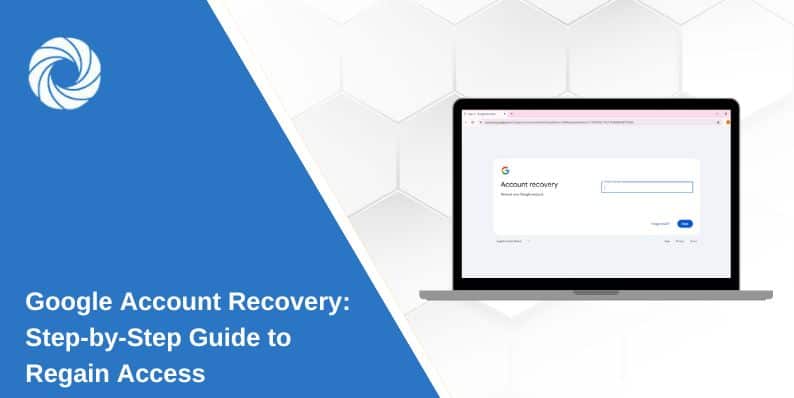
Method 1: Use Google’s Official Account Recovery (g.co/recover)
This is the main, official recovery flow. Start here for most lockouts:
Open Google Account Recovery → g.co/recover
Step-by-step
- Go to g.co/recover.
- Enter your email (or phone number linked to the account) and proceed.
- Answer the questions as accurately as you can (don’t skip if possible).
- If prompted, verify with a recovery email/phone, backup codes, or another sign-in method.
- When allowed, set a new strong password you haven’t used before.
Pro tips to increase success
- Answer as many questions as possible (best guesses are better than skipping).
- Be exact with old passwords if you remember any.
- Use the device/location you normally sign in from to strengthen your identity signal.
Helpful official resources:
- How to recover your Google Account or Gmail
- Tips to complete account recovery steps
- Can’t sign in troubleshooter
Method 2: Forgot Your Email/Username?
If you can’t even remember the Gmail address or Google Account email, use Google’s official “Find your email” tool:
Find your email → accounts.google.com/signin/v2/usernamerecovery
What you’ll typically need
- Your recovery phone number or recovery email
- Your name (as used on the account)
- Any verification steps Google asks for
Once you find your email, return to g.co/recover and continue recovery.
Method 3: Can’t Get 2FA Codes (Lost Phone / SIM / Authenticator)
2-Step Verification (2FA) is great—until you lose the device. Here are legitimate ways to get back in.
A) Try backup codes (fastest if you saved them)
If you previously downloaded/printed backup codes, you can sign in with one of them:
B) Use a security key (if you set one up)
If you enrolled a physical security key (FIDO), use it as the second step:
C) Use Google prompts or another second step
If you have another signed-in phone/tablet, Google may send a prompt there. If not, recovery may fall back to g.co/recover.
D) If this is a Work/School account (Google Workspace)
Your admin may be able to generate backup verification codes or reset sign-in methods:
Method 4: Passkeys (What to Do If You Lose the Device)
Passkeys can replace passwords and are strongly phishing-resistant. If you created a passkey, you may be able to sign in using device unlock (fingerprint/face/PIN) instead of typing a password.
If you lost the device that had your passkey
- Try signing in from another trusted device where your passkey may be available.
- If you can’t, return to g.co/recover to prove ownership and regain access.
- After recovery, review passkeys and remove ones tied to lost devices (from your Google Account security settings).
Security note: Passkeys are powerful, but treat device unlock seriously—anyone who can unlock your device can potentially access passkey-protected accounts.
Method 5: Recovery Contacts (Friends/Family Can Help)
Google introduced Recovery Contacts so trusted friends or family can help verify it’s you during recovery. You can have up to 10 recovery contacts (eligible accounts).
How it works (simple explanation)
- You request help from a recovery contact.
- You share a code with them.
- They confirm the code and help you regain access.
Tip: Set this up before you ever get locked out—it’s meant to be a safety net.
Method 6: Sign in with Mobile Number (Android)
Google is also rolling out a recovery option called Sign in with Mobile Number on Android. If supported on your device/account, it can help you identify accounts linked to your phone number and verify using the lock-screen passcode from your previous device (availability may vary).
If you don’t see this option, use the standard recovery flow at g.co/recover.
If You Suspect Hacking or Suspicious Activity
If you believe someone else accessed your account (unknown logins, emails sent you didn’t send, recovery info changed), do two things:
1) Recover access first
Start at g.co/recover and follow the prompts.
2) Then secure the account immediately
Use Google’s official “secure a compromised account” guide and complete the steps, including checking devices and recent security events:
- Secure a hacked or compromised Google Account
- Google Security Checkup
- Google Password Manager / Password Checkup
What to look for (quick list)
- Unrecognized devices signed in
- New forwarding addresses or filters in Gmail
- Third-party apps you don’t recognize
- Changed recovery email/phone
- Passkeys or security keys you didn’t add
If Your Google Account Is Disabled
If Google says your account is disabled, password reset alone won’t fix it. You’ll need to follow the restore/appeal process:
Tips before you appeal
- Use a desktop browser if possible (more stable for forms and prompts).
- Be honest and specific—appeals are about proving rightful ownership and that you’ll follow policies.
- If it’s a work/school account, contact your admin too.
If You Deleted the Account Recently
If you deleted your Google Account, you may be able to recover it (time-sensitive and not guaranteed):
Why Recovery Can Be Delayed (and Why You Can’t Skip It)
Sometimes Google places a delay on recovery attempts to protect you from hijacking. This can last hours or even days, depending on risk factors and how much security is enabled.
Reality check: There’s no legitimate way to “bypass” Google’s recovery delay. Anyone claiming they can is almost certainly running a scam.
After You Get Back In: Secure It in 10 Minutes
Recovery is only half the job. Many people get back in—and then get locked out again because the account is still vulnerable.
Do this immediately
- Change your password to something unique and strong.
- Run Security Checkup and remove anything suspicious:
- Update recovery options (recovery email + phone):
- Turn on 2-Step Verification (or upgrade to passkeys):
- Download backup codes and store them safely:
- Check passwords for compromise and fix reused passwords:
If your phone was lost or stolen
Optional: Advanced Protection (high-security mode)
If you’re a journalist, public figure, business owner, or you’ve been targeted before, consider Google’s strongest protection options:
FAQs
1) What is the fastest way to recover a Google account?
Start with g.co/recover and complete the prompts using a familiar device and location. If you have backup codes, those can be the fastest path.
2) I’m not receiving verification codes. What should I do?
Try alternate methods: backup codes, another signed-in device (Google prompt), security key, or passkey. If none work, continue on g.co/recover and follow identity questions.
3) Can Google support unlock my account for me?
In most cases, Google uses automated recovery flows. Be cautious of anyone claiming they have “direct support access” to unlock accounts—this is commonly used in scams.
4) Why does Google delay account recovery?
Delays help protect your account from takeover attempts. Risk factors (like enabling 2-Step Verification) can increase the delay. Learn more here: Recovery delays.
5) What if I forgot both my email and password?
Use the official “Find your email” tool first: Username recovery. Then return to g.co/recover.
6) What if my account was hacked?
Recover it first, then follow Google’s official steps to secure it: Secure a hacked Google Account.
7) What if Google says my account is disabled?
Use the official appeal flow: Your account is disabled.
8) How do I prevent this from happening again?
Update recovery email/phone, enable 2-Step Verification or passkeys, download backup codes, and run Security Checkup regularly.