Most people “use Google,” but only a small percentage use it well. The difference isn’t secret hacks—it’s a few underused features that turn Google Drive, Keep, and Calendar into a simple personal productivity system.
- Table of Contents
- Why Drive + Keep + Calendar is a power trio
- Google Drive: the underrated “second brain”
- 1) Stop duplicating files: use Drive Shortcuts
- 2) Version history: undo mistakes (fast)
- 3) Scan documents into searchable PDFs
- 4) Offline mode: files that work anywhere
- 5) Search like a pro (filters + tricks)
- Google Keep: capture fast, organize later
- 1) Labels, colors, pins: the “3-click” organization system
- 2) Checklists that actually get done
- 3) Reminders + Tasks integration (what to expect)
- 4) Share notes and lists (simple collaboration)
- 5) Turn images into text (quick digitizing)
- Google Calendar: your command center for time
- 1) Appointment schedules: your free booking link
- 2) Focus time: protect deep work automatically
- 3) Working hours, Out of Office & working location
- 4) Time Insights (for Workspace users)
- 5) Tasks inside Calendar (tiny feature, big impact)
- 3 simple workflows that connect Drive + Keep + Calendar
- Workflow #1: Capture → Decide → Do (the daily loop)
- Workflow #2: Meeting pack in 2 minutes
- Workflow #3: Home admin vault
- 10-minute setup checklist
- Common mistakes (and quick fixes)
- FAQs
- 1) Is Google Keep better than Google Docs for notes?
- 2) What’s the simplest Drive folder system that works?
- 3) Should I use Drive shortcuts or copies?
- 4) Can I scan documents straight to a specific Drive folder?
- 5) Why do my Keep reminders sometimes show up in Tasks?
- 6) Are appointment schedules free?
- 7) What’s the easiest way to reduce meeting overload?
- 8) How do I make Tasks appear on my calendar?
- Key Takeaways
- References & further reading
In this guide, you’ll learn practical, everyday ways to use:
- Google Drive to organize, search, scan, and recover files without panic
- Google Keep to capture ideas instantly and keep life/admin tasks from slipping
- Google Calendar to protect focus time, cut meeting chaos, and stay consistent
Even better: you’ll connect the three into a lightweight workflow you can keep running in the background of your life—without becoming “a productivity person.”
Table of Contents
Why Drive + Keep + Calendar is a power trio
Think of your digital life as three problems:
- Stuff (documents, PDFs, photos, invoices, drafts) → needs a home
- Thoughts (ideas, reminders, checklists, links, notes) → needs capturing
- Time (meetings, deadlines, routines, focus) → needs protection
Drive solves stuff. Keep solves thoughts. Calendar solves time. Most people use all three, but separately—and that’s why it still feels messy.
When you connect them, you get a simple loop:
- Capture (Keep)
- Store (Drive)
- Schedule (Calendar)
That loop is the core of a stress-free Google system.
Google Drive: the underrated “second brain”
Google Drive isn’t just cloud storage. Used well, it becomes a searchable library for everything important—work docs, certificates, receipts, scanned papers, drafts, study notes, and shared projects.
1) Stop duplicating files: use Drive Shortcuts
One of the most common Drive problems is duplication: the same file lives in 3 folders because you “needed it there too.” That creates confusion, out-of-date versions, and wasted space.
Fix: Add a Shortcut instead of copying the file. A shortcut points to the original, so there’s only one “source of truth.”
- Example: Put the original “2026 Taxes” folder in “Finance,” then add a shortcut inside “Family Admin” and “Work Docs” if needed.
- Result: you can find it from multiple places, without duplicates.
Official help: Google Drive shortcuts
2) Version history: undo mistakes (fast)
Accidentally overwritten a file? Someone edited the wrong paragraph? Drive can often save you.
For Google Docs/Sheets/Slides: use Version history to restore a previous version (and even name versions like “Final” or “Sent to client”).
For uploaded files (PDFs, images, etc.): Drive can store file versions too—just be aware version retention may be limited (so don’t rely on it as your only backup strategy).
Official help: Check activity & file versions (version history)
3) Scan documents into searchable PDFs
This is a hidden superpower: the Drive mobile app can scan papers (receipts, letters, IDs) and save them as PDFs in your Drive. You can build a paperless archive without buying a scanner.
Use it for:
- Car service bills and warranties
- Medical reports
- Tax receipts and invoices
- Certificates and important documents
Official help:
4) Offline mode: files that work anywhere
Offline access is perfect for travel, weak Wi-Fi, or “I don’t want to depend on the internet today.” You can mark important Docs/Sheets/Slides (and on mobile, other files too) as available offline.
Best uses:
- Travel itineraries
- Study notes
- Project drafts
- Client documents you need in meetings
Official help:
5) Search like a pro (filters + tricks)
Most people “scroll” Drive. Power users search.
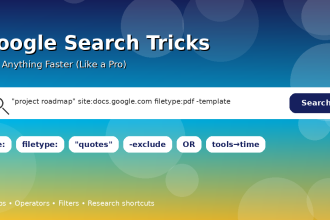
Start with the built-in filter chips (file type, people, modified date) and then build a habit: when you save something important, make the name searchable.
Mini naming rule that works:
- [Year] – [Topic] – [Type]
- Example: 2026 – Car Insurance – Policy.pdf
Official help: Search for files and folders in Google Drive
Bonus (keyboard-first):
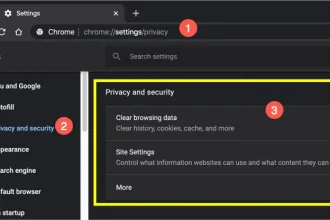
Storage cleanup tip: If Drive is full, don’t guess—use Google’s storage management page to find the biggest space users and clean safely.
Official help: Manage storage in Drive, Gmail & Photos
Google Keep: capture fast, organize later
Keep is the fastest place to store “small but important” information: ideas, to-dos, shopping lists, meeting notes, links, scripts, and quick plans.
If Drive is your library, Keep is your sticky-note wall—with search, labels, and reminders.
Start here: Google Keep overview or open it directly at keep.google.com.
1) Labels, colors, pins: the “3-click” organization system
Most people never use labels, then they complain Keep is messy. Labels solve that instantly.
Try this starter set (simple and universal):
- Personal
- Work
- Finance
- Health
- Content (blog ideas, YouTube scripts, titles)
Then add two habits:
- Pin notes you need this week (top of the screen)
- Color-code by type (e.g., yellow for ideas, blue for admin)
Official help: Organize your notes (labels, colors)
2) Checklists that actually get done
Keep checklists work best for repeating, real-life lists:
- Grocery staples list
- Travel packing list
- Monthly car maintenance checks
- Blog post publishing checklist
Pro move: keep one “Master Checklist” pinned, and duplicate it when needed (so your structure stays consistent).
3) Reminders + Tasks integration (what to expect)
Keep reminders are extremely useful because they turn a note into action. Set reminders for:
- Bill payments
- Follow-ups
- “Review this later” reading lists
- Publishing deadlines
Important: Google is increasingly handling Keep reminders through Google Tasks (you may see prompts about reminders being saved in Tasks). That’s good for consistency across Google apps—but it can change how/where you manage reminders.
Official help: Set up reminders for your notes
4) Share notes and lists (simple collaboration)
You can share a note with someone so both of you can edit it. This is perfect for:
- Family shopping lists
- Trip planning lists
- Shared household tasks
- Small team checklists
Official help: Share notes, lists & drawings
5) Turn images into text (quick digitizing)
If you capture handwritten notes, whiteboard snapshots, or receipts, Keep can help you extract text from images in many cases (feature availability may vary by device/account).
Tip: For “serious” document digitizing, Drive scanning is usually the better long-term archive. Keep is better for quick capture and quick reuse of the text.
Google Calendar: your command center for time
Most people use Calendar like a “birthday reminder.” High performers use it like a time budget.
Two shifts change everything:
- Time-block what matters (not just meetings)
- Reduce scheduling back-and-forth with booking links
1) Appointment schedules: your free booking link
Google Calendar has a built-in appointment scheduling feature that creates a shareable booking page. People can pick available slots and Calendar handles the event creation.
Use it for:
- Client calls
- Consultations
- Weekly check-ins
- Interviews and onboarding calls
Official help:
2) Focus time: protect deep work automatically
Focus Time is an event type designed to reduce interruptions. You can even set it to automatically decline meetings during that block (depending on your account settings).
Best practice: create 2–4 recurring focus blocks per week (60–90 minutes each). Treat them like important meetings with yourself.
Official help: Use focus time in Google Calendar
3) Working hours, Out of Office & working location
These event types reduce friction for everyone:
- Working hours sets expectations
- Out of Office protects time off
- Working location helps teams coordinate (where supported)
Official help: Set your working hours & location (includes Out of Office)
4) Time Insights (for Workspace users)
If you use a work or school Google account, Time Insights can show patterns like meeting load and who you meet with most—useful for reducing calendar overload.
Official help: View how you spend time in meetings (Time Insights)
5) Tasks inside Calendar (tiny feature, big impact)
Google Tasks integrates directly into Calendar. If you give a task a date, it appears on your calendar—perfect for light planning without a heavy task manager.
Official help: Create & manage tasks in Google Calendar
Bonus (keyboard-first): Google Calendar keyboard shortcuts
3 simple workflows that connect Drive + Keep + Calendar
Workflow #1: Capture → Decide → Do (the daily loop)
- Capture every idea/to-do in Keep (not your brain).
- Decide once per day: archive, label, or convert to a dated task.
- Do it by scheduling a Calendar block or adding a dated task that appears in Calendar.
This stops mental overload because you’re not trying to “remember” everything—your system remembers for you.
Workflow #2: Meeting pack in 2 minutes
- Create a Keep note titled: Meeting – [Name] – [Date] with an agenda checklist.
- Attach supporting files in Drive (brief, proposal, screenshots).
- Add the Drive link to the Calendar event description so everything is one click away during the meeting.
Workflow #3: Home admin vault
- Create a Drive folder: Home Admin → subfolders like Car, Medical, Insurance, Tax.
- Scan documents directly into the correct folder.
- Create Keep notes like “Car service timeline” or “Insurance renewal checklist,” and set reminders 7–14 days before renewal.
- Time-block “admin hour” monthly in Calendar to keep things current.
10-minute setup checklist
- Drive: Create 5 top folders (Personal, Work, Finance, Health, Content). Use shortcuts instead of copies.
- Drive (mobile): Practice scanning one document into the right folder.
- Keep: Create labels (Personal, Work, Finance, Health, Content).
- Keep: Pin one “This Week” note (your weekly focus list).
- Calendar: Add 2 recurring focus blocks per week.
- Calendar: Add one weekly “Planning” block (15 minutes).
- Calendar: If you take calls, create an appointment schedule and save the booking link.
If you only do this checklist, you’ll feel the difference within a week.
Common mistakes (and quick fixes)
- Mistake: Duplicating files across folders.
Fix: Use Drive Shortcuts. - Mistake: Saving everything to “My Drive” root.
Fix: Create 5 top folders and move only what matters. - Mistake: Using Keep with no labels.
Fix: Add labels and pin a weekly note. - Mistake: Calendar only for meetings.
Fix: Time-block focus work, routines, and admin tasks. - Mistake: “I’ll remember that.”
Fix: Capture it in Keep in 5 seconds.
FAQs
1) Is Google Keep better than Google Docs for notes?
Keep is best for fast capture, short notes, lists, reminders, and quick planning. Docs is better for long-form writing, structured documents, and collaboration-heavy drafts. Many people use Keep for capture and Docs/Drive for “final versions.”
2) What’s the simplest Drive folder system that works?
Start with 5 folders: Personal, Work, Finance, Health, Content. Only add subfolders when you feel real friction. Keep it boring and consistent.
3) Should I use Drive shortcuts or copies?
Use shortcuts when you want the same file to “appear” in multiple places. Use copies only when you intentionally want a separate version.
4) Can I scan documents straight to a specific Drive folder?
Yes—after scanning, choose the destination folder (and rename immediately). The best habit is: scan → rename → place correctly.
5) Why do my Keep reminders sometimes show up in Tasks?
Google is improving cross-app consistency by using Tasks for reminders in many cases. Depending on your account and rollout, reminders may be managed in Tasks/Calendar while the note stays in Keep.
6) Are appointment schedules free?
Availability depends on account type and region/rollouts, but Google Calendar supports appointment schedules with a booking page where others can pick a slot.
7) What’s the easiest way to reduce meeting overload?
Use Focus Time and working hours/out-of-office settings. Then block 2–4 focus sessions weekly and treat them as non-negotiable.
8) How do I make Tasks appear on my calendar?
Give the task a date and ensure Tasks is enabled in Calendar. Dated tasks show up directly on the calendar view.
Key Takeaways
- Drive becomes powerful when you use shortcuts, scanning, offline mode, and search.
- Keep works best with labels + pinned weekly notes + reminders.
- Calendar should time-block focus, not just meetings.
- The real win is the loop: Capture (Keep) → Store (Drive) → Schedule (Calendar).
References & further reading
- Google Drive shortcuts
- Drive version history & activity
- Scan documents with Google Drive
- Use Drive offline (Computer)
- Drive keyboard shortcuts
- Search for files in Google Drive
- Manage storage in Drive, Gmail & Photos
- Google Keep overview
- Organize notes in Keep (labels, colors)
- Keep reminders
- Share notes in Keep
- About appointment schedules
- Create an appointment schedule
- Focus time in Google Calendar
- Working hours & Out of Office
- Time Insights in Google Calendar
- Tasks in Google Calendar
- Google Calendar keyboard shortcuts
Now pick just one upgrade: set up Drive scanning, create Keep labels, or add two Focus Time blocks. Small changes compound fast.