Canva Templates for Brand Messaging Guides
Canva Template GuideDigital ProductsSenseCentral
Canva Templates for Brand Messaging Guides are useful when you want a polished, reusable design system that does more than look attractive. A strong template helps brand designers, consultants, freelancers, and business owners welcome new users, answer setup questions, and reduce support messages. Instead of starting from a blank Canva page every time, you can create a repeatable structure that supports product delivery, education, marketing, onboarding, or brand communication.
For SenseCentral readers, the biggest advantage is speed with consistency. When a template has the right sections, buyers understand the offer faster, creators save production time, and the final PDF, slide set, or graphic looks more professional. This guide explains how to plan a brand messaging guides template, what pages to include, how to make the design more valuable, and how to connect it with digital product bundles, email marketing, social content, and creator monetization tools.
Affiliate disclosure: This article includes useful resource links. Some links may be affiliate or promotional links, which means SenseCentral may earn a commission at no extra cost to you when you choose to purchase through them.
Table of Contents
- Why This Canva Template Matters
- Best Sections to Include
- Recommended Canva Structure
- Simple vs Premium Template Comparison
- Design Tips That Make the Template Feel Valuable
- How to Use This Template to Sell, Teach, or Grow
- Useful Resources and Internal Reading
- Common Mistakes to Avoid
- Key Takeaways
- Frequently Asked Questions
- References
Why Canva Templates for Brand Messaging Guides Matter
A Canva template is not just a decorative file. It is a shortcut for communicating a repeatable idea. When you design brand messaging guides with a clear purpose, you help the end user move from curiosity to action. That may mean completing a checklist, understanding a product, comparing two options, onboarding into a course, choosing a brand direction, or saving a marketing post for later.
Brand templates need to turn subjective opinions into documented decisions. Show examples, rules, and practical applications so the user can apply the brand consistently across websites, social posts, PDFs, and sales pages. The best templates combine information architecture with visual clarity. Information architecture means the content is organized in the order a real user needs it. Visual clarity means the layout, spacing, typography, colors, and icons guide the eye rather than creating noise.
For a product-based creator, this matters because buyers judge digital products quickly. A simple PDF can feel premium when it has a polished cover, helpful instructions, practical examples, editable sections, and a professional handoff. A beautiful but confusing template creates more work for the buyer. A strategic template makes the buyer feel supported.
Before opening Canva, define one job for the template. Is it supposed to teach, compare, plan, launch, audit, sell, onboard, or organize? The answer decides the page order, the amount of text, the table style, the call-to-action, and even the file format. A brand messaging guides template should feel like a small system, not a random collection of pages.
Best Sections to Include in a Brand Messaging Guides Template
Use the table below as a practical starting point. You can adapt it for Canva Docs, A4 PDFs, presentations, Instagram slides, Pinterest graphics, or email companion downloads. The goal is to balance design with usefulness, so the final product feels ready to use instead of unfinished.
| Template Section | Purpose | Best Canva Format | Value-Adding Tip |
|---|---|---|---|
| Cover / promise page | State what the brand messaging guides helps the buyer do and who it is for. | A4 document or presentation cover | Use one strong result statement, not a crowded feature list. |
| How to use this resource | Explain the best way to follow the brand messaging guides without confusion. | Checklist page or quick guide | Add page numbers, icons, and a short start-here note. |
| Brand decision pages | Capture positioning, voice, color, typography, imagery, and application rules. | Brand board or workbook | Show do and don’t examples to reduce interpretation errors. |
| Examples / prompts | Give examples that help users customize the brand messaging guides faster. | Prompt cards or example boxes | Use filled-in samples beside blank fields. |
| Action checklist | Turn learning into completion with a final review page. | Checkbox list | Include only the steps that truly matter before publishing or launching. |
A common mistake is to add too many pages because the template needs to look bigger. A better approach is to make every page earn its place. For example, if the template is for a product guide, add a setup checklist and troubleshooting note. If it is for a brand workbook, add an audit page and decision summary. If it is for social content, include multiple headline styles and caption prompts. The value is not only in the number of pages; it is in how quickly the user can apply the content.
Recommended Canva Structure
Start with a simple structure that can expand. A strong brand messaging guides template normally includes a cover, short instruction page, core content pages, examples, action pages, and a final resource page. This structure works because it mirrors how people use digital downloads: first they want to know what it is, then how to use it, then they want the actual tool, and finally they need next steps.
1. Start With the Result
Make the first page answer the buyer’s silent question: “What will this help me do?” Use a headline that promises a clear outcome, such as organize, compare, plan, launch, audit, or improve.
2. Guide the User
Add a short “how to use this” page. Explain whether the file is meant to be printed, duplicated in Canva, used as a PDF, shared with clients, or used as a lead magnet.
3. Build Reusable Pages
Create master layouts that can be duplicated. Keep margins, headings, icons, and text styles consistent so the template looks like a complete product system.
4. End With Action
Close with a checklist, next-step page, resource page, or call-to-action. Users should never reach the final page and wonder what to do next.
Design tip: if you plan to sell this as a digital product, include a license note, support email placeholder, Canva edit link instructions, and a file delivery checklist. These small details can reduce customer questions and make your product look more trustworthy.
Simple vs Premium Template Comparison
The difference between a simple Canva template and a premium one is not just aesthetics. Premium templates feel intentional. They anticipate questions, include variations, and help users get results faster. Use this comparison to decide how much depth your brand messaging guides template needs.
| Feature | Simple Template | Premium Template | Best For |
|---|---|---|---|
| Page count | 3–8 basic pages | 10–30 organized pages with examples and variations | Paid digital products, client resources, and course bonuses |
| Instructions | Short note or no guidance | Clear start-here page, usage notes, and editable field instructions | Beginners and buyers who want quick implementation |
| Branding | Generic colors and fonts | Consistent style system with color, type, icons, and spacing rules | Creators building a recognizable product library |
| Customization | Limited text replacement | Multiple layouts, prompts, examples, blank pages, and optional sections | Template shops, coaches, designers, and educators |
| Conversion support | No CTA or next step | Includes call-to-action pages, bonus pages, links, and resource recommendations | Lead magnets, sales funnels, and product education content |
Design Tips That Make the Template Feel Valuable
Use a clean hierarchy
Every page should have a clear headline, short supporting text, and one main action. Avoid using five font sizes on one page. Choose one heading style, one subheading style, and one body style. Canva makes it easy to experiment, but consistency is what makes a template feel professional.
Create breathing room
White space is not wasted space. It makes forms easier to complete, checklists easier to scan, and slides easier to understand. When designing brand messaging guides, leave enough room for users to write, customize, or add their own examples. A crowded template often looks cheaper even when the graphics are attractive.
Design for both screen and print
Many buyers will use the file digitally, but some will print it. Use high contrast text, avoid extremely pale fonts, and keep important content away from the edges. If the template is mainly for social media, create safe zones for mobile viewing. If it is a workbook or PDF, test a page in grayscale to make sure it remains readable.
Add examples without overloading the page
Examples are powerful because they reduce uncertainty. A blank template can feel intimidating, while a filled-in sample teaches the user what good looks like. Include one or two examples, then give the user a blank version to personalize.
How to Use This Template to Sell, Teach, or Grow
A brand messaging guides template can become more than a single download. It can support a paid digital product, a course bonus, a client deliverable, a free lead magnet, a product education page, or a content upgrade inside a blog post. The best approach depends on your business model and audience.
If you sell digital products, use the template to make your product easier to understand. Add it to your product bundle, place it inside a welcome kit, or use parts of it as preview images on your sales page. If you teach online, turn the template into a lesson worksheet or course resource. If you run a service business, use it as a client onboarding asset or audit workbook.
For creators who want to monetize knowledge, a template can also become a bridge to a course or coaching offer. For example, you can give a simplified template as a free download, then offer a deeper training that shows how to use it. You can also turn the template into a workbook inside a Teachable course, combine it with video lessons, and sell it as part of a branded learning experience.
Useful Resource: Explore Our Powerful Digital Products Bundle
Browse these high-value bundles for website creators, developers, designers, startups, content creators, and digital product sellers. These resources can help you speed up product creation, build better lead magnets, improve your visuals, and package your ideas into more professional digital products.
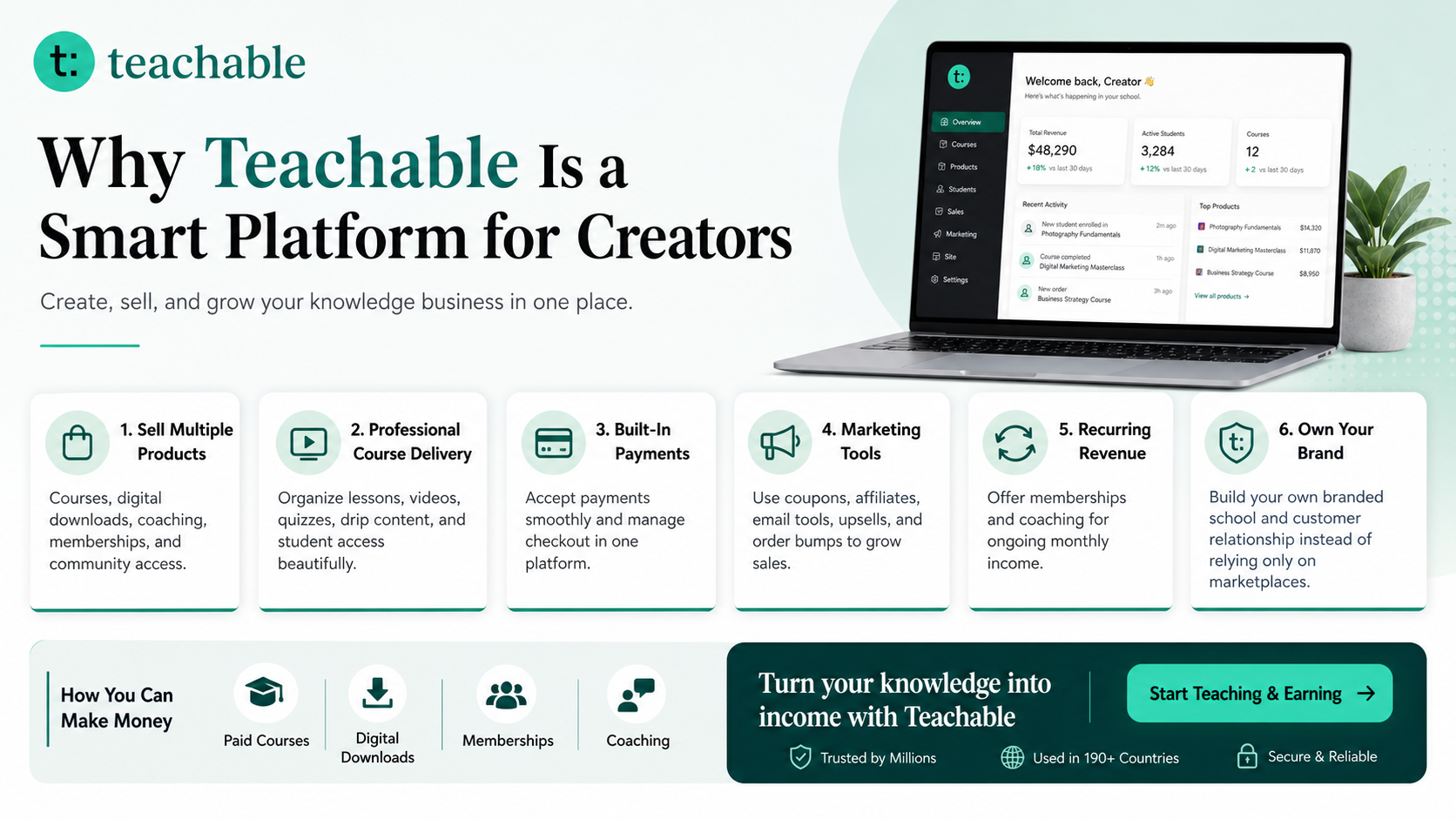
Creator Platform Pick: Try Teachable
Teachable is an online platform that lets creators build, market, and sell courses, digital downloads, coaching, and memberships. It helps educators and entrepreneurs turn their knowledge into a branded digital business without needing complex coding.
Learn more: How to Make Money with Teachable: A Complete Creator’s Guide
Free Productivity Tools: Zee Sharp
Zee Sharp is a growing suite of free online tools for productivity, development, and creativity. No sign-up. No watermarks. Just tools. Use it when you need quick utilities while planning, writing, formatting, organizing, or launching your digital product content.
Useful Resources and Internal Reading
Internal links from SenseCentral
- Visit SenseCentral for more digital product, template, and creator business guides.
- How to Make Money with Teachable: A Complete Creator’s Guide.
External links worth exploring
- Canva Templates Library for layout inspiration and editable design formats.
- Canva Docs Templates for document-style resources, workbooks, and guide layouts.
- Teachable for selling courses, coaching, digital downloads, and memberships.
- WordPress Importer if you manage blog content through WordPress XML imports.
Common Mistakes to Avoid
Making the design pretty but unclear
A template can look beautiful and still fail if users do not know how to apply it. Always prioritize clarity. Use labels, page titles, examples, and short instructions. Pretty decoration should support the message, not hide it.
Ignoring the buyer’s real workflow
Think about where the user will be when they open the template. Are they planning a product, writing an email, building a brand, designing social posts, or preparing a launch? Match the order of pages to that workflow. A template that follows the user’s natural process feels easier and more valuable.
Using too many visual styles
Do not mix unrelated icons, colors, shadows, and fonts. Choose a visual direction and repeat it. If you want to offer variety, create separate style versions instead of forcing many styles into one file.
Forgetting the final action
Every template should end with a next step. That might be a publish checklist, a product link, a course lesson, an email signup, a support note, or a resource recommendation. The final page is an opportunity to make the user feel complete and guided.
SEO and Product Listing Tips
When publishing a blog post or product listing about brand messaging guides, use phrases that match buyer intent. Good keywords include the exact template name, Canva template, editable PDF, digital product template, workbook template, guide template, social media template, brand workbook, lead magnet template, or printable resource depending on the use case. In your images, show the cover, inside pages, close-up details, and a realistic mockup so buyers understand what they receive.
For blog SEO, add a descriptive title, meta description, table of contents, image alt text, FAQs, and internal links to related SenseCentral guides. For product SEO, focus on buyer outcomes. Instead of only saying “editable Canva template,” explain the result: faster setup, clearer product delivery, better brand consistency, easier launch planning, or stronger subscriber onboarding.
Key Takeaways
- Canva Templates for Brand Messaging Guides should solve one clear problem for a specific user.
- A premium template needs structure, examples, instructions, and a strong final action.
- Use Canva layouts consistently so the resource feels like a polished product system.
- Tables, checklists, prompts, and before-and-after examples can increase perceived value.
- Templates can support digital product sales, courses, coaching, email growth, and brand education.
- Affiliate CTAs and useful resources should feel helpful, relevant, and clearly disclosed.
Frequently Asked Questions
What should be included in Canva Templates for Brand Messaging Guides?
Include a cover page, short usage instructions, core content pages, examples, blank editable sections, a final checklist, and a resource or next-step page. The exact pages depend on whether the template is for a digital product, brand document, Instagram content, Pinterest marketing, or email marketing.
Can I sell Canva templates as digital products?
Yes, many creators sell Canva-based templates as digital downloads, but you should follow Canva’s licensing rules, use your own original design structure, and provide buyers with proper access instructions. Add your own value through layout, strategy, examples, prompts, and niche-specific guidance.
How many pages should this template have?
A simple template may only need 5 to 8 pages. A premium template can include 15 to 30 pages with examples, variations, and checklists. Focus on usefulness rather than page count. More pages only help when each page supports the user’s goal.
What format works best for delivery?
For printable or workbook-style resources, export as PDF and include a Canva edit link if buyers need to customize it. For social media templates, provide the Canva template link and clear instructions. For course bonuses, combine PDF downloads with short video guidance or lesson notes.
How can I make the template look more premium?
Use consistent spacing, a limited color palette, readable fonts, strong section headers, helpful icons, realistic mockups, and filled-in examples. A premium template feels organized, easy to use, and aligned with the buyer’s outcome.
Where can I promote this type of template?
You can promote it through blog posts, Pinterest pins, Instagram carousels, email newsletters, product bundles, freebie libraries, course resource areas, and sales pages. Match the promotional channel to the buyer’s intent and show how the template saves time or improves results.
References and Further Reading
- Canva Templates — official template library for design inspiration and formats.
- Canva Docs Templates — official document template examples for visual guides and workbooks.
- Teachable — platform for courses, digital downloads, coaching, and memberships.
- WordPress Importer Plugin — official WordPress plugin for importing WordPress export XML content.
- SenseCentral: How to Make Money with Teachable — internal creator monetization guide.