Canva Templates for Product Access Guides
A practical guide to creating canva templates for product access guides with page ideas, Canva layout tips, tables, FAQs, resource links, and monetization ideas for digital product sellers.
Product-focused Canva templates help digital sellers explain what they offer before, during, and after a launch. The right template system can turn scattered ideas into a clear roadmap, pricing guide, comparison chart, welcome PDF, or instruction manual that supports sales and customer success.
The goal is to turn product access guides into a clear sales and delivery asset. Instead of a random PDF, the template should guide the buyer through decisions, expectations, benefits, and action steps. A good Canva template should not only look attractive; it should make the buyer feel guided. That means the page flow, headline system, spacing, instructions, and call-to-action areas all need to work together. When a buyer opens the file, they should immediately understand what the template does, how to customize it, and how it fits into their launch, shop, funnel, or content workflow.
For SenseCentral readers who review tools, compare digital products, or build online resources, this type of post can also support affiliate content. You can compare Canva template formats, explain use cases, promote helpful creator platforms, and recommend useful productivity hubs without turning the article into a hard sales page. The best approach is to educate first, show examples second, and then place relevant resources where they naturally help the reader.
Why Product Access Guides Templates Matter
Creators often lose time because their ideas are scattered across notes, spreadsheets, screenshots, and unfinished drafts. A focused Canva template solves that problem by turning a repeated task into a ready-made system. For product access guides, the template can become a roadmap, a teaching asset, a sales support document, or a promotional resource. The user does not need to wonder what page comes next because the structure leads them from idea to action.
The biggest advantage of Canva is speed. A creator can duplicate a design, change the brand colors, replace screenshots, rewrite the copy, export a PDF, or share an editable template link. That makes it useful for digital download sellers, coaches, Etsy educators, bloggers, course creators, and small business owners who need professional resources without hiring a designer for every new campaign.
However, speed only works when the template is designed with a clear purpose. A beautiful page with no decision support may look good in a mockup but fail in real use. A practical page with poor spacing may feel cheap even if the content is helpful. The strongest templates balance both: simple design, clear instructions, focused prompts, and enough visual polish to feel valuable.
Who This Template Is Best For
Use this angle to create a page, graphic, checklist, or mini lesson that makes the template more useful and easier to sell.
Use this angle to create a page, graphic, checklist, or mini lesson that makes the template more useful and easier to sell.
Use this angle to create a page, graphic, checklist, or mini lesson that makes the template more useful and easier to sell.
Use this angle to create a page, graphic, checklist, or mini lesson that makes the template more useful and easier to sell.
Use this angle to create a page, graphic, checklist, or mini lesson that makes the template more useful and easier to sell.
Use this angle to create a page, graphic, checklist, or mini lesson that makes the template more useful and easier to sell.
This template idea is especially useful for creators who sell knowledge, printable files, planning systems, digital guides, Canva templates, online courses, or coaching offers. It also works well for content creators who want their educational posts and downloads to look consistent across Instagram, Pinterest, email, blog posts, and product pages.
Pages to Include in Canva Templates for Product Access Guides
The most profitable template products usually feel complete without becoming overwhelming. You do not need to add every possible page. Instead, choose pages that help the user move through a real workflow. The table below gives page ideas you can include in a freebie, paid product, product bonus, course companion, Etsy listing deliverable, or client resource.
| Page idea | How to use it |
|---|---|
| Branded cover | A polished entry page with product name, promise, and visual identity |
| Quick start page | A one-page overview that helps the buyer know where to begin |
| Checklist page | A scannable action list that gives the resource practical utility |
| Notes or planning page | Open space for decisions, ideas, links, or priorities |
| Resource page | A curated set of tools, links, or examples that extend the value |
| FAQ page | Answers common objections, usage questions, and customer support issues |
| Goal map | Defines what the product access guides should accomplish |
| Decision matrix | Helps compare options or prioritize features |
| Timeline page | Turns the idea into a date-based plan |
| Delivery checklist | Confirms files, links, bonuses, and support information |
Suggested Template Flow
A strong flow starts with orientation, then moves into action, then ends with support. For example, you can open with a cover and quick-start guide, move into planning or educational pages, include checklists and decision prompts, and finish with FAQs, next steps, resource links, and support instructions. This structure feels familiar to buyers and lowers refund risk because the product is easy to understand.
If you are creating this as a digital download, consider including a PDF version, a Canva template access page, a terms-of-use page, and a short troubleshooting page. Buyers often need guidance on editing, downloading, printing, or duplicating a design. Clear instructions can reduce customer messages and make your shop look more professional.
Canva Design Framework for a Premium Result
Start with one visual theme. Choose two fonts, one accent color, one neutral background, and a small set of icons or shapes. Keep headings consistent, use repeated section dividers, and create spacing rules before you design every page. A template looks more premium when the buyer can sense a system behind it. Random colors, inconsistent margins, and crowded pages make even good content feel less trustworthy.
| Template section | Why it adds value | Design tip |
|---|---|---|
| Strategy page | Clarifies the purpose of the product access guides | Use prompts, goals, and success criteria |
| Planning worksheet | Organizes decisions before design or launch | Add checkboxes, timelines, and priority fields |
| Comparison or pricing page | Helps buyers evaluate options | Use columns, labels, and plain-language benefits |
| Delivery guide | Improves customer experience after purchase | Add access steps, links, FAQs, and support notes |
For page layouts, use a simple hierarchy: title, short instruction, action area, and optional note. This works for worksheets, guides, carousels, pin sets, and PDFs. When a page has too many equal elements, the reader does not know where to look first. Use bold headings for the main promise, smaller text for guidance, and light boxes for examples or tips.
Mockups also matter. When promoting the template, show a few pages in context: laptop screen, tablet, printed worksheet, stacked pages, or social media preview. Buyers need to imagine using the resource. A plain screenshot may be clear, but a styled mockup can increase perceived value when used honestly and without hiding important details.
Comparison Table: Choosing the Right Format
Before you create the final product, decide whether the template should be a simple PDF, a guided workbook, a social content pack, a Canva template kit, or a bundle. Each format has a different effort level and pricing opportunity.
| Format | Strength | Watch-out | Best use |
|---|---|---|---|
| Basic checklist | Quick to make and easy to consume | May feel too simple as a paid product | Freebie or bonus |
| Guided workbook | Helps users make decisions step by step | Takes longer to write | Premium digital product |
| Canva template kit | Editable and brandable for different users | Needs clear licensing and instructions | Template shop or coaching offer |
| Mega bundle | Higher perceived value and more use cases | Requires excellent organization | Launch promotion or shop flagship |
Monetization and Packaging Ideas
You can use canva templates for product access guides in several ways. First, it can be a lead magnet that attracts subscribers. Second, it can be a low-cost Etsy or shop product. Third, it can be a bonus inside a larger bundle. Fourth, it can support a paid course, workshop, membership, coaching package, or digital product launch. The same core design can often be repurposed into a printable version, a Canva-editable version, and a promotional content pack.
For pricing, think about the outcome and the time saved. A single checklist has limited value, but a complete guided system with examples, prompts, instructions, and editable files can command a higher price. If you include commercial-use terms, buyer instructions, and multiple formats, make those benefits obvious in your listing images and sales copy.
A practical bundle could include the main template, a quick-start PDF, Canva access instructions, sample copy, bonus checklist, matching Pinterest pins, Instagram promo graphics, and an email announcement swipe file. This approach helps the buyer not only use the product but also promote their own offer faster.
Useful Creator Resources
Explore Our Powerful Digital Products Bundle
Browse these high-value bundles for website creators, developers, designers, startups, content creators, and digital product sellers. Use them as inspiration, design assets, learning resources, or starting points when building your own branded products.
Explore Digital Product Bundles
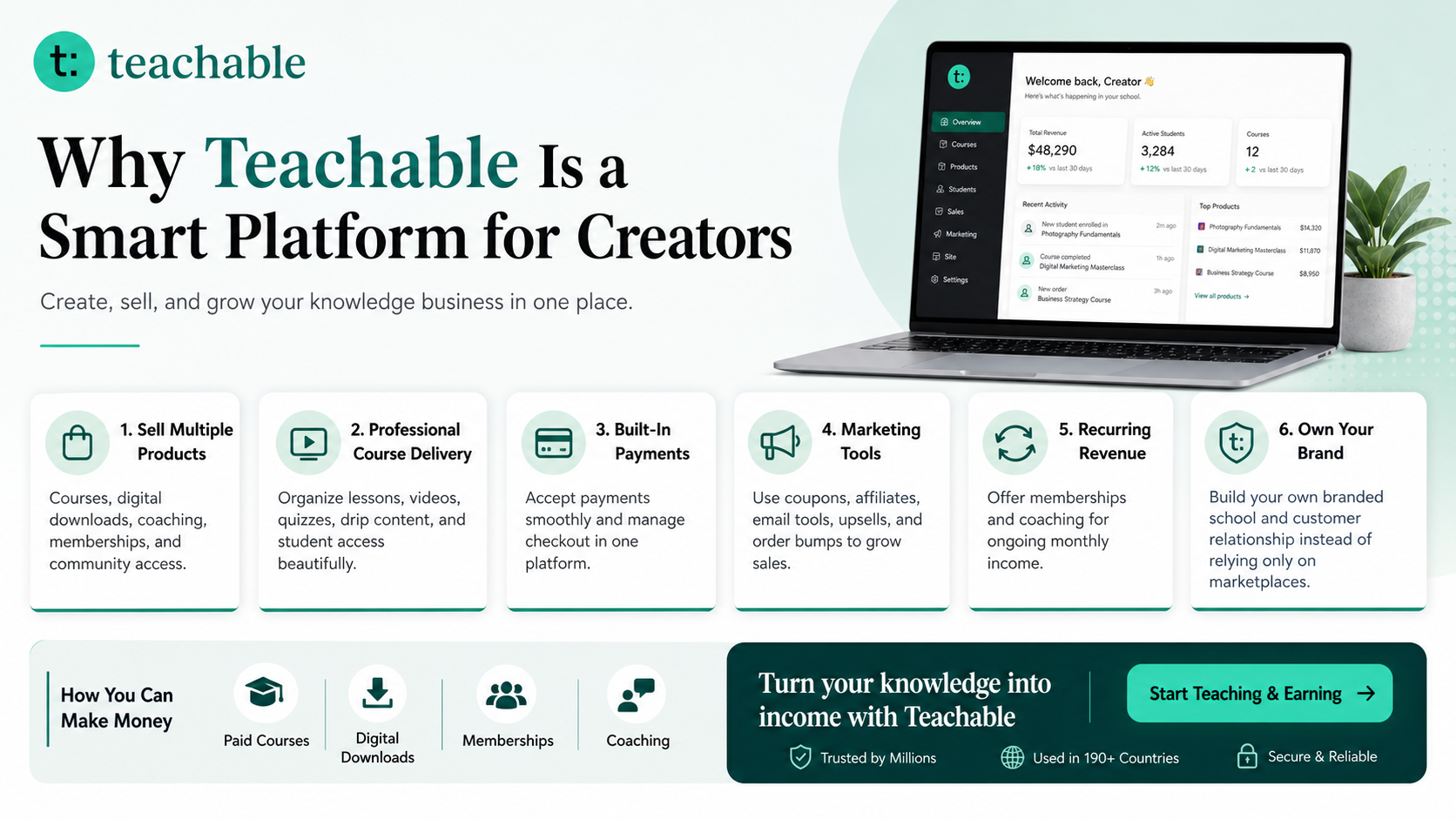
Try Teachable
Teachable is an online platform that lets creators build, market, and sell courses, digital downloads, coaching, and memberships. It helps educators and entrepreneurs turn their knowledge into a branded digital business without needing complex coding.
Try Teachable How to Make Money with Teachable: A Complete Creator’s Guide
Zee Sharp Free Productivity Tools
Zee Sharp is a growing suite of free online tools for productivity, development, and creativity. No sign-up. No watermarks. Just tools. It can support creators while planning copy, formatting content, building workflows, and preparing digital resources.
Common Mistakes to Avoid
1. Designing before defining the promise
If the template promise is unclear, the design will drift. Write a one-sentence outcome before opening Canva. For example: “This template helps a digital product seller explain, launch, and deliver a product without writing every page from scratch.” That sentence becomes the filter for every page you include.
2. Adding too many decorative elements
Decorations can make a resource attractive, but too many shapes, icons, gradients, and script fonts can reduce readability. Use decoration to guide attention, not to fill space. A clean template is easier to customize and more appealing to a wider range of buyers.
3. Forgetting buyer instructions
Digital product buyers may not know how to duplicate a Canva file, download a PDF, print at the right size, or edit text boxes. A simple access guide can prevent frustration. Include screenshots or numbered steps if the product is aimed at beginners.
4. Ignoring mobile previews
Instagram posts, Pinterest pins, and product listing images are often viewed on phones. Test your title size and contrast on a small screen. If the headline is hard to read, simplify it. If the mockup is too tiny, crop closer to the key pages.
5. Missing affiliate disclosures
If your post includes affiliate links, add a clear disclosure before the links appear. This builds trust with readers and aligns with advertising disclosure expectations. Keep the disclosure easy to notice, not hidden at the bottom of the article.
Key Takeaways
- Canva Templates for Product Access Guides should be designed around a clear user outcome, not just a visual theme.
- Include a cover, quick-start guide, action pages, checklists, support instructions, and FAQs.
- Use Canva styles consistently so the resource feels premium and easy to customize.
- Package the template with bonuses such as promo graphics, swipe copy, or matching pins to increase perceived value.
- Use affiliate and resource links naturally, with a clear disclosure and helpful context.
- Promote the template through blog posts, Pinterest pins, Instagram educational content, and email downloads.
FAQs
What should I include in canva templates for product access guides?
Start with a branded cover, quick-start instructions, a structured planning section, practical worksheets, a checklist, an FAQ page, and a resource page. For product access guides, the best pages are the ones that reduce confusion and help the user take action immediately.
Can I sell Canva templates as digital products?
Many creators sell editable template resources, but you should understand Canva licensing, use your own original design structure, and clearly explain what buyers can and cannot do with the files. Always provide a Canva access link and usage instructions.
How many pages should the template have?
A simple freebie may only need 3 to 5 pages, while a paid workbook or guide often works better with 10 to 30 pages. The right number depends on the promise, price point, buyer skill level, and how much guidance the buyer needs.
Should I create printable, digital, or editable versions?
If possible, offer more than one format. A printable PDF is easy to use, a fillable PDF feels practical, and an editable Canva version adds perceived value for customers who want to customize the layout.
How do I make the template look premium?
Use consistent typography, enough white space, a clear page hierarchy, aligned elements, professional mockups, and a limited color palette. Premium design usually feels calm, organized, and easy to understand.
How can I promote this type of template?
Create blog tutorials, Pinterest pins, Instagram carousel lessons, email bonuses, and comparison posts. Show the outcome, explain who it is for, and include screenshots or mockups that make the value easy to see.
Internal Links and Further Reading
Recommended SenseCentral Reading
- How to Make Money with Teachable: A Complete Creator’s Guide
- Canva templates articles on SenseCentral
- Digital product guides on SenseCentral
- Etsy seller resources on SenseCentral
- Pinterest marketing resources on SenseCentral
- Email marketing resources on SenseCentral
Helpful External References
- Canva Learn: A step-by-step guide to designing from scratch
- Canva guide templates
- Canva design sizes
- Teachable creator platform
- Teachable guide to selling digital products
- Etsy Seller Handbook: selling digital downloads
- Etsy Help: managing digital listings
- FTC Endorsement Guides and affiliate disclosure guidance
Suggested keyword tags: Product Access Guides, Canva templates, digital products, template business, Canva design, digital product marketing, content templates, product launch, pricing guide, product roadmap, product bundle, product comparison