- 1) What “tracking” actually means (and what matters most)
- Third-party cookies (cross-site tracking)
- First-party cookies (usually needed)
- Fingerprinting (harder to block with settings alone)
- Account-level tracking (Google Account & sync)
- 2) The 5-minute privacy baseline (recommended for most people)
- 3) Third-party cookies & “Tracking Protection” (biggest impact)
- What to set
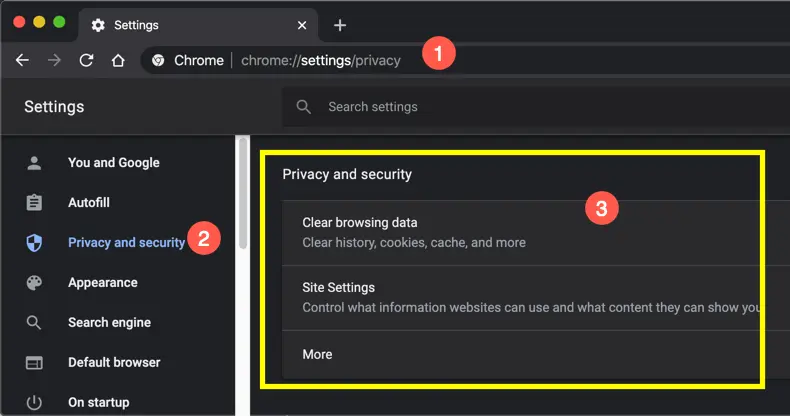
- Where to find it (official steps)
- How to avoid breaking websites
- Do Not Track: set it (but understand it’s optional for sites)
- 4) Ad privacy controls (Ad Topics, site-suggested ads, measurement)
- 5) Site permissions that leak data (location, camera, notifications)
- 6) Security settings that also protect privacy (Safe Browsing, HTTPS, DNS)
- 7) Don’t forget Google Account privacy (Activity Controls, My Activity, Timeline)
- Activity Controls: choose what’s saved
- My Activity: review & delete what’s stored
- Maps Timeline (Location History): review carefully
- Password & security hygiene (privacy’s best friend)
- 8) Extensions: the “less is more” rule
- 9) If a website breaks: the fast troubleshooting checklist
- Step 1: Confirm what “broken” means
- Step 2: Try the cleanest fix first (site exception for cookies)
- Step 3: Check Site settings for blocked permissions
- Step 4: Temporarily disable extensions (one-by-one)
- Step 5: Try Incognito (testing mode)
- Step 6: Keep security protections on
- 10) One-page checklist table (copy this)
- FAQs
- 1) Will blocking third-party cookies log me out of everything?
- 2) Is Incognito mode enough to stop tracking?
- 3) Should I turn off Safe Browsing for privacy?
- 4) What’s the difference between Chrome “Ad privacy” and “My Ad Center”?
- 5) I turned on stricter privacy settings—why do I still see ads?
- 6) What’s the safest default for notifications?
- 7) Can extensions improve privacy without causing breakage?
- 8) How do I check if my passwords were exposed in breaches?
- Key Takeaways
- References & further reading
You don’t need to “go full paranoid” to get real privacy wins in Chrome. The trick is to block the tracking that follows you across sites (mostly third-party cookies + ad profiling signals) while keeping the web features you actually rely on (logins, payments, embedded content, comments, chat widgets, maps, and video players).
This guide gives you a practical, no-drama Chrome setup: a 5-minute baseline, a clean list of settings that matter, and a “fix it when something breaks” flow so you never feel stuck.
1) What “tracking” actually means (and what matters most)
When people say “Chrome is tracking me,” they’re usually talking about a few different mechanisms. Knowing the difference helps you change the right settings:
Third-party cookies (cross-site tracking)
A third-party cookie is set by a domain other than the site you’re visiting—often ad networks, analytics platforms, or embedded widgets. These cookies can be used to recognize you across many different websites.
First-party cookies (usually needed)
These are set by the site you’re actually using. They power logins, carts, preferences, and sessions. Blocking these aggressively causes the most breakage—so we won’t do that.
Fingerprinting (harder to block with settings alone)
Fingerprinting uses combinations of browser/device characteristics (fonts, canvas rendering, screen size, installed extensions, etc.) to create a “likely you” profile even without cookies. Chrome settings help a bit, but this is where good extension hygiene and not installing random add-ons matter.
Account-level tracking (Google Account & sync)
If you’re signed into Chrome, your activity can be linked to your Google Account depending on your Activity Controls. Chrome settings alone won’t fully cover this—so we’ll handle it.
2) The 5-minute privacy baseline (recommended for most people)
If you only do one thing from this post, do this baseline. It stops most cross-site tracking without turning your browsing into a constant “why doesn’t this site work?” experience.
Baseline for Chrome on Desktop (Windows/Mac/Linux)
- Block third-party cookies (then allow exceptions only when needed).
- Review Ad privacy and switch off what you don’t want.
- Set tighter site permissions (especially location + notifications).
- Keep Safe Browsing ON (privacy is good; getting phished is not).
- Clean up Google Account Activity Controls if you’re signed in.
Baseline for Chrome on Android
The same idea applies. Menus may look slightly different, but the categories are consistent: Third-party cookies, Ad privacy, Site settings, and Safe Browsing/Security.
Pro tip: Don’t try to flip 30 toggles in one sitting. Do the baseline first, browse normally for a day, then tighten further if you want.
3) Third-party cookies & “Tracking Protection” (biggest impact)
This is the highest ROI change. It reduces cross-site tracking substantially while keeping most websites functional.
What to set
- Set: Block third-party cookies
- Use exceptions: allow third-party cookies for specific sites only when something truly needs it.
Where to find it (official steps)
Google’s official help pages show the path for desktop and Android:
- Desktop cookies/third-party cookies help: Delete, allow, and manage cookies in Chrome (Computer)
- Android cookies/third-party cookies help: Delete, allow, and manage cookies in Chrome (Android)
How to avoid breaking websites
Most “breakage” looks like:
- Sign-in loops (you log in, then it kicks you out)
- Embedded comments/chat/payment widgets not loading
- “We can’t verify your device” on certain identity providers
Fix: add a site exception for that specific domain rather than turning everything back on globally. This way you keep privacy everywhere else.
Do Not Track: set it (but understand it’s optional for sites)
Chrome includes a “Do Not Track” request. It’s not a magic shield—websites can ignore it—but it’s a low-effort signal that some privacy-respecting sites honor.
Official Chrome help: Turn “Do Not Track” on or off
4) Ad privacy controls (Ad Topics, site-suggested ads, measurement)
Modern ad systems don’t rely only on cookies. Chrome includes ad privacy controls that let you manage (or disable) certain personalization features.
What to do (simple version)
- Turn off Ad topics if you don’t want interest-based categories.
- Turn off site-suggested ads if you don’t want websites influencing ad personalization.
- Turn off ad measurement if you want to reduce reporting signals used for ad effectiveness.
Where to find it
Official Chrome help: Manage your ad privacy in Chrome
If you see ads on Google services (Search/YouTube/Discover), you can also tune your ad experience in Google’s ad center:
- Get started with My Ad Center
- My Ad Center (sign-in)
- Ads that Respect Your Privacy (Google Safety Center)
Reality check: turning off Chrome’s ad privacy features doesn’t “remove ads.” It mainly reduces personalization signals. You may still see ads; they’ll just be less tailored.
5) Site permissions that leak data (location, camera, notifications)
Cookies aren’t the only privacy risk. Permissions are a direct pipeline to sensitive data. Most people grant these once and forget them forever.
Top permissions to lock down
- Location: set to “Ask” (or “Don’t allow” unless you really need it).
- Camera & Microphone: set to “Ask” (never “Allow by default”).
- Notifications: consider blocking entirely. Many sites use notifications as a re-engagement channel.
- Pop-ups & redirects: keep blocked; allow exceptions only for trusted sites.
- Background sync / automatic downloads: keep restricted unless you know why you need it.
Where to manage these (official link)
Chrome help: Change site settings permissions (Computer)
Privacy move that doesn’t break things: Keep permissions set to Ask. This preserves functionality when you need it, but prevents silent access when you don’t.
6) Security settings that also protect privacy (Safe Browsing, HTTPS, DNS)
It’s easy to confuse “privacy” with “turn everything off.” But strong security prevents the worst privacy outcome of all: getting phished, malware’d, or having accounts hijacked.
Safe Browsing: keep it ON
Safe Browsing helps warn you about dangerous sites and downloads. You can usually choose between protection levels.
- Android help: Choose your Safe Browsing protection level
- Desktop help: Manage warnings about unsafe sites
- Background explainer: How Chrome Safe Browsing keeps your browsing data private
Recommendation for most users: use the strongest Safe Browsing level you’re comfortable with, especially if you download files often or manage important accounts.
HTTPS-first behavior
When available, HTTPS protects your connection from casual snooping on networks. In general, you want Chrome to prefer HTTPS and warn you on HTTP pages that look risky.
Secure DNS (advanced, optional)
Secure DNS can improve privacy against network-level observers, but it can also cause occasional “this site won’t load” issues depending on networks and filters. If you turn it on and something breaks, it’s one of the first settings to temporarily disable for testing.
7) Don’t forget Google Account privacy (Activity Controls, My Activity, Timeline)
If you use Chrome while signed into a Google Account, your account settings matter just as much as browser settings. The goal here is simple: keep what you want (sync and convenience) while reducing what you don’t want (excess history and profiling).
Activity Controls: choose what’s saved
- Google Activity Controls (overview)
- Web & App Activity help: Find & control your Web & App Activity
Tip: If you keep Web & App Activity on for convenience, consider limiting what it includes (for example, whether Chrome history is included) and use auto-delete if available in your region/account.
My Activity: review & delete what’s stored
- Google My Activity
- Privacy controls overview: Google Privacy Controls (Safety Center)
Maps Timeline (Location History): review carefully
Location history is powerful—and sensitive. If you don’t benefit from it, turn it off. If you do benefit from it, review retention and control options regularly.
- Timeline help (Computer): Manage your Google Maps Timeline
- Timeline help (Android): Manage your Google Maps Timeline (Android)
Password & security hygiene (privacy’s best friend)
8) Extensions: the “less is more” rule
Extensions can boost privacy—but they can also become a privacy problem if you install too many. Each extension increases attack surface and can make your browser more uniquely identifiable (fingerprinting risk).
Smart extension rules
- Install fewer extensions. Keep only what you truly use weekly.
- Prefer reputable, well-reviewed tools. Avoid “random free VPN” extensions.
- Check permissions. If a simple extension asks to “read and change all data on all websites,” think twice.
Helpful privacy education (optional tests)
- Fingerprinting test: EFF Cover Your Tracks
- Browser privacy guidance: Privacy Guides: Desktop Browsers
- Cookies & tracking concepts (developer-focused but clear): MDN: Storage Access Policy
- Privacy Badger info (EFF): Privacy Badger
9) If a website breaks: the fast troubleshooting checklist
Here’s the key mindset: don’t undo your privacy setup globally. Fix the one site, then keep your protections everywhere else.
Step 1: Confirm what “broken” means
- Sign-in loop?
- Buttons not clickable?
- Embedded content missing (video, comments, checkout)?
- Payment page failing?
Step 2: Try the cleanest fix first (site exception for cookies)
If you blocked third-party cookies, add an exception for that site (or the identity provider it uses). Use the official cookies help pages for the exact menus:
Step 3: Check Site settings for blocked permissions
If something needs camera/mic/location (meetings, maps, delivery sites), permissions can be the issue.
Step 4: Temporarily disable extensions (one-by-one)
Especially ad blockers, script blockers, coupon tools, and “shopping assistants.” If the site works after disabling one extension, you found the cause.
Step 5: Try Incognito (testing mode)
Incognito disables many extensions by default and starts a fresh session. If the site works there, the issue is often cookies/cache/extensions.
Step 6: Keep security protections on
Don’t disable Safe Browsing as a “fix.” If you must test, do it briefly, then turn it back on. Use the official Safe Browsing settings pages:
10) One-page checklist table (copy this)
| Setting | Recommended | Why it matters |
|---|---|---|
| Third-party cookies | Block + add site exceptions | Reduces cross-site tracking with minimal breakage when exceptions are used. |
| Ad privacy (Topics / Site-suggested ads / Measurement) | Off (for max privacy) or customize | Reduces personalization signals used for interest-based ads. |
| Notifications | Block (or Ask) | Prevents spammy engagement tracking and distraction. |
| Location | Ask (or Don’t allow) | Stops passive location access; only allow when needed. |
| Safe Browsing | On | Protects against phishing, malware, and dangerous downloads. |
| Google Activity Controls | Customize + review regularly | Controls what’s saved to your account when signed in. |
FAQs
1) Will blocking third-party cookies log me out of everything?
Usually no. Most logins rely on first-party cookies. If a specific site breaks (especially single sign-on), add a site exception for that domain instead of turning cookies back on globally.
2) Is Incognito mode enough to stop tracking?
Incognito mainly limits what’s saved locally (history, cookies after you close tabs). It doesn’t make you invisible to websites, networks, or your ISP, and it doesn’t automatically block all tracking.
3) Should I turn off Safe Browsing for privacy?
For most people, no. Safe Browsing is a key safety layer against phishing and malicious downloads. If you’re privacy-focused, adjust ad privacy and cookies first—don’t trade away core security.
4) What’s the difference between Chrome “Ad privacy” and “My Ad Center”?
Chrome Ad privacy relates to browser-based ad controls. My Ad Center relates to ad preferences across Google services like Search and YouTube. Using both gives you better control.
5) I turned on stricter privacy settings—why do I still see ads?
Privacy settings reduce personalization and tracking signals. They don’t remove ads entirely. Ads may become less targeted, but you’ll still encounter them.
6) What’s the safest default for notifications?
Block (or at least “Ask”). Most sites don’t need notifications, and many use them for re-engagement.
7) Can extensions improve privacy without causing breakage?
Yes—if you use fewer, reputable extensions and avoid stacking multiple tools that do the same thing. If breakage happens, disable extensions one-by-one to identify the culprit.
8) How do I check if my passwords were exposed in breaches?
You can use Google Password Checkup and/or external breach-check services. For example: Google Password Manager and Have I Been Pwned.
Key Takeaways
- Block third-party cookies first—then use site exceptions to avoid breaking logins and embeds.
- Turn off or customize Ad privacy (Topics, site-suggested ads, measurement) to reduce profiling signals.
- Lock down permissions (location, notifications, camera/mic). “Ask” is the sweet spot for usability.
- Keep Safe Browsing ON. Strong security prevents the most damaging privacy failures.
- Review Google Account controls if you’re signed in—browser settings alone aren’t the full picture.
References & further reading
- Google Chrome Help: Manage cookies (Desktop)
- Google Chrome Help: Manage cookies (Android)
- Google Chrome Help: Manage ad privacy in Chrome
- Google Chrome Help: Site settings permissions
- Google Chrome Help: Do Not Track
- Google Chrome Help: Safe Browsing warnings (Desktop)
- Google Chrome Help: Safe Browsing levels (Android)
- Google Chrome Help: How Safe Browsing handles data
- Google Account: Activity Controls
- Google: My Activity
- Google Account Help: Web & App Activity
- Google Maps Help: Manage Timeline (Desktop)
- Google: Security Checkup
- Google Password Manager
- My Ad Center Help: Get started
- My Ad Center (sign in)
- EFF: Cover Your Tracks (fingerprinting test)
- Privacy Guides: Desktop browsers
- Have I Been Pwned (breach checks)
- MDN: Storage Access Policy