
How to Create a Canva Content Calendar Kit
How to Create a Canva Content Calendar Kit is a practical topic for anyone who wants to turn Canva skills into sellable digital assets. Canva products are attractive because buyers are not only purchasing a design; they are purchasing speed, clarity, confidence, and a shortcut. A good template helps someone publish faster, look more professional, explain an offer, serve a client, launch a product, or organize a marketing task without opening a blank canvas.
- Table of Contents
- Why This Canva Product Works
- Best Product Ideas and Use Cases
- Comparison Table
- Step-by-Step Creation Workflow
- Packaging and Buyer Experience
- Pricing and Positioning
- Marketing Plan
- Mistakes to Avoid
- Recommended Tools and Useful Resources
- Key Takeaways
- FAQs
- Can beginners really sell Canva templates?
- Should I use Canva Free or Canva Pro elements?
- What should I include in the delivery file?
- How many templates should be in one pack?
- How can I make my Canva product stand out?
- References and Further Reading
This guide is written for SenseCentral readers who compare digital product ideas, template bundles, creator tools, and online business resources before investing time into a new product. You will learn how to choose a profitable angle, structure the product, package the files, create preview images, avoid common mistakes, and connect the product to broader monetization paths such as Etsy, your own website, Pinterest traffic, affiliate marketing, digital downloads, and course platforms.
The best part is that this topic can work for people who need a planning system for consistent publishing. The key is to avoid selling a generic “Canva template.” Instead, sell a result: turn content planning into editable calendars, trackers, prompts, and posting assets. When your product has a clear promise, your title, mockups, product description, and tutorial pages become much easier to write.
Table of Contents
Why This Canva Product Works
A Canva tutorial product is strongest when the end result is clearly defined before you start designing. Think of the buyer opening your product with one question: ‘What do I do first?’ Your job is to arrange the Canva file, the delivery PDF, and the product images so the answer is obvious.
Canva products work well because they sit between design and utility. A buyer may not want to hire a designer for a small task, but they still want the output to look clean. They may not know how to create hierarchy, choose fonts, build a balanced layout, or prepare a polished PDF. Your product becomes the shortcut. It gives them a structure they can customize with their brand colors, text, photos, products, and offer details.
Another reason this market is attractive is that one design system can become many products. A brand kit can become social templates, a launch kit, a pitch deck, a lead magnet cover, a workbook, and an email header set. A Pinterest kit can become pin templates for bloggers, Etsy sellers, affiliate marketers, and digital product shops. When you build reusable design systems, you can create a small product today and expand it into a larger bundle later.
Best Product Ideas and Use Cases
Use the following ideas as starting points. Do not copy them blindly. Pick one buyer, one use case, one visual style, and one promised outcome. A tight product is easier to finish, easier to describe, and easier to sell.
- Monthly Calendar: Use this as a focused product for creators, bloggers, agencies, coaches, and social media freelancers. Add editable text areas, clear placeholders, and one short instruction page so the buyer can customize it quickly.
- Weekly Planner: Use this as a focused product for creators, bloggers, agencies, coaches, and social media freelancers. Add editable text areas, clear placeholders, and one short instruction page so the buyer can customize it quickly.
- Content Pillar Tracker: Use this as a focused product for creators, bloggers, agencies, coaches, and social media freelancers. Add editable text areas, clear placeholders, and one short instruction page so the buyer can customize it quickly.
- Caption Bank: Use this as a focused product for creators, bloggers, agencies, coaches, and social media freelancers. Add editable text areas, clear placeholders, and one short instruction page so the buyer can customize it quickly.
- Hashtag Tracker: Use this as a focused product for creators, bloggers, agencies, coaches, and social media freelancers. Add editable text areas, clear placeholders, and one short instruction page so the buyer can customize it quickly.
- Campaign Calendar: Use this as a focused product for creators, bloggers, agencies, coaches, and social media freelancers. Add editable text areas, clear placeholders, and one short instruction page so the buyer can customize it quickly.
- Analytics Review Page: Use this as a focused product for creators, bloggers, agencies, coaches, and social media freelancers. Add editable text areas, clear placeholders, and one short instruction page so the buyer can customize it quickly.
How to choose the best angle
Start by looking for a task that happens repeatedly. Repeated tasks create better products because buyers can use the template more than once. Examples include weekly content, monthly reporting, client onboarding, product launches, seasonal sales, email promotions, Pinterest publishing, YouTube thumbnails, and customer instruction PDFs. A product that gets used again feels more valuable than a one-time decorative file.
Next, choose a style that matches the buyer’s expectations. A wellness coach may prefer soft, calming colors. A startup may want modern, bold visuals. A handmade candle brand may want warm, tactile scenes. A local salon may need clear price lists and flyers that are easy to read on a phone. Matching the visual tone to the buyer helps your product feel intentional instead of generic.
Comparison Table
| Canva product idea | Best use case | Suggested starter price | Creation effort |
|---|---|---|---|
| Monthly Calendar | Quick Visibility | $5-$9 | Low |
| Weekly Planner | Client Experience | $9-$19 | Medium |
| Content Pillar Tracker | Lead Generation | $12-$29 | Medium |
| Caption Bank | Launch Support | $19-$49 | High |
| Hashtag Tracker | Brand Consistency | $29-$79 | Medium |
| Campaign Calendar | Buyer Education | $7-$17 | Low |
| Analytics Review Page | Repeat Content | $15-$39 | Medium |
Step-by-Step Creation Workflow
Before opening Canva, write a mini product brief. Include the target buyer, the problem, the promised result, the number of pages or graphics, the required file types, and the buyer instructions. This saves time because you are not designing random pages; you are building a sellable product with a defined outcome.
| Step | What to do | Output |
|---|---|---|
| Research buyer intent | Search Etsy, Pinterest, blogs, Facebook groups, and your own support inbox for repeated problems. | Problem list with 10+ phrases |
| Define the promise | Write one sentence that explains how the product helps people who need a planning system for consistent publishing. | Clear product angle |
| Create the master design | Build a clean Canva file using consistent fonts, colors, page names, and editable placeholders. | Editable Canva template |
| Prepare delivery | Add a PDF access guide, template link, license notes, support contact, and preview images. | Buyer-ready download |
| Publish and improve | Launch with simple product images, collect questions, and update the template based on buyer friction. | Better version 1.1 |
Canva build checklist
- Create a cover or title page that names the product and explains who it is for.
- Use consistent heading styles, body text styles, spacing, page margins, and accent shapes.
- Add placeholders such as “Add your logo,” “Replace this photo,” and “Edit this headline.”
- Name pages clearly, especially if the template contains many sections or design variations.
- Test the template link in a separate browser or account before publishing.
- Export a PDF delivery guide and include clickable buttons for template access and support.
Packaging and Buyer Experience
Your Canva file is only part of the product. The buyer experience includes the listing title, preview images, download PDF, instruction page, template link, licensing note, and support process. Many sellers lose reviews not because the template is bad, but because the buyer does not understand how to access or edit it. A simple “Start Here” page can prevent that problem.
Package your template with a clean file structure. For example, include 01-Start-Here.pdf, 02-Canva-Template-Link.pdf, 03-License-and-Terms.pdf, and 04-Bonus-Resources.pdf. If you are delivering through Etsy, remember that buyers expect instant access for instant downloads. If the product is sold on your own site, make the download button obvious and send a clear confirmation email.
Preview images should answer buyer questions visually. Show the cover, inside pages, editable areas, different layout options, mockup scenes, and the final result. Add callouts such as “Editable in Canva,” “Free elements used,” “PDF instruction guide included,” or “Commercial-use friendly terms included” when true. Clear product images reduce hesitation and make the product feel more complete.
Pricing and Positioning
Pricing depends on depth, niche specificity, and business value. A small set of simple templates may work as a low-ticket entry product. A complete kit with many coordinated pages, instructions, examples, bonuses, and commercial-use clarity can be positioned at a higher price. Do not price only by the number of pages. Price by the problem solved, the time saved, and the buyer’s intended use.
For beginner products, a low price can help you collect sales data. For premium products, your listing must communicate more value: show what is included, explain how the buyer will use it, provide stronger mockups, include a guide, and make the template feel like a system. Premium buyers often pay for clarity and confidence, not just design files.
Simple pricing ladder
| Product level | What it includes | Best for |
|---|---|---|
| Starter | 5-15 focused templates with a short guide | Testing a niche or building a low-ticket shop |
| Standard | 20-50 templates, variations, preview images, and instructions | Most Etsy and digital download products |
| Premium | Full system, strategy pages, bonuses, videos, and strong branding | Business buyers, course sellers, coaches, and agencies |
Marketing Plan
Marketing a Canva product starts with the product page. Use a search-friendly title, a clear first image, and a description that explains who the product is for, what is included, what the buyer can edit, and how access works. Add FAQs inside the listing if the platform allows it. Mention whether the buyer needs a Canva account and whether the design uses free or Pro elements.
Pinterest can be especially useful for Canva and printable sellers because the product is visual and evergreen. Create multiple pin designs for the same product using different headlines, mockups, and color treatments. Send traffic to a blog post, product page, Etsy listing, or lead magnet. A blog post can also compare ideas, show examples, and internally link to related SenseCentral guides such as:
- How to Make Canva Templates Easy for Buyers to Edit
- How to Name Canva Template Files Properly
- How to Create a Canva Launch Kit
Email marketing is another strong channel. Offer a small freebie related to the product, then send helpful tips, use cases, and product examples. For course creators, a Canva template can also become a bonus inside a Teachable course or a downloadable resource that supports coaching, memberships, and workshops.
Mistakes to Avoid
- Creating for everyone: broad templates are hard to sell because the buyer cannot immediately recognize themselves.
- Using tiny text in previews: listing thumbnails must be readable on mobile devices.
- Forgetting instructions: buyers may be new to Canva, so include a short access guide.
- Relying on Pro elements without warning: unexpected upgrade prompts can create frustration.
- Overloading the bundle: more pages do not always mean more value if the pack feels disorganized.
- Ignoring file names: messy downloads make the product feel amateur even when the design is good.
- Copying common layouts too closely: use your own spacing, color system, niche copy, and design logic.
Recommended Tools and Useful Resources
Explore Our Powerful Digital Products Bundle: Browse these high-value bundles for website creators, developers, designers, startups, content creators, and digital product sellers.
Explore Our Powerful Digital Products Bundle
Zee Sharp: A growing suite of free online tools for productivity, development, and creativity. No sign-up. No watermarks. Just tools.
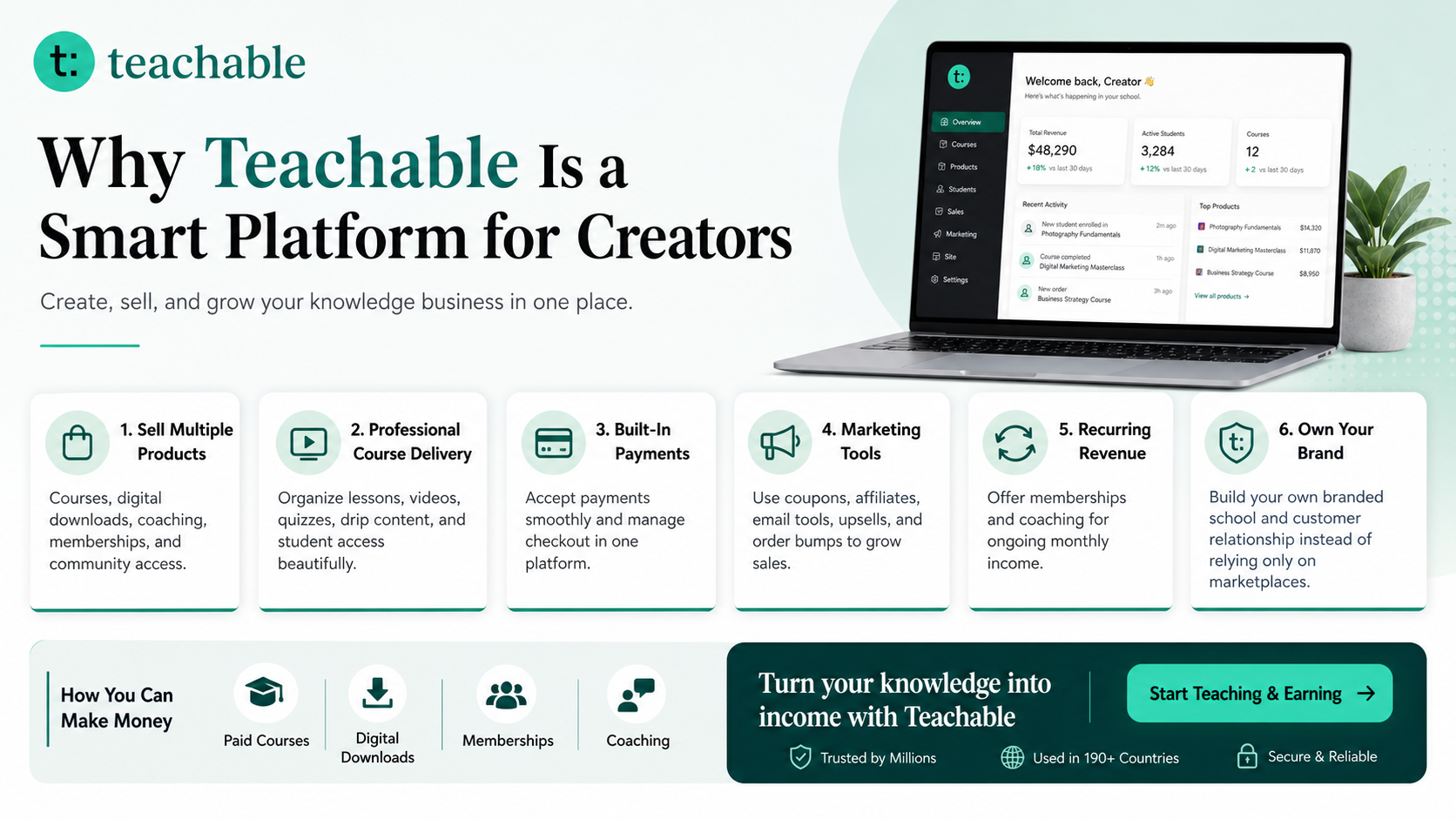
Build and Sell Courses, Digital Downloads, Coaching, and Memberships with Teachable
Teachable is an online platform that lets creators build, market, and sell courses, digital downloads, coaching, and memberships. It helps educators and entrepreneurs turn their knowledge into a branded digital business without needing complex coding.
How to Make Money with Teachable: A Complete Creator’s Guide
Key Takeaways
- Start with a specific buyer: the strongest Canva products speak to creators, bloggers, agencies, coaches, and social media freelancers instead of a vague market.
- Sell the outcome, not only the design: buyers want templates because they save time, look credible, and reduce decision fatigue.
- Keep files easy to edit: use simple page names, text placeholders, clean layers, and a clear access guide.
- Show the product visually: preview images, mockups, and screenshots often explain value faster than a long description.
- Use free elements when possible: this reduces buyer friction and helps avoid confusion around premium assets.
- Improve after launch: buyer questions reveal what your next version, bonus page, or FAQ should include.
FAQs
Can beginners really sell Canva templates?
Yes, beginners can sell Canva templates when they focus on a narrow buyer problem, make the files easy to edit, and present the product clearly. The goal is not to create the most artistic design on day one. The goal is to create a useful shortcut for someone who needs a flyer, workbook, pin, brand board, launch graphic, or customer document without starting from scratch.
Should I use Canva Free or Canva Pro elements?
For products aimed at a broad audience, free elements are usually safer because buyers are less likely to hit upgrade prompts. If you use Pro elements, explain it clearly in the listing and instruction PDF so buyers understand what they may need. Always review Canva’s current licensing terms before selling templates commercially.
What should I include in the delivery file?
A strong delivery file usually includes a “Start Here” page, the Canva template access link, simple editing instructions, download/export steps, licensing notes, support contact, and links to any bonuses. This small PDF can reduce support messages and improve the buyer experience.
How many templates should be in one pack?
Small packs can include 5 to 15 focused templates, while premium kits can include 30, 50, or 100+ coordinated assets. The right number depends on the promise. A compact, well-organized pack that solves one problem is often better than a large bundle with random designs.
How can I make my Canva product stand out?
Use niche-specific copy, original layout systems, strong previews, consistent branding, and practical instructions. Many sellers copy generic design trends, so the easiest way to stand out is to make the template feel built for a real buyer and a real use case.
References and Further Reading
- SenseCentral home
- How to Make Money with Teachable: A Complete Creator’s Guide
- Canva Licensing Explained
- Canva Free Templates Library
- Etsy Help: Managing Digital Listings
- Etsy Image Requirements and Best Practices
- Pinterest Create: Fundamentals
- Pinterest Business Creative Best Practices
- Teachable Official Website