- Why “hosting performance” is more than server speed
- What Elementor Hosting and Elementor Cloud are (in plain terms)
- The 3-layer performance stack: CDN + autoscaling + caching
- CDN explained: why it reduces latency globally
- Autoscaling explained: how it handles traffic spikes
- Caching explained: the performance “multiplier”
- How the layers work together (real-world flow)
- Common scenarios and what improves most
- Practical performance checklist (WordPress + Elementor)
- 1) Cache the right pages, exclude the right pages
- 2) Optimize images (largest win for most sites)
- 3) Reduce third-party scripts
- 4) Keep Elementor lean (performance-friendly habits)
- 5) Plugin hygiene
- How to measure performance the right way
- FAQs
- Does a CDN make my WordPress site faster automatically?
- What’s the difference between CDN caching and WordPress page caching?
- Will autoscaling help if my site is unoptimized?
- Can I still use performance plugins on managed hosting?
- Is Elementor Cloud hosting suitable for business sites?
- Key Takeaways
- References
If your WordPress site feels “almost fast” but still struggles with traffic spikes, global visitors, or heavy pages (think: large images, fonts, scripts, WooCommerce), you’re usually missing one or more performance layers.
Elementor’s hosting stack is marketed around three core layers—CDN, autoscaling, and caching—designed to work together to reduce load time, stabilize performance under load, and improve real-user experience.
Some links in this article are affiliate links. If you purchase through them, Sensecentral may earn a commission at no extra cost to you. This helps us keep publishing product comparisons and performance guides.
Also useful on Sensecentral:
WordPress hosting comparisons ·
CDN guides & comparisons ·
WordPress speed tutorials
- Why “hosting performance” is more than server speed
- What Elementor Hosting and Elementor Cloud are (in plain terms)
- The 3-layer performance stack: CDN + autoscaling + caching
- CDN explained: why it reduces latency globally
- Autoscaling explained: how it handles traffic spikes
- Caching explained: the performance “multiplier”
- How the layers work together (real-world flow)
- Common scenarios and what improves most
- Practical performance checklist (WordPress + Elementor)
- How to measure performance the right way
- FAQs
- Key Takeaways
- References
Why “hosting performance” is more than server speed
Many WordPress users assume performance is only about “how fast the server is.” In reality, WordPress performance is a system:
server compute + network + caching + database efficiency + PHP workers + static asset delivery + third-party scripts.
A fast CPU helps, but it does not automatically fix:
- Global latency (visitors far from your server)
- Traffic surges (sudden peaks from ads, social media, or launches)
- Heavy pages (images, sliders, videos, multiple fonts, and large JS/CSS bundles)
- Dynamic pages (cart/checkout, membership, logged-in experiences)
This is why modern managed hosting stacks emphasize layered performance: serve more content from the edge (CDN),
keep the origin stable under load (autoscaling), and avoid doing the same work repeatedly (caching).
What Elementor Hosting and Elementor Cloud are (in plain terms)
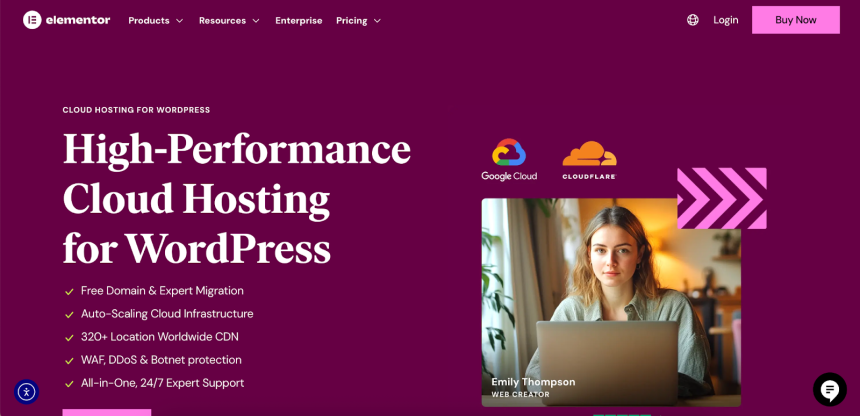
Elementor Hosting is a managed WordPress hosting solution designed specifically for Elementor-built sites and advertised as running on
Google Cloud infrastructure with a Cloudflare Enterprise CDN, plus performance/security features bundled into the plan.
Elementor also offers a “cloud website” experience (often referred to as Elementor Cloud) that combines builder + hosting in one workflow.
In practical terms
If you want a more “done-for-you” WordPress experience where hosting, CDN, SSL, and performance settings are integrated into a single platform,
Elementor’s hosting products are positioned exactly for that.
The 3-layer performance stack: CDN + autoscaling + caching
Elementor’s performance story is easiest to understand as a three-layer system:
| Layer | What it does | What you typically feel as a site owner |
|---|---|---|
| CDN (Content Delivery Network) | Serves static content (images, CSS, JS, sometimes HTML) from edge locations closer to visitors. | Faster global loading, better “first impression” speed, reduced origin bandwidth. |
| Autoscaling | Increases available resources during high traffic to prevent bottlenecks and timeouts. | Fewer “site down” moments during launches, ads, or viral spikes. |
| Caching | Stores reusable output (pages/objects/assets) so WordPress doesn’t rebuild content on every request. | Lower TTFB, fewer CPU spikes, smoother browsing—even on complex pages. |
Let’s break each one down and then connect the dots.
CDN explained: why it reduces latency globally
A CDN is a distributed network that caches and delivers your site’s static resources from locations closer to your visitors.
Without a CDN, a visitor in London requesting assets from a server in Mumbai (or vice-versa) pays the “distance tax” on every request.
With a CDN, many requests are served from a nearby edge node—reducing round trips and improving perceived speed.
What gets faster with a CDN?
- Images (usually the biggest payload on most pages)
- CSS/JS bundles (critical for rendering and interactivity)
- Fonts (important for layout stability)
- Sometimes HTML (depending on caching rules and site type)
Elementor highlights that its hosting plans include a Cloudflare Enterprise CDN, which is generally aimed at delivering content quickly worldwide and reducing latency for global audiences.
CDN is not a silver bullet
If your bottleneck is server-side (slow database queries, heavy plugins, unoptimized PHP execution),
a CDN alone won’t fix it—because your origin still has to build pages.
That’s where caching and autoscaling become the next two pillars.
Autoscaling explained: how it handles traffic spikes
Autoscaling is what protects your site when demand jumps suddenly. Traditional shared hosting often fails during spikes because you’re competing for limited resources.
When your WordPress site hits CPU or memory limits (or runs out of PHP workers), visitors start seeing slow loads, 502/504 errors, or complete downtime.
When autoscaling matters most
- Paid campaigns (Google Ads, Meta Ads, influencer traffic)
- Launch days (new product, new landing page, Black Friday)
- Viral content (Reddit, X, YouTube mentions)
- WooCommerce peaks (promotions and checkout surges)
Elementor describes its hosting infrastructure as capable of scaling automatically during increased traffic to avoid bottlenecks.
In practice, this means you’re less likely to “fall over” when your marketing works.
Business impact
A small improvement in stability during peak traffic can outperform huge “lab score” gains. Why?
Because downtime during a campaign wastes ad spend and damages trust—especially if your site is your storefront.
Caching explained: the performance “multiplier”
Caching is often the biggest lever for WordPress performance because it reduces repeated work.
Instead of generating every page from scratch (PHP execution + database queries + template rendering),
caching serves prebuilt responses (or reusable parts) faster.
Common caching layers in WordPress hosting
- Page caching: stores full HTML output for non-logged-in visitors.
- Object caching: stores frequent database query results in memory to avoid repeated DB calls.
- CDN edge caching: caches static assets (and sometimes HTML) at edge nodes.
- Browser caching: instructs the visitor’s browser to reuse assets across pages.
Elementor provides “advanced caching” controls for hosted sites, including that caching is enabled by default and can be adjusted through the WordPress admin area.
This is important because different sites have different needs:
a brochure site can cache aggressively, while an eCommerce site must exclude cart/checkout and personalized pages.
If you want WordPress to feel consistently fast, caching is the foundation. CDN makes it fast globally. Autoscaling keeps it alive under pressure.
How the layers work together (real-world flow)
Here’s a simplified request flow that shows how CDN, caching, and autoscaling complement each other:
- Visitor requests a page (home, blog post, landing page)
- CDN serves cached assets (images/CSS/JS) from a nearby edge location
- If page caching exists, the HTML is served quickly without rebuilding the page
- If a request hits origin (uncached/dynamic), autoscaling helps maintain capacity under load
- Object caching reduces database load for repeated queries
The result is not just a higher PageSpeed score, but a better real-user experience:
fewer stalls, fewer timeouts, and faster interactions—even when traffic is unpredictable.
Common scenarios and what improves most
| Scenario | Primary bottleneck | What helps most |
|---|---|---|
| Global audience (international visitors) | Network latency | CDN + browser caching |
| Traffic spikes (ads/viral) | Resource saturation | Autoscaling + page caching |
| Heavy Elementor pages (large layouts, images, scripts) | Asset payload + render cost | CDN + caching + image optimization |
| WooCommerce store | Dynamic content + DB load | Object caching + selective page caching + autoscaling |
| Slow admin/editor | Plugin overhead, DB bloat | Database cleanup + plugin audit (hosting helps, but WP hygiene matters) |
Practical performance checklist (WordPress + Elementor)
Hosting matters, but performance is still a shared responsibility between platform and site setup.
Use this checklist to get the best result from a CDN + autoscaling + caching stack:
1) Cache the right pages, exclude the right pages
- Cache public pages (home, blog posts, landing pages).
- Exclude dynamic pages: cart, checkout, “my account,” and any personalized dashboards.
- After major design updates, clear cache to ensure visitors see the latest version.
2) Optimize images (largest win for most sites)
- Convert to modern formats where possible (WebP/AVIF).
- Resize images to actual display size (avoid uploading 4000px images for a 900px container).
- Use lazy-loading for below-the-fold images.
3) Reduce third-party scripts
- Audit analytics, chat widgets, heatmaps, and ad scripts—each adds network requests and CPU work.
- Load non-critical scripts after interaction or delay them where feasible.
4) Keep Elementor lean (performance-friendly habits)
- Reuse global styles and templates instead of duplicating heavy sections across pages.
- Avoid stacking multiple sliders/animations on a single page.
- Limit custom fonts and font weights.
5) Plugin hygiene
- Remove plugins you don’t actively use.
- Replace “do-everything” plugins with focused alternatives.
- Test site speed after each major plugin addition.
How to measure performance the right way
Don’t rely on one metric or one tool. Use a mix of lab and field signals:
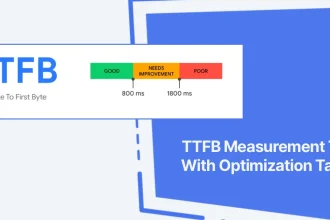
- TTFB (Time to First Byte): a proxy for server responsiveness and caching effectiveness.
- LCP (Largest Contentful Paint): how fast the main content becomes visible.
- INP: responsiveness to user interactions (especially important for JS-heavy pages).
- CLS: visual stability (layout shifts often caused by images/fonts/late scripts).
Recommended testing workflow
- Test a key landing page and a representative blog post.
- Test from 2–3 regions (your primary audience + at least one distant region).
- Repeat tests after enabling caching and after image optimization.
- Track changes, not just absolute scores.
The goal is not a perfect “100” score. The goal is stable, fast, and conversion-friendly performance for real visitors—especially during traffic peaks.
FAQs
Does a CDN make my WordPress site faster automatically?
It usually improves global load times for static assets, but if your origin is slow (heavy plugins, uncached pages, slow DB),
you still need caching and optimization. CDN is a major layer, not the entire solution.
What’s the difference between CDN caching and WordPress page caching?
CDN caching typically stores static assets at edge locations. WordPress page caching stores generated HTML output so the server doesn’t rebuild pages for every visitor.
When both are working together, you reduce latency and server workload at the same time.
Will autoscaling help if my site is unoptimized?
Autoscaling can prevent downtime during spikes, but it doesn’t eliminate the need to optimize pages, images, and plugins.
Think of autoscaling as “capacity insurance,” not a replacement for good site hygiene.
Can I still use performance plugins on managed hosting?
Often yes, but be careful not to duplicate caching layers (double caching can cause issues).
If your host provides advanced caching controls, start there and only add plugins when you have a specific gap to solve.
Is Elementor Cloud hosting suitable for business sites?
For many small-to-mid sites, an all-in-one builder + hosting + CDN approach is appealing because it reduces configuration complexity.
For highly customized enterprise workloads, you may still prefer a bespoke infrastructure—but most WordPress businesses benefit from managed simplicity.
Key Takeaways
- CDN reduces global latency by serving assets closer to visitors.
- Autoscaling protects you from traffic spikes that can crash typical hosting.
- Caching reduces repeated WordPress work and often delivers the biggest TTFB improvements.
- The best results come from combining hosting layers with site-level optimization (images, scripts, plugins).
- If you’re building with Elementor, an integrated stack can simplify performance management.