Inbox Zero isn’t a contest to keep your inbox empty 24/7. It’s a simple system that helps you:
- Table of Contents
- What “Inbox Zero” Really Means
- The Simple Gmail Inbox Zero Method (4 Buckets)
- 10-Minute Setup (One-Time)
- 1) Pick an inbox layout that supports the system
- 2) Create 3 core labels
- 3) Turn on Gmail keyboard shortcuts (optional, but powerful)
- 4) Decide one default action: Archive (recommended)
- Daily Routine: Two Short Email Sessions
- The “One-Touch” processing questions
- Use Snooze for “not now” emails
- Schedule replies when timing matters
- Filters That Do the Work for You (Biggest Inbox Zero Upgrade)
- Unsubscribe Safely + Manage Newsletters (Without Getting Burned)
- Use Gmail’s “Manage subscriptions” view (when available)
- Unsubscribe safely (important)
- Report spam and phishing so Gmail learns
- Find Anything Fast (So You Don’t “Keep Everything in Inbox”)
- Weekly Reset (10 Minutes That Keeps You at Zero)
- Common Mistakes That Break Inbox Zero
- Mistake #1: Using Inbox as a to-do list
- Mistake #2: Creating 50 labels on day one
- Mistake #3: Not trusting Archive
- Mistake #4: Clicking risky links to “unsubscribe” from spam
- FAQs
- 1) Is Inbox Zero realistic if I get 200+ emails a day?
- 2) Should I delete everything instead of archiving?
- 3) What’s the fastest way to reduce newsletters?
- 4) What if I manage multiple email accounts in Gmail?
- 5) How do I stop scary “phishing” emails?
- Key Takeaways
- References & Helpful Links
- stop re-reading the same emails,
- capture what needs action,
- store what’s useful,
- and remove everything else from your mental load.
This guide gives you a simple, Gmail-native Inbox Zero method using built-in tools like labels, filters, snooze, multiple inboxes, and subscription controls—so you can stay organized without third-party apps.
Table of Contents
- What “Inbox Zero” really means
- The Simple Gmail Inbox Zero Method (4 buckets)
- 10-minute setup (one-time)
- Daily routine: 2 short email sessions
- Filters that do the work for you
- Unsubscribe safely + manage newsletters
- Find anything fast (Gmail search operators)
- Weekly reset (10 minutes)
- Common mistakes that break Inbox Zero
- FAQs
- Key Takeaways
- References & helpful links
What “Inbox Zero” Really Means
Inbox Zero means your inbox is not your to-do list. Your inbox is only a temporary holding area for new inputs. The goal is to process emails into one of a few clear outcomes:
- Do (quick reply or quick task)
- Defer (snooze or label for later action)
- Delegate (forward, assign, or request someone else to handle it)
- File (archive + label as reference)
- Delete (trash/spam/phishing)
When you run this consistently, you don’t “lose emails.” You stop losing time and attention.
The Simple Gmail Inbox Zero Method (4 Buckets)
Keep it minimal. In Gmail, you only need four buckets (plus Trash/Spam):
- INBOX (Unprocessed) – Only for new stuff you haven’t decided about yet.
- ACTION – Needs you to do something (reply with effort, pay, submit, book, review, etc.).
- WAITING – You’re waiting on someone else (replies, approvals, documents).
- REFERENCE – Useful info you may need later (receipts, policies, confirmations, notes).
Rule: If it’s sitting in your Inbox, it’s unprocessed. That’s it.
10-Minute Setup (One-Time)
Do this once, and Inbox Zero becomes easy.
1) Pick an inbox layout that supports the system
Gmail lets you choose layouts like Priority Inbox or Multiple Inboxes. If you want the simplest “dashboard,” choose Multiple Inboxes and show your ACTION / WAITING labels as sections.
Official guide:
Change your Gmail inbox layout
2) Create 3 core labels
Create labels with a prefix so they stay together (optional but helpful). Example:
- 01-Action
- 02-Waiting
- 03-Reference
How to create/manage labels:
Create & manage labels (Desktop) |
Labels (Android)
3) Turn on Gmail keyboard shortcuts (optional, but powerful)
If you process email on desktop, shortcuts save serious time.
Guide:
Keyboard shortcuts for Gmail
4) Decide one default action: Archive (recommended)
In Gmail, archiving removes the email from Inbox but keeps it searchable (and it can return to Inbox if someone replies in the same thread).
Guide:
Archive Gmail messages
Daily Routine: Two Short Email Sessions
The easiest Inbox Zero habit is: don’t graze email all day. Instead, do two focused sessions:
- Session 1 (Morning, 10 minutes): clear urgent items, label ACTION/WAITING, archive reference.
- Session 2 (Afternoon, 10 minutes): finish fast replies, snooze what needs time, empty Inbox again.
The “One-Touch” processing questions
For each email, ask:
- Is it junk or risky? → Spam/Phishing/Block.
- Can I finish it in 2 minutes? → Do it now, then Archive.
- Does it require real work? → Label 01-Action and (optionally) Snooze.
- Am I waiting on someone? → Label 02-Waiting.
- Is it just information? → Label 03-Reference (if needed), then Archive.
Use Snooze for “not now” emails
Snooze is perfect for emails that need attention later (follow-ups, bills, reminders). Snoozed messages disappear and come back at the time you choose.
Guide:
Snooze emails (Desktop) |
Snooze emails (Android)
Schedule replies when timing matters
If you write an email now but want it delivered later (e.g., business hours), use Schedule Send.
Guide:
Schedule emails to send (Desktop) |
Schedule send (Android)
Filters That Do the Work for You (Biggest Inbox Zero Upgrade)
Filters stop repeated decisions. Instead of manually moving the same types of emails forever, make Gmail do it automatically.
Create 3 “set and forget” filters
Filter #1: Newsletters → label + skip Inbox
When an email is clearly a newsletter, label it and keep it out of your main Inbox.
How to create filters:
Create rules to filter your emails
Example filter ideas (use what fits):
Matches: "unsubscribe" OR "newsletter" OR "manage preferences"
Action: Apply label "03-Reference/Newsletters" + Skip the Inbox (Archive it)
Filter #2: Receipts/Invoices → label as Reference
Matches: subject:(receipt OR invoice OR payment OR order confirmation)
Action: Apply label "03-Reference/Receipts" + Skip Inbox
Filter #3: Important people → label as Action (optional)
Matches: from:(boss@company.com OR keyclient@domain.com)
Action: Apply label "01-Action" (do NOT skip Inbox if you want to see it)
Tip: Start small. One good filter can remove dozens of weekly interruptions.
Extra reading:
Zapier: Practical Gmail filter ideas
Unsubscribe Safely + Manage Newsletters (Without Getting Burned)
Email subscriptions are usually the #1 Inbox Zero killer. Gmail now provides tools to manage them faster.
Use Gmail’s “Manage subscriptions” view (when available)
This view helps you see who emails you the most and unsubscribe quickly.
Unsubscribe safely (important)
For legitimate newsletters you trust, Gmail’s built-in unsubscribe is convenient:
Unsubscribe from an email (Desktop) |
Unsubscribe (Android)
Security note: Don’t click random “unsubscribe” links from suspicious emails. If it looks like spam/phishing, report it instead of engaging.
Extra reading:
Why “unsubscribe” can be risky on spam (Investopedia)
Report spam and phishing so Gmail learns
Find Anything Fast (So You Don’t “Keep Everything in Inbox”)
A hidden reason people fear archiving: “What if I can’t find it later?”
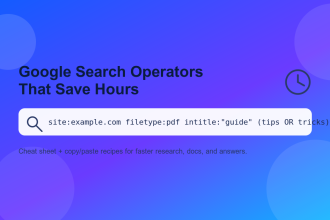
Gmail search is extremely strong—especially with operators like from:, has:attachment, and date ranges.
Official guides:
Simple searches you’ll use weekly
from:amazon
has:attachment
subject:(invoice OR receipt)
after:2025/12/01 before:2026/01/01
label:01-Action
Extra reading:
More Gmail search operator examples
Weekly Reset (10 Minutes That Keeps You at Zero)
Pick one day (Sunday evening or Monday morning) and do this quick reset:
- Scan 01-Action → snooze what needs time, complete what’s quick.
- Scan 02-Waiting → send follow-ups, then archive completed threads.
- Scan subscriptions/newsletters → unsubscribe from the noisiest senders.
- Empty lingering Inbox → everything gets an outcome.
Pro move: Use Multiple Inboxes as a dashboard
Multiple Inboxes can show up to a few labeled “mini-inboxes” so ACTION and WAITING are always visible.
Multiple Inboxes / Inbox layouts |
Google: How to choose the best Gmail inbox type
Common Mistakes That Break Inbox Zero
Mistake #1: Using Inbox as a to-do list
If you rely on the Inbox for reminders, your brain learns: “Inbox = stress.” Instead, label ACTION + Snooze when needed.
Mistake #2: Creating 50 labels on day one
Start with ACTION / WAITING / REFERENCE. Add sub-labels only when a category repeats often (like Receipts).
Mistake #3: Not trusting Archive
Archive is your friend. Gmail keeps everything searchable, and archived threads can return to Inbox when someone replies.
Mistake #4: Clicking risky links to “unsubscribe” from spam
If you didn’t sign up or it looks suspicious, report spam/phishing instead.
FAQs
1) Is Inbox Zero realistic if I get 200+ emails a day?
Yes—if you stop treating everything as “must read now.” Filters + subscription control handle volume, and your manual attention goes to ACTION/WATING only.
2) Should I delete everything instead of archiving?
Delete spam and trash. Archive the rest. Archiving keeps your record and makes it easy to search later.
3) What’s the fastest way to reduce newsletters?
Use Gmail’s subscription tools (when available), and add a filter that labels newsletters and skips the Inbox.
4) What if I manage multiple email accounts in Gmail?
Be aware: Gmail is ending support for “Check mail from other accounts (POP)” and Gmailify starting January 2026. Review Google’s official notice and switch to supported alternatives like adding accounts in the Gmail mobile app via IMAP or using forwarding where appropriate.
Upcoming changes to Gmailify & POP |
Gmailify notice
5) How do I stop scary “phishing” emails?
Use Gmail’s built-in reporting tools and block repeat offenders.
Report phishing |
Block a sender
Key Takeaways
- Inbox is not a to-do list. Process emails into outcomes: Do, Defer, Delegate, File, Delete.
- Use 4 buckets: Inbox (unprocessed), Action, Waiting, Reference.
- Filters are the real Inbox Zero hack. Automate newsletters and receipts out of Inbox.
- Snooze + Schedule Send keeps you responsive without staying online all day.
- Unsubscribe safely: use Gmail tools for legit senders; report spam/phishing for suspicious mail.
- Weekly reset keeps the system clean with just 10 minutes.
References & Helpful Links
- Create rules to filter your emails (Gmail Help)
- Create & manage labels (Gmail Help)
- Archive Gmail messages (Gmail Help)
- Snooze emails (Gmail Help)
- Schedule emails to send (Gmail Help)
- Change your Gmail inbox layout (Gmail Help)
- Search in Gmail (Gmail Help)
- Refine searches in Gmail (operators)
- Report spam in Gmail (Gmail Help)
- Avoid and report phishing emails (Gmail Help)
- Block an email address (Gmail Help)
- Manage subscriptions (Gmail Help)
- Declutter your inbox with Manage Subscriptions (Google Blog)
- Vacation responder / automatic reply (Gmail Help)
- Upcoming changes to Gmailify & POP (Gmail Help)
- Gmailify notice (Gmail Help)
Now do this: Create the 3 labels, set 2 filters (Newsletters + Receipts), and process email twice a day for one week. Your inbox will feel completely different.