If you use Google every day, you’re probably leaving speed, organization, and security on the table. The “power user” advantage isn’t about being a tech genius—it’s about knowing a handful of shortcuts, settings, and workflows that compound over time.
- Table of Contents
- 1) Google Search Power Moves
- Use operators to narrow results (the essentials)
- Advanced Search page (fast filtering without memorizing operators)
- Power workflow: “Research like a pro” in 3 searches
- Bonus: Search smarter on mobile
- 2) Google Photos: Organize, Backup, Protect
- Set backup correctly (and avoid surprises)
- Locked Folder: keep private photos truly private
- Partner Sharing: effortless family sharing
- Albums, search, and organization shortcuts
- Free up space safely (the right way)
- 3) Google Drive: Faster Cloud Workflow
- Folder structure that scales (simple, effective)
- Shortcuts: stop duplicating files
- Version history: undo mistakes like a pro
- Recover deleted files (know the 30-day rule)
- Offline mode (Drive on mobile)
- Sharing permissions: prevent “Oops, I shared everything”
- 4) Security: Lock Down Your Google Account
- Do Security Checkup (and make it a habit)
- Turn on 2-Step Verification (2FA)
- Use passkeys for safer sign-ins
- Password Checkup: remove weak or compromised passwords
- Remove risky third-party access
- Advanced Protection (for high-risk users)
- Export your data (backup insurance)
- 5) Android: Power, Privacy & Protection
- Keep Play Protect enabled
- Find your device (and prepare before you lose it)
- Quick Share: faster file sharing across devices
- Emergency features: set them once
- Privacy checklist (fast wins)
- 6) The 10-Minute Weekly Google Power Routine
- FAQs
- 1) What are the most useful Google Search operators for everyday use?
- 2) Why do my backed-up Photos still take space on my phone?
- 3) What’s the safest way to share a Drive file?
- 4) Should I use passkeys or 2-Step Verification?
- 5) If I lose my Android phone, what should I do first?
- 6) How do I remove access for apps I don’t trust anymore?
- Key Takeaways
- References
In this guide, you’ll learn practical, real-world tips for:
- Google Search (operators, filters, smarter research)
- Google Photos (backup, albums, locked folder, storage cleanup)
- Google Drive (organization, sharing, version history, offline mode)
- Google Account Security (2FA, passkeys, checkups, third-party access)
- Android (Play Protect, Find device, emergency features, privacy)
Table of Contents
1) Google Search Power Moves
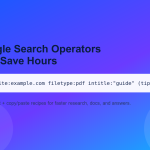
Google Search becomes dramatically more useful when you treat it like a “query language.” The goal is simple: reduce noise, increase signal.
Use operators to narrow results (the essentials)
These are the most practical operators you can use immediately:
- Exact phrase:
"machine learning roadmap" - Exclude a word:
jaguar -car(useful when words overlap) - Search within a site/domain:
site:support.google.com 2-step verification - Search specific file types:
filetype:pdf project management checklist - OR logic:
resume (template OR examples) filetype:pdf - Number ranges:
laptop $700..$900
Official operator guidance:
Refine Google searches and
Google Search operators (supported list).
Advanced Search page (fast filtering without memorizing operators)
When you’re researching or fact-checking, this page is a shortcut to filters like language, region, last update, and more:
Google Advanced Search.
Power workflow: “Research like a pro” in 3 searches
- Define the topic: search the exact phrase you want to understand:
"zero trust security" - Get authoritative sources: add a site filter:
site:.edu OR site:.gov "zero trust" - Get implementation detail: target PDFs or docs:
"zero trust" filetype:pdf framework
Bonus: Search smarter on mobile
- Use Search tools (date filters) after searching to focus on recent results.
- Use Google Lens to search from images/screenshots:
About Google Lens.
2) Google Photos: Organize, Backup, Protect
Google Photos is both a photo library and a memory engine. The biggest power-user shift is to treat it like a “system,” not just a gallery.
Set backup correctly (and avoid surprises)
Start with Backup settings so you know what’s uploaded and what stays local. Learn the official setup here:
Back up & sync in Google Photos.
Pro tips:
- Back up on Wi-Fi only if you want to control mobile data usage.
- Make sure you know which Google Account is backing up (especially if you use multiple accounts).
- Check storage status often:
Google One storage overview.
Locked Folder: keep private photos truly private
Not everything belongs in your main timeline. Locked Folder is protected by your device lock (and has its own rules). Official steps:
Hide sensitive photos & videos (Locked Folder).
Power warning: Locked Folder behaves differently than normal albums—read the help page carefully before you rely on it for critical backups.
Partner Sharing: effortless family sharing
If you regularly share photos with a spouse/partner, Partner Sharing is a set-it-and-forget-it win:
Set up partner sharing.
Albums, search, and organization shortcuts
- Create albums for “Projects,” “Receipts,” “Car Service,” “Documents,” etc.
- Use Photos search like a database—try searching “invoice,” “passport,” “temple,” “beach,” “screenshot,” etc.
- Share albums with link control:
Share photos & videos.
Free up space safely (the right way)
If your phone storage is full, use Google Photos’ built-in cleanup after confirming backups:
Free up space on your device.
Rule: If you’re not 100% sure the media is backed up, do not run space cleanup yet.
3) Google Drive: Faster Cloud Workflow
Drive becomes powerful when you standardize how you name files, organize folders, and share access.
Folder structure that scales (simple, effective)
Try this structure and adapt it:
- 00-Inbox (temporary holding)
- 10-Personal (IDs, certificates, finance)
- 20-Work (clients, proposals, invoices)
- 30-Content (blog, YouTube, thumbnails, scripts)
- 40-Apps (assets, releases, screenshots)
- 99-Archive
Shortcuts: stop duplicating files
Instead of copying files into multiple folders, use Drive shortcuts:
Create and manage Drive shortcuts.
Version history: undo mistakes like a pro
Accidentally overwrote something? Drive can keep versions for many files:
Check activity & file versions.
Recover deleted files (know the 30-day rule)
Deleted files go to Trash and can typically be restored for a limited time:
Recover a deleted file in Google Drive.
Offline mode (Drive on mobile)
For travel, weak networks, or “always-ready” access, mark important files offline:
Use Google Drive files offline (Android).
Sharing permissions: prevent “Oops, I shared everything”
Power users share by default with the minimum required access:
- Viewer for read-only
- Commenter for feedback without edits
- Editor only when collaboration is necessary
Official sharing guide:
Share files from Google Drive.
Pro tip: Periodically audit “Anyone with the link” files and tighten access for sensitive folders.
4) Security: Lock Down Your Google Account
Your Google Account is the key to Gmail, Photos, Drive, YouTube, Android backups, and more. If someone gets in, they don’t just steal data—they can reset passwords for other services.
Do Security Checkup (and make it a habit)
Google’s built-in checkup helps you review devices, recent activity, and risky settings:
Google Security Checkup.
Turn on 2-Step Verification (2FA)
2FA blocks most account takeovers. Official setup:
Turn on 2-Step Verification.
Best practice order:
- Enable 2FA
- Add backup methods (backup codes, secondary phone, etc.)
- Review account recovery options
Use passkeys for safer sign-ins
Passkeys can reduce phishing risk and make login faster:
Sign in with a passkey instead of a password.
Password Checkup: remove weak or compromised passwords
If you save passwords in Google Password Manager, run a checkup regularly:
Remove risky third-party access
Old apps and extensions are a common security leak. Review and remove access you no longer trust:
Manage third-party connections to your Google Account.
Advanced Protection (for high-risk users)
If you’re a journalist, public figure, business owner, or regularly targeted, consider Google’s strongest protection tier:
Advanced Protection Program.
Export your data (backup insurance)
For serious power users, keep periodic archives of your Google data:
Download your Google data (Takeout).
5) Android: Power, Privacy & Protection
Android is your daily control center. The “power user” approach is to set up safety nets once, then let them work silently.
Keep Play Protect enabled
Play Protect helps scan apps and warn you about harmful behavior:
Use Google Play Protect.
Find your device (and prepare before you lose it)
Most people try to set this up after they lose the phone—too late. Set it up now:
Be ready to find a lost Android device.
You can also use the official web tool:
Find / lock / erase an Android device.
Quick Share: faster file sharing across devices
Google and Samsung unified Nearby Share into Quick Share. Learn the Windows + Android flow here:
Quick Share for Windows
and the background announcement:
Google’s CES 2024 Android updates.
Emergency features: set them once
Android includes emergency settings that can help in real situations. Start here:
Get help during an emergency (Safety app).
Privacy checklist (fast wins)
- App permissions: remove “All the time” location access unless necessary.
- Lock screen: hide sensitive notifications if you’re often in public.
- Updates: keep Android and Play system updates current.
- Backups: confirm that device backup is enabled in Settings.
6) The 10-Minute Weekly Google Power Routine
Here’s a weekly routine that keeps you organized and secure without overthinking:
- Security Checkup: scan devices + recent events (2 minutes)
- Password Checkup: fix weak/compromised passwords (2 minutes)
- Drive audit: check recent files + “Shared with me” (2 minutes)
- Photos cleanup: confirm backup + run storage suggestions (2 minutes)
- Android safety: ensure Play Protect + Find device is enabled (2 minutes)
FAQs
1) What are the most useful Google Search operators for everyday use?
site:, quotes " ", minus -, filetype:, and OR cover most real-life needs. Start there, then add more only when needed.
2) Why do my backed-up Photos still take space on my phone?
Backup uploads your media, but your device may still keep local copies. Use “Free up space” only after confirming backups are complete.
3) What’s the safest way to share a Drive file?
Share with specific people and give the least access needed (Viewer/Commenter). Avoid “Anyone with the link” for sensitive content.
4) Should I use passkeys or 2-Step Verification?
Use both when possible. Passkeys can make sign-in safer and faster, while 2-Step Verification adds a strong fallback security layer and recovery options.
5) If I lose my Android phone, what should I do first?
Use Google’s Find device tool to locate, lock, or erase the phone. If you suspect theft, lock first, then change your Google password and review Security Checkup.
6) How do I remove access for apps I don’t trust anymore?
Go to your Google Account’s third-party connections page and remove access for apps/services you no longer use.
Key Takeaways
- Search operators like
site:andfiletype:turn Google into a precision tool. - Google Photos becomes easier when you combine Albums + Search + Locked Folder.
- Drive power comes from shortcuts, version history, offline files, and permission discipline.
- Security is non-negotiable: Security Checkup + 2FA + passkeys + password audits.
- Android protection is strongest when Play Protect and Find device features are enabled before trouble happens.
References
- Google Search: Refine searches with operators
- Google Developers: Search operators (supported)
- Google Photos: Locked Folder
- Google Photos: Partner sharing
- Google Photos: Free up space
- Google Drive: Share files
- Google Drive: File versions
- Google Drive: Offline files (Android)
- Google Account: Security Checkup
- Google Account: 2-Step Verification
- Google Account: Passkeys
- Google Password Manager
- Google Takeout: Download your data
- Android: Google Play Protect
- Android: Find/Lock/Erase device
- Google Blog: Android updates (CES 2024)
- Android.com: Quick Share app for Windows
- Android Safety app: Emergency features