Last updated: January 7, 2026
- Table of Contents
- What are Google search operators?
- Quick rules (so operators actually work)
- 1) Don’t put a space after an operator
- 2) Put multi-word phrases in quotes
- 3) Use OR (uppercase) when you mean “either”
- 4) Combine operators to laser-focus results
- 5) Expect exceptions
- Operator cheat sheet (the time-savers)
- 10 ready-to-use search recipes
- 1) Find an official PDF guide on a topic
- 2) Search only within one website (docs, blog, or a portal)
- 3) Find a company’s pricing / plans page faster
- 4) Locate a template that’s usually in DOCX
- 5) Get more relevant results by forcing exact wording
- 6) Remove distracting results (brands, meanings, or topics)
- 7) Find a page likely to be a guide (by title)
- 8) Find documentation pages quickly (by URL patterns)
- 9) Discover policy pages (privacy, returns, terms)
- 10) Filter numeric ranges (prices, years, specs)
- Bonus: Google Images operators
- Search by date with before: / after:
- What changed (the cache: operator is gone) + modern alternatives
- Use Google Advanced Search (when you don’t want to memorize)
- Key Takeaways
- FAQs
- Do Google search operators still work in 2026?
- Why does site: sometimes show fewer pages than I expect?
- What’s the fastest way to find downloadable resources?
- Is there a “best” order for operators in a query?
- How do I search academic or patent sources faster?
- Can operators help with trend research?
- References & further reading
Most people “search.” Power users command search.
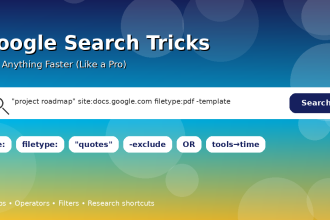
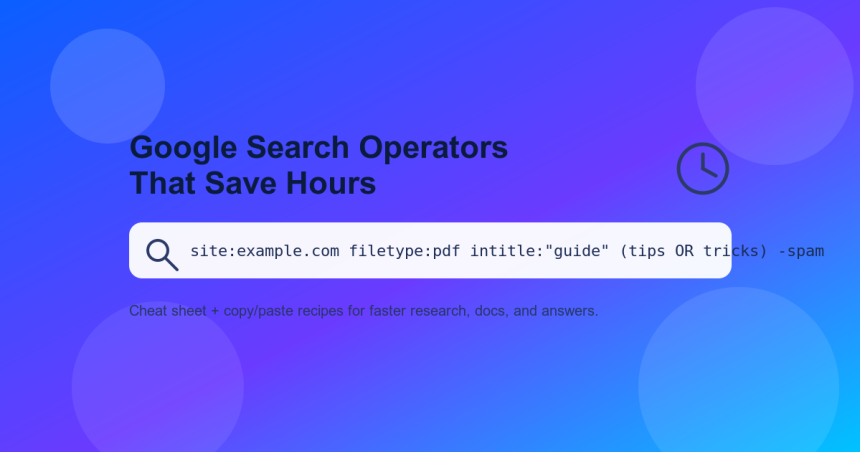
Google search operators are tiny modifiers—like site:, quotes, and minus signs—that turn vague browsing into precise retrieval.
When you learn a handful of them, you stop scrolling and start landing directly on the right page, PDF, statistic, or official doc.
In this guide, you’ll get a clean cheat sheet, practical “copy/paste” search recipes, and a few important caveats (including which operators no longer work).
Table of Contents
- What are Google search operators?
- Quick rules (so operators actually work)
- Operator cheat sheet (the time-savers)
- 10 ready-to-use search recipes
- Bonus: Google Images operators
- Search by date with before: / after:
- What changed (cache: is gone) + modern alternatives
- Use Google Advanced Search (when you don’t want to memorize)
- Key Takeaways
- FAQs
- References & further reading
What are Google search operators?
A search operator is a special symbol or keyword you add to a Google query to filter results.
Instead of searching broadly (and hoping Google guesses your intent), operators let you specify:
- Where to search (a specific site or domain)
- What format to search (PDF, PPT, DOCX)
- What to include/exclude (exact phrases, unwanted words)
- Where the words must appear (title, URL, body text)
- When content should be from (date filtering)
Google officially supports multiple operators and notes that results can be constrained by indexing/retrieval limits—so treat operators as precision tools, not perfect guarantees.
(That’s especially true for large sites and broad queries.)
If you want Google’s own starting point for basic operator usage, see:
Google Search Help: refine web searches.
Quick rules (so operators actually work)
1) Don’t put a space after an operator
✅ site:example.com ❌ site: example.com
2) Put multi-word phrases in quotes
Use quotes to force an exact phrase match:
"project scope document"
3) Use OR (uppercase) when you mean “either”
If you want results containing either of two terms:
resume OR CV
4) Combine operators to laser-focus results
This is where the time savings explode:
site:yourcompetitor.com filetype:pdf "pricing"
5) Expect exceptions
Some operators are officially documented; others are widely used but can be inconsistent.
Also, certain features (like Google’s cached pages) have changed over time—so keep an eye on what still works.
Operator cheat sheet (the time-savers)
Below are the operators that most reliably save hours.
I’m including practical examples you can copy, plus what each one is best for.
| Operator | Example | Best for |
|---|---|---|
"..." (quotes) | "return policy" | Exact phrase matching (contracts, definitions, quotes, product names) |
- (minus) | jaguar -car | Exclude noisy meanings, brands, or topics you don’t want |
OR | beginner OR "getting started" | Include alternatives (synonyms, variants, regional terms) |
() (grouping) | (resume OR CV) template | Combine logic cleanly, especially with OR |
* (wildcard) | "best * for remote work" | Unknown word in a phrase; pattern-like searching |
site: | site:developers.google.com "Search Console" | Search within one site (docs, blogs, competitors, government portals) |
filetype: | onboarding checklist filetype:pdf | Find PDFs, PPTs, DOCX, XLSX—often higher-quality references |
intitle: | intitle:"annual report" 2025 | Pages that mention your term in the title (good for official docs & guides) |
inurl: | inurl:pricing "team plan" | Pages whose URL contains a term (pricing, docs, blog, support) |
intext: | intext:"terms and conditions" template | Pages that contain a term in the body text |
.. (number range) | laptop 60000..80000 | Price/spec ranges, years, numeric filtering |
Important note about site: and large sites
Google itself notes that site: results are not always exhaustive (especially on bigger sites), so use it as a discovery tool—not a perfect “all pages” audit.
If you’re a site owner, Google recommends Search Console tools for deeper verification.
Official doc: Google Search Central: site: operator
Official note about filetype:
Google documents that filetype: can limit results to specific formats and provides examples.
See:
File types indexable by Google + filetype: usage
10 ready-to-use search recipes
These are the “copy/paste” searches that save real time in work and research.
Replace the placeholders like example.com or your topic.
1) Find an official PDF guide on a topic
"your topic" filetype:pdf
2) Search only within one website (docs, blog, or a portal)
site:example.com "your phrase"
3) Find a company’s pricing / plans page faster
site:example.com (pricing OR plans OR "price")
4) Locate a template that’s usually in DOCX
(template OR sample) "your document type" filetype:docx
5) Get more relevant results by forcing exact wording
"exact term you keep missing"
6) Remove distracting results (brands, meanings, or topics)
your keyword -unwanted -anotherunwanted
7) Find a page likely to be a guide (by title)
intitle:(guide OR tutorial OR handbook) "your topic"
8) Find documentation pages quickly (by URL patterns)
(your topic) (inurl:docs OR inurl:documentation OR inurl:help)
9) Discover policy pages (privacy, returns, terms)
site:example.com (inurl:privacy OR inurl:terms OR inurl:return)
10) Filter numeric ranges (prices, years, specs)
your product 2022..2026
your product 10..20 "kg"
Bonus: Google Images operators
If you search a lot of visuals, Google has dedicated operators for Google Images.
Two useful ones are:
imagesize:to find images of specific dimensionssrc:to find pages that reference a specific image URL
Official documentation:
Google Images search operators (imagesize:, src:)
You can also use:
Google Advanced Image Search
to filter by size, aspect ratio, file type, region, and usage rights.
Search by date with before: / after:
When you’re researching “what changed,” date filters can be a cheat code.
Use:
after:YYYY-MM-DDbefore:YYYY-MM-DD
Examples:
"your topic" after:2025-01-01
"your topic" after:2025-01-01 before:2025-12-31
Tip: If you don’t want to type dates, Google’s UI filter still helps—use “Tools” on the results page and choose a time range.
Background explainer:
Search Engine Land: before: and after: search commands
What changed (the cache: operator is gone) + modern alternatives
For years, people used cache: to view Google’s cached copy of a page.
That era is over: Google retired the cache feature and the cache: operator no longer works.
Modern alternatives that still save time:
- Internet Archive’s Wayback Machine
(best for older snapshots of pages) - Google’s “About this result / About this page” info panels (helpful for source context)
- If you own the site: use Google Search Console tools for diagnostics
More context:
Search Engine Land: cache feature killed
|
Search Engine Journal: cache documentation removed
Use Google Advanced Search (when you don’t want to memorize)
If you like the power of operators but prefer a form UI, Google’s Advanced Search lets you set many filters without typing commands.
It’s especially useful for:
- Exact phrases
- Excluding words
- Language and region filters
- Last update/time filters
- File type filters
Try it here:
Google Advanced Search
Key Takeaways
- Start with the big three: quotes (
"..."), exclude (-), andsite:. - Use
filetype:to jump straight to high-signal PDFs, PPTs, and DOCX files. - Combine operators (especially
()+OR) to avoid wasting time on irrelevant results. - Filter by date with
before:/after:when researching changes over time. - Remember limitations: results aren’t always exhaustive—operators refine, they don’t guarantee completeness.
FAQs
Do Google search operators still work in 2026?
Yes—many do, especially quotes, minus, site:, and filetype:.
But Google evolves continuously, and a few features have been retired (for example, cache:).
When an operator behaves inconsistently, try Google Advanced Search or adjust your query to be more specific.
Why does site: sometimes show fewer pages than I expect?
Because site: results are not guaranteed to be exhaustive—especially for large websites.
Use it for discovery and spot-checking, not as a perfect “index count.”
If you manage the site, Search Console is a better verification tool.
What’s the fastest way to find downloadable resources?
Use filetype: with a topic keyword:
your topic filetype:pdf
or
your topic filetype:pptx.
Many courses, universities, and organizations publish downloadable materials in these formats.
Is there a “best” order for operators in a query?
Not strictly, but a practical habit is:
main topic → exact phrase → site/filetype filters → exclusions.
Example:
"incident response checklist" filetype:pdf site:.edu -template
How do I search academic or patent sources faster?
Use dedicated verticals:
Google Scholar
and
Google Patents.
Then apply your normal keyword precision and phrase searching there too.
Can operators help with trend research?
Yes—combine operator searches with:
Google Trends
and set up monitoring via:
Google Alerts.
References & further reading
- Google Search Help: refine web searches (operators)
- Google Search Central: debugging with search operators
- Google Search Central: site: operator documentation
- Google Search Central: indexable file types + filetype:
- Google Images operators: imagesize: and src:
- Google Advanced Search
- Google Advanced Image Search
- Google blog: improvements to quoted searches
- Search Engine Land: before:/after: date search
- Search Engine Land: cache feature retirement
- Search Engine Journal: cache documentation removed
- Internet Archive: Wayback Machine
- Google Search Console
- Google Scholar
- Google Patents
If you want to go even deeper, bookmark this page and build your own mini “operator playbook” of searches you repeat weekly.
That’s where the compounding time savings come from.